Video editing is one of the most physically demanding desk jobs there is. Long timelines, color panels, multiple monitors, shuttle controllers — the repetitive micro-movements of scrubbing frames, nudging clips, and navigating nested menus accumulate into carpal tunnel, wrist tendinitis, and neck strain over months. In 2026, editor communities on Reddit and professional forums consistently surface the same complaints: wrist pain from mouse overuse, neck strain from poorly placed displays, and back fatigue from sessions that stretch well past eight hours.
The problems aren’t new. The solutions, at least, are better than ever.
This guide covers the specific gear that addresses editor-specific strain points — and the habits that protect you between upgrades. If you’re short on time: start with the Ergotron LX Dual Monitor Arm and the Contour ShuttlePRO v2. These two changes remove the two biggest sources of editor-specific strain — awkward monitor positioning and timeline mouse overuse.
| Product | Price | Category | Rating |
|---|---|---|---|
| Ergotron LX Dual Monitor Arm | $324.99 as of Oct 18, 2026 | Monitor arm | 9.3/10 |
| Logitech MX Master 3S | Unavailable | Ergonomic mouse | 9.0/10 |
| Logitech MX Ergo S Trackball | $90.67-$99.99 as of Oct 18, 2026 | Trackball | 8.7/10 |
| Contour ShuttlePRO v2 | $109.00 as of Oct 18, 2026 | Editing controller | 8.8/10 |
| HyperX Wrist Rest Full Size | $18.84-$22.99 as of Oct 18, 2026 | Wrist rest | 8.2/10 |
| Ergodriven Topo Anti-Fatigue Mat | $109.00 as of Oct 18, 2026 | Standing mat | 9.0/10 |
| FlexiSpot E7 Pro Standing Desk | Unavailable | Standing desk | 9.1/10 |
Ergotron LX Dual Monitor Arm
Ergotron LX Dual Monitor Arm
Pros
- ✓ Constant Force gas spring enables smooth, one-finger repositioning
- ✓ Frees up significant desk space for keyboard and shuttle controller
- ✓ Full tilt, pan, and rotation adjustment per screen independently
- ✓ 10-year warranty is best-in-class for monitor arms
Cons
- ✗ Only supports monitors up to 27 inches per arm
- ✗ Premium price compared to budget dual arms
- ✗ Clamp can leave marks on some desk surfaces
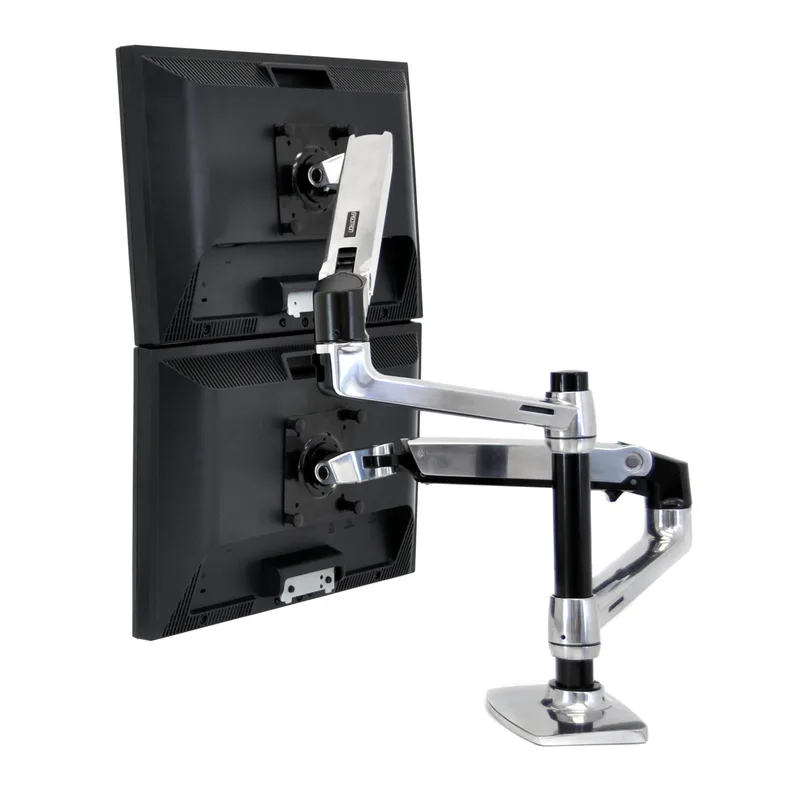
Most editors work with at least two screens — a primary editing display and a reference monitor, client preview, or scopes display. Standard setups on risers or desk stands lock both screens at the same height and angle, which rarely matches what your body actually needs across a full day.
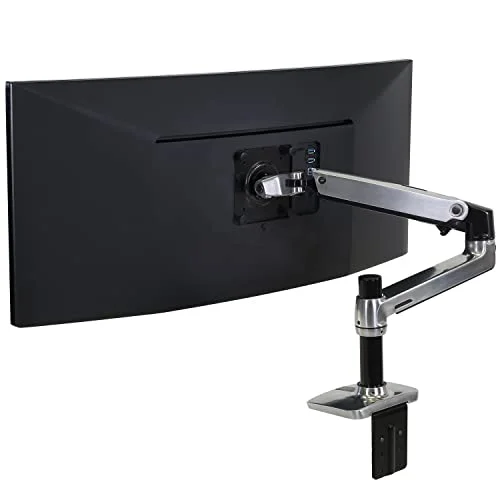
The Ergotron LX Dual Monitor Arm solves this with independent gas-spring arms for each screen. Each arm supports monitors up to 27 inches and repositions silently with one finger. Pull the reference monitor close when reviewing color. Swing it back when you’re not using it. Tilt either screen to cut glare from overhead lights without disturbing the other.
Editors evaluating monitor arms for standing desks consistently rank the LX series for reliability and adjustment smoothness. The 10-year warranty backs that up — no other dual arm at this price point comes close on after-purchase support.
One limitation worth knowing: 27-inch max per arm. If you run an ultrawide alongside a standard display, you’ll need the Ergotron LX HD arm for the larger screen and a separate single arm for the secondary.
Best for: Editors with two standard displays who want full, independent positioning flexibility without a cluttered desk.
Logitech MX Master 3S
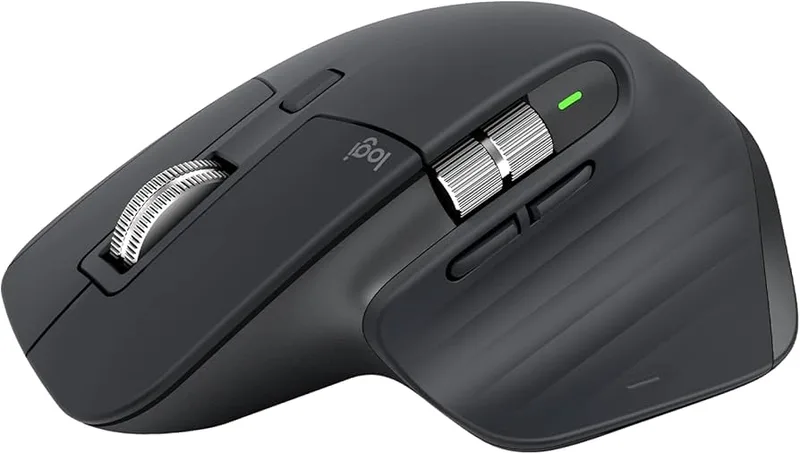
Logitech MX Master 3S
Pros
- ✓ MagSpeed scroll wheel ideal for timeline scrubbing and long-form review
- ✓ Ergonomic thumb rest reduces forearm fatigue over marathon sessions
- ✓ Quiet clicks avoid disrupting audio monitoring
- ✓ Multi-device connectivity — switch between edit workstation and laptop
Cons
- ✗ Right-hand only — no left-handed version available
- ✗ Requires Logitech Options+ software for full button customization
- ✗ Heavier than standard mice at 141g
The MX Master 3S earns its reputation for video editors primarily through one feature: MagSpeed electromagnetic scroll. The wheel switches between precise ratchet-click mode for frame-by-frame work and frictionless freewheeling mode that flies through a thousand frames in a second. For browser-based review tools and long timelines in Premiere or Resolve, this feature alone justifies the upgrade.
The ergonomic thumb shelf positions the hand at a natural 57° angle, reducing the forearm rotation that builds into wrist strain over long sessions. Owner reports on Amazon and editing communities consistently mention reduced end-of-day discomfort after switching from flat mice.
For shared editing bays or rooms with audio monitoring, the quiet click design is a practical benefit — no mouse clacking during voice-over review or client playback sessions.
The right-hand-only design is the primary limitation. Left-handed editors will need to look at alternatives like the ergonomic mice options covered in this guide.
Best for: Right-handed editors who want an ergonomic mouse upgrade without switching to a trackball.
Logitech MX Ergo S Trackball
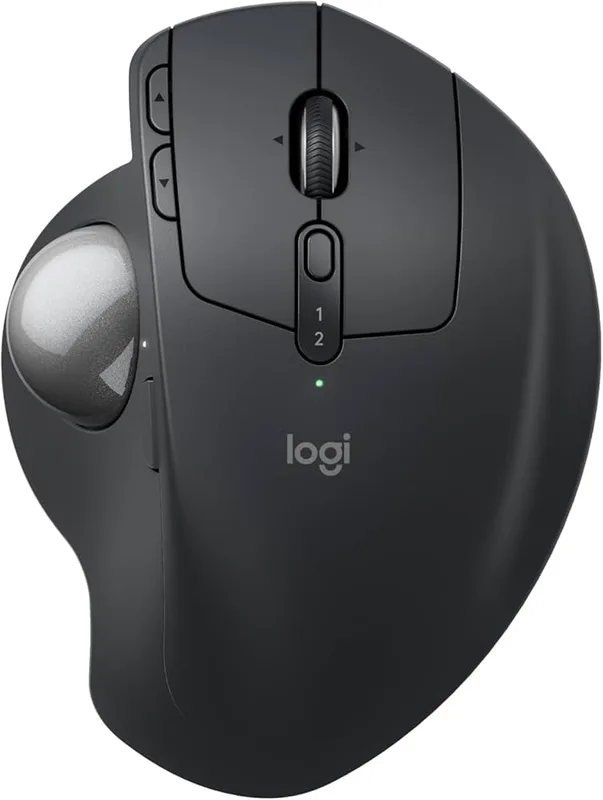
Logitech MX Ergo S Trackball
Pros
- ✓ Hand stays stationary — near-zero arm and wrist movement required
- ✓ 20° tilt reduces forearm pronation and wrist strain significantly
- ✓ Up to 4 months battery life — won't die mid-session
- ✓ Smooth precision ball suits frame-by-frame navigation
Cons
- ✗ Requires 1–2 week adaptation period before feeling natural
- ✗ Lower max DPI than MX Master 3S
- ✗ Trackball collects dust and needs periodic cleaning
If wrist pain is already present, a trackball is often the single most effective ergonomic intervention available. Where a mouse requires moving the entire arm to cover screen distance, a trackball keeps the hand completely stationary — only the thumb moves.
The MX Ergo S is the current standard for professional-grade trackballs. The adjustable 20° hinge lets you set the tilt angle that feels most natural; ergonomics research consistently shows that tilted hand positions reduce forearm pronation and the muscle strain associated with it. Up to four months of battery life means the device won’t die mid-deadline.
For editors dealing with repetitive strain or wrist pain, the trackball’s zero-arm-movement design addresses the root cause more directly than any ergonomic mouse shape. The tradeoff is real: most users report two weeks before trackball use feels natural, and a month before speed matches a standard mouse. After that, most don’t go back.
For a full comparison of trackball options across price points, the best ergonomic trackballs guide covers the field in more depth.
Best for: Editors with existing wrist pain, carpal tunnel symptoms, or anyone doing prevention work for RSI.
Contour ShuttlePRO v2
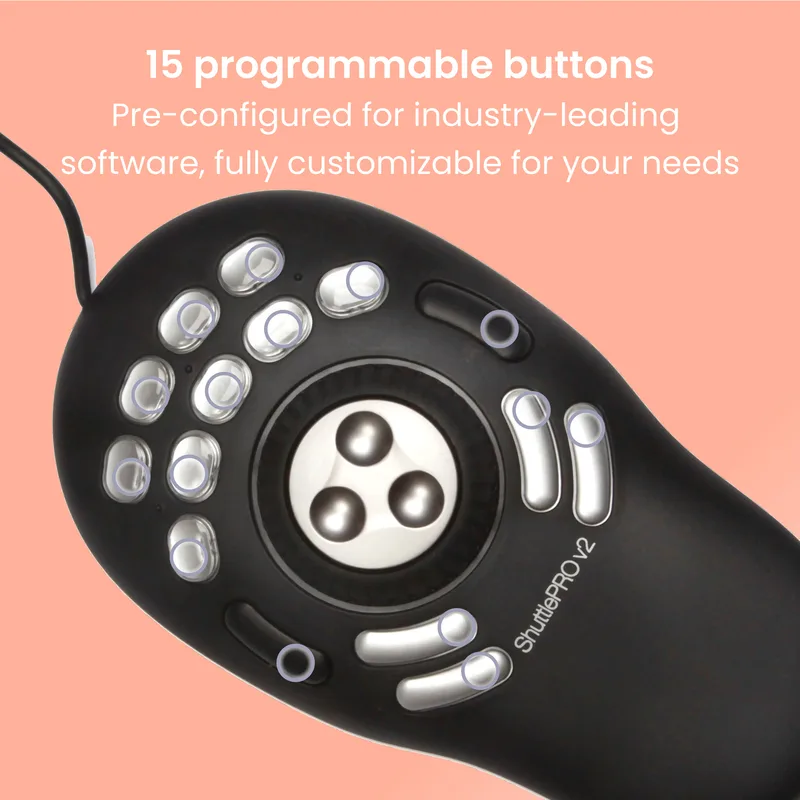
Contour ShuttlePRO v2
Pros
- ✓ Jog wheel handles timeline scrubbing — reduces mouse movement dramatically
- ✓ 15 programmable buttons eliminate constant keyboard reaches
- ✓ Ships with presets for Premiere, DaVinci Resolve, Avid, and FCPX
- ✓ Left-hand use frees dominant hand for mouse precision work
Cons
- ✗ USB-A connector requires adapter for USB-C MacBooks
- ✗ Button programming has a learning curve
- ✗ Bulky footprint — less convenient for laptop-based setups
This is the one piece of editing-specific gear that most editors don’t own but should. The ShuttlePRO v2 is a USB multimedia controller with an outer shuttle ring, an inner jog wheel, and 15 programmable buttons — designed specifically for the motions that editing demands.
The jog wheel scrubs timelines frame by frame with the left hand while the right hand stays on the mouse for precision work. The outer shuttle ring controls playback speed: slight rotation for slow scrubbing, full rotation for fast-forward. Combined, they handle most timeline navigation without touching the mouse at all.
Editor communities on r/premiere and r/VideoEditing consistently recommend the ShuttlePRO as the first accessory purchase after the NLE itself. It ships with preset profiles for Premiere, DaVinci Resolve, Final Cut Pro X, Avid, and over 100 other applications — setup takes under 15 minutes.
The USB-A connector needs an adapter for newer USB-C-only MacBooks. A minor friction point for what is otherwise a highly effective ergonomic tool. This is different from what software developers typically need — if your work combines coding and editing, the ergonomics guide for software developers covers the developer-specific tools.
Best for: Any editor who spends significant time scrubbing timelines, especially on long-form content.
HyperX Wrist Rest – Full Size
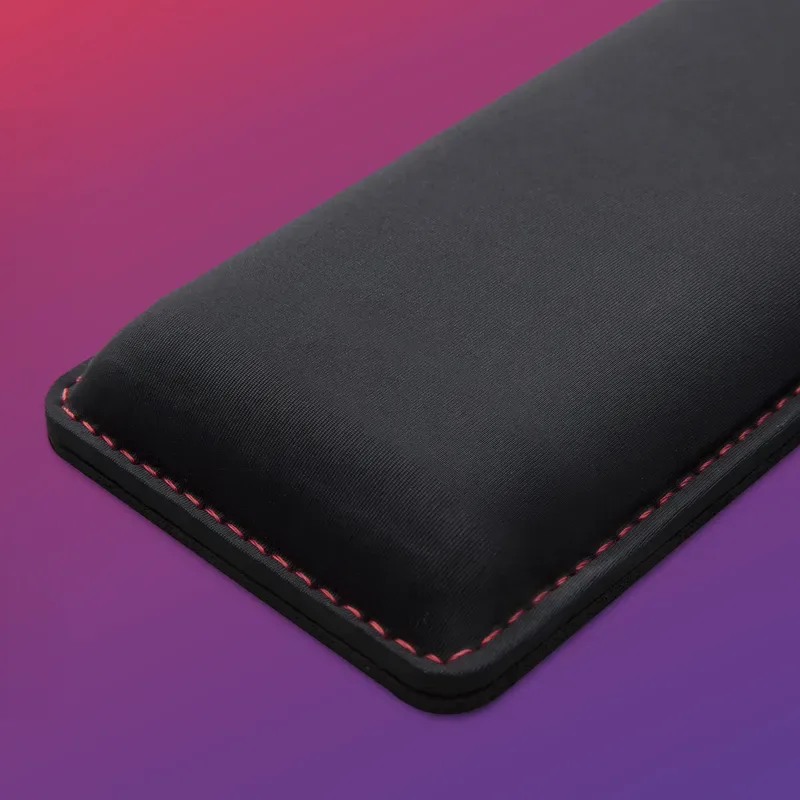
HyperX Wrist Rest – Full Size
Pros
- ✓ Cooling gel prevents heat buildup during marathon edit sessions
- ✓ Memory foam contours to wrist shape without bottoming out
- ✓ Non-slip rubber base stays in position under heavy keyboard use
- ✓ Works for both keyboard wrist and mouse wrist support
Cons
- ✗ Leatherette surface shows wear after extended daily use
- ✗ Non-removable cover is not machine washable
- ✗ Not ideal for editors with very small wrists
A wrist rest isn’t a fix for poor posture — it’s a cushion for the moments when wrists do contact the desk surface during keyboard shortcuts and timeline navigation. Reducing that contact pressure over an eight-hour session adds up.
The HyperX Full Size delivers the basics reliably: cooling gel memory foam that conforms to wrist shape without bottoming out, a leatherette cover that wipes clean, and a non-slip rubber base that stays in position under the keyboard regardless of how aggressively you work.
At $20, it’s a low-cost addition with a clear benefit for anyone whose wrists touch the desk surface during editing. For more wrist support options across materials and price points, the best wrist rests for mechanical keyboards guide covers the range in depth.
The leatherette shows wear after a year or two of heavy daily use, and the non-removable cover means you can’t machine-wash it — a common complaint in owner reviews.
Best for: Editors who notice wrist fatigue or contact pressure during or after long sessions.
Ergodriven Topo Anti-Fatigue Mat
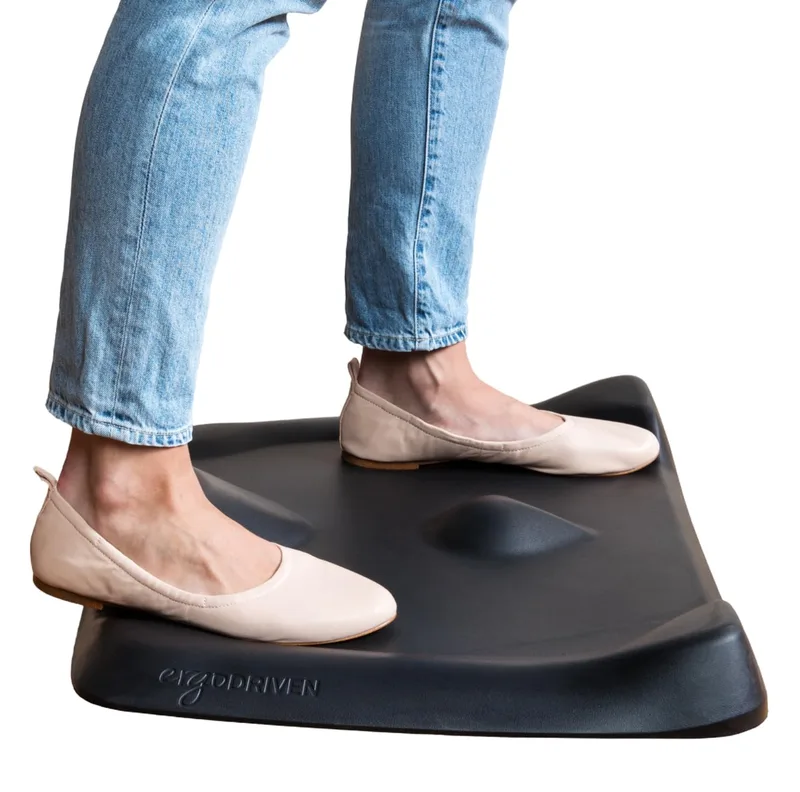
Ergodriven Topo Anti-Fatigue Mat
Pros
- ✓ Multi-height terrain encourages constant micro-movements while standing
- ✓ Reduces leg and lower back fatigue during standing sessions
- ✓ Foot ramp and toe bar enable active foot positioning
- ✓ 7-year warranty — far outlasts kitchen-grade flat mats
Cons
- ✗ Higher price point than basic flat anti-fatigue mats
- ✗ Larger footprint requires desk placement planning
- ✗ Terrain surface can feel unfamiliar for first week of use
A standing desk only helps if you can stand on it comfortably. A flat anti-fatigue mat is better than standing on hardwood, but the Topo’s contoured terrain is a meaningful step further. The multi-height surface with a raised ridge and toe ramp encourages subtle, constant foot movement — shifting weight, rocking heel-to-toe, and using the ridge for passive calf engagement.
That movement matters for circulation. Static standing on a flat surface deactivates the leg muscles that pump blood back toward the heart. The Topo’s terrain keeps those muscles working passively without requiring any conscious effort.
Editors who stand during render waits, audio review, and rough-cut playback report significantly less lower-back fatigue with the Topo versus flat mats. The PVC-free construction and 7-year warranty make it a long-term purchase. Our full anti-fatigue mat guide compares more options across price points.
Best for: Anyone using a standing desk for more than 60 minutes a day.
FlexiSpot E7 Pro Standing Desk
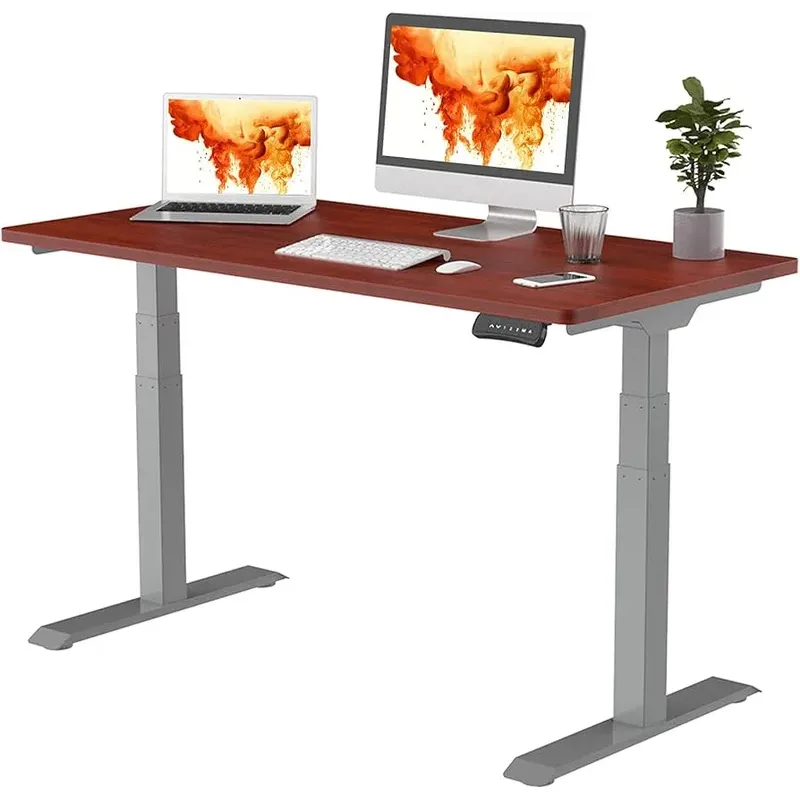
FlexiSpot E7 Pro Standing Desk
Pros
- ✓ 355 lb capacity supports dual monitors, audio interface, and peripherals
- ✓ Whisper-quiet dual motors won't interrupt audio monitoring
- ✓ Four programmable presets switch sitting and standing positions instantly
- ✓ Anti-collision sensors prevent gear damage during desk movement
Cons
- ✗ Frame only — desktop must be purchased separately
- ✗ Assembly takes 45–60 minutes
- ✗ No built-in cable management tray included
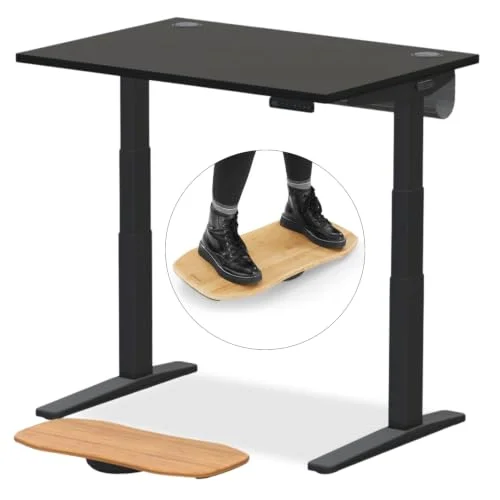
A standing desk earns its place in an editing setup specifically because of the posture reset it enables during passive work: render waits, client playback review, audio passes. You don’t need to stand all day — 20 to 30 minutes per hour delivers circulation benefits without fatigue.
The E7 Pro is a dual-motor frame we’d recommend at this price tier. The 355 lb weight capacity handles a dual-monitor arm setup, audio interface, shuttle controller, speakers, and full accessory load without wobble or stability concerns. The whisper-quiet motors won’t interrupt audio monitoring when you switch positions. Four programmable height presets switch between sitting and standing in under five seconds without touching a dial.
Note: the E7 Pro is a frame-only purchase — budget an additional $80–$150 for a quality laminate desktop in your preferred dimensions. For a full comparison of standing desk options including bundle deals, the best standing desks guide covers the full field.
For dual-monitor-specific desk considerations, the ergonomic dual-monitor setup guide covers desk width, weight capacity, and monitor arm compatibility in more detail.
Best for: Editors building a new workstation or replacing an existing fixed-height desk.
Ergonomic Habits That Matter as Much as Gear
The gear is only part of the equation.
The 20-8-2 rule. For every 30 minutes of desk time: 20 minutes sitting, 8 minutes standing, 2 minutes moving. Set a simple timer during renders or client review sessions. Even standing without movement is significantly better than four unbroken hours of sitting.
Monitor distance and height. Primary display should be roughly arm’s length away — 24 to 28 inches — with the top third of the screen at or slightly below eye level. Dual monitors should be angled symmetrically toward your nose. Avoid placing the secondary display at 90° from the primary if you use it frequently — sustained neck rotation to the side is a fast path to cervical strain.
Elbow angle. Keyboard should be positioned so elbows rest at approximately 90°, with forearms parallel to the floor. If the keyboard is too high, shoulders creep upward and generate trapezius tension across the upper back.
Break habits. The best stretches for desk workers take under five minutes. Wrist circles, shoulder rolls, and a doorframe chest opener every hour counteract the forward-folded posture that editing naturally encourages.
Audio monitoring posture. Editors frequently lean toward speakers during audio review — an understandable instinct that generates cumulative spine load. Move the speakers closer, or use headphones, rather than leaning forward.
Buying Guide: What to Prioritize by Budget
No budget: Fix monitor height first. Stack books under your display until the top edge sits at eye level. Free. Immediate noticeable difference.
$25–$50: Wrist rest and possibly a mouse pad with cushion. Low cost, reduces daily contact pressure on wrists.
Under $100: Either the Contour ShuttlePRO v2 (if timeline scrubbing is your primary strain point) or the Logitech MX Master 3S (if you want a better primary mouse). If you have existing wrist pain, the MX Ergo S trackball at this price is the higher-impact choice.
$200–$300: A dual monitor arm. Biggest single ergonomic improvement for multi-screen editors. Unlocks full independent positioning for each display.
$500+: A standing desk frame. Changes your entire workday relationship with sitting. Long payback period but the right long-term investment.
FAQ
Do video editors really need different gear than office workers?
Yes. Video editors typically operate two or more displays at different positions, use dedicated editing controllers, and perform highly repetitive micro-movements — frame scrubbing, clip nudging, nested menu navigation — that differ substantially from general keyboard and mouse use. The gear most relevant to editing strain (shuttle controllers, trackballs, dual monitor arms) is rarely on standard office ergonomics lists.
Is a standing desk actually useful for editing?
Most useful during passive work — watching rough cuts, client playback, audio review — when you’re not actively at the keyboard or mouse. Standing during render waits and review sessions breaks the continuous sitting pattern without interrupting active editing flow.
What’s the fastest way to reduce wrist pain as an editor?
Add a shuttle controller. The Contour ShuttlePRO v2 moves the bulk of timeline navigation to a dedicated device controlled by your non-dominant hand, dramatically reducing the number of mouse movements your dominant wrist makes per session. For existing wrist pain, switch to a trackball simultaneously and consult the wrist pain prevention guide for additional steps.
How should I position dual monitors?
Both screens at the same height. Primary display directly in front of your nose. Secondary display to the side at a comfortable angle — 30 to 45 degrees. If you split time equally between both screens, center the bezel gap at your nose. Avoid placing the secondary at 90° or behind the primary — sustained lateral neck rotation creates cervical strain within weeks.
Do I need a trackball or an ergonomic mouse?
If you’re already experiencing wrist or forearm pain, a trackball. The MX Ergo S addresses the root cause — arm movement — more directly than any ergonomic mouse shape. If you’re doing prevention work without existing pain, the MX Master 3S is more practical for most users because it requires no adaptation period.
What chair should I use for video editing?
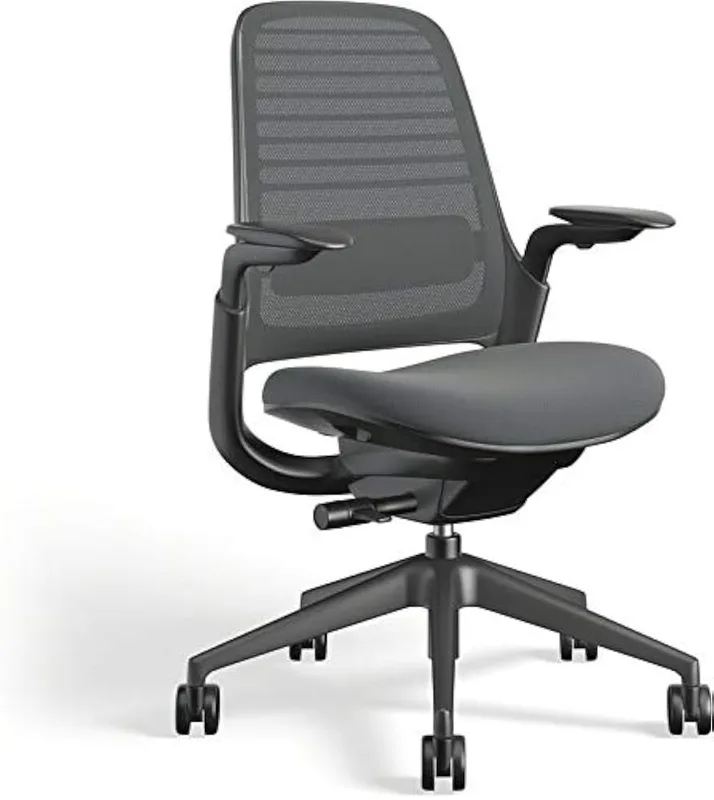
Any chair with lumbar support, seat height adjustment, and 4D armrests covers the basics. The armrest support matters more for editors than for most desk workers — your elbows need support during long mouse-intensive sessions. The ergonomic chairs for back pain guide covers options across price points from $200 to $1,500.
Conclusion
The ergonomic investments that move the needle for video editors are more specific than standard office recommendations. Monitor positioning and timeline navigation tools — a quality dual monitor arm and a shuttle controller — address the editing-specific motions that drive the most common injuries.
Start there. Add a trackball if wrist pain is already present. Upgrade to the MX Master 3S if you want a better everyday mouse without a learning curve. Add a standing mat when you have a standing desk. The wrist rest is a $20 decision worth making regardless.
The equipment you’re protecting is what you use to earn a living.
Top picks by priority:
- Best overall investment: Ergotron LX Dual Monitor Arm — $189
- Best for wrist pain: Logitech MX Ergo S Trackball — $99
- Best editing-specific tool: Contour ShuttlePRO v2 — $99
- Best long-term workstation investment: FlexiSpot E7 Pro — $499