Dual monitors are supposed to make you more productive. And they do — studies have shown productivity gains of up to 43% compared to single-monitor setups. But here’s the catch: if your screens are in the wrong position, you’ll be trading a stiff neck for the extra spreadsheet space. In 2026, with the ongoing debate about whether dual monitors or a 34-inch ultrawide is better for your body (more on that shortly), getting the ergonomic setup right matters more than ever.
The most common dual-monitor mistake is treating both screens as equals and putting them side by side, centered on the desk. Sounds logical. Creates neck problems. The right approach depends on how you use them and which one is your primary.
Quick pick: If you just want an arm to make this easier, the Ergotron LX Dual is the one to buy. If the $289 price is hard to swallow, the VIVO STAND-V002O does the job for $40.
The Ergonomic Problem with Dual Monitors
A 2026 study from the University of Arkansas found that dual-monitor setups impose higher biomechanical strain than single-monitor alternatives — specifically measuring elevated neck rotation and shoulder tension compared to a 34-inch ultrawide at the same desk. The ultrawide, in that study, performed similarly to a single-monitor setup in terms of neck load.
This doesn’t mean dual monitors are bad. It means dual monitors that are set up carelessly are bad. The reason the study found higher strain is almost certainly because most users don’t adjust their monitor arms — they just plop two screens side-by-side and call it done. The result is constant neck rotation throughout the day.
Done correctly, dual monitors can be close to as ergonomic as a single screen. Done wrong, they’re a slow route to chronic neck and shoulder pain.
Primary vs. Secondary Monitor Positioning
This is the single most important decision in a dual-monitor setup.
If you have one dominant screen (you spend 70%+ of your time on one monitor), set it up exactly like a single monitor — centered directly in front of you, at eye level, at arm’s length. The secondary monitor goes to your non-dominant side at a 30–45 degree angle. You glance at it occasionally; your neck only rotates when needed.
If you split time roughly equally between both screens (video editor with timeline on one, preview on another; developer with code on one, documentation on the other), place both screens directly in front of you as a pair, with the seam between them at your nose’s centerline. You’ll be rotating your neck toward each screen equally throughout the day.
The wrong setup: putting a dominant primary monitor at 45 degrees to the side of center. You’ll spend all day looking left or right. Even 15 degrees of sustained neck rotation over an 8-hour day adds up to significant tension.
Monitor Height: Where Should the Top of the Screen Be?
The standard recommendation for a single monitor is to position the top of the screen at eye level, so your gaze naturally falls to the center of the screen slightly downward. This is easier on your neck than looking up.
For dual monitors, this rule applies to both screens — they should be at the same height as each other unless there’s a strong reason otherwise.
Practical height targets:
- Seated: Top of screen at or slightly below eye level (the monitor center is at approximately a 15° downward gaze angle)
- Standing at a standing desk: Same rule applies — eyes level with the top third of the screen
- If you wear bifocals: Lower your monitors by 1–2 inches from the standard recommendation to avoid tilting your head back
The most common error is having monitors too high, which forces you to look up all day. This is especially common at sit-stand desks, where users raise the desk for standing but forget to lower the monitors back to the correct position.
Viewing Distance: How Far Should the Screens Be?
The general rule is arm’s length — roughly 20–30 inches from your eyes. But this varies by monitor size:
| Monitor Size | Recommended Distance |
|---|---|
| 24 inches | 20–24 inches |
| 27 inches | 23–28 inches |
| 32 inches | 28–35 inches |
| 34–40 inch ultrawide | 30–40 inches |
If you find yourself leaning forward to read text, don’t move the monitor closer — increase your system font size or browser zoom level instead. Moving a monitor closer to compensate for small text pushes it inside the recommended distance and increases eye strain.
For dual-monitor setups where both screens are angled toward you, the viewing distance is measured from eye to the center of each screen — not to the screen closest to you.
Tilt and Rotation: Getting the Angles Right
Tilt: Angle monitors back 10–20 degrees from vertical (top of screen tilted slightly away from you). This keeps your viewing angle consistent and reduces glare from overhead lights.
Rotation for angled secondary monitors: If your secondary monitor is offset to the side, it should be rotated to face you — angled inward so that the center of the screen is perpendicular to your line of sight when you look at it. A monitor placed at 45 degrees to the side should also be rotated 45 degrees to face you. Most users rotate their side monitor too little.
Neck rotation limit: You should not have to rotate your neck more than 35 degrees to comfortably view your secondary monitor. If your monitor is positioned further than 35 degrees from center, move your chair or the monitor.
Monitor Arm vs. Monitor Stand: Which Is Better for Ergonomic Dual Setups?
Short answer: monitor arms are better for ergonomics. The reason is adjustability.
Monitor stands are fixed height. If you’re at the wrong height, you adapt — which usually means slouching, craning, or tilting your head. A monitor arm lets you dial in the exact correct position for your height, chair, and desk combination.
For dual monitors specifically, a dual monitor arm (two arms on one pole/clamp) is cleaner than two separate single arms and makes height matching between screens much easier. It also frees up significant desk real estate underneath the monitors.
The only real case for sticking with stands: if you literally never change your setup and both monitors happen to be at the correct height already. For most people, that’s not true.
The 3 Best Dual Monitor Arms for Ergonomic Setups
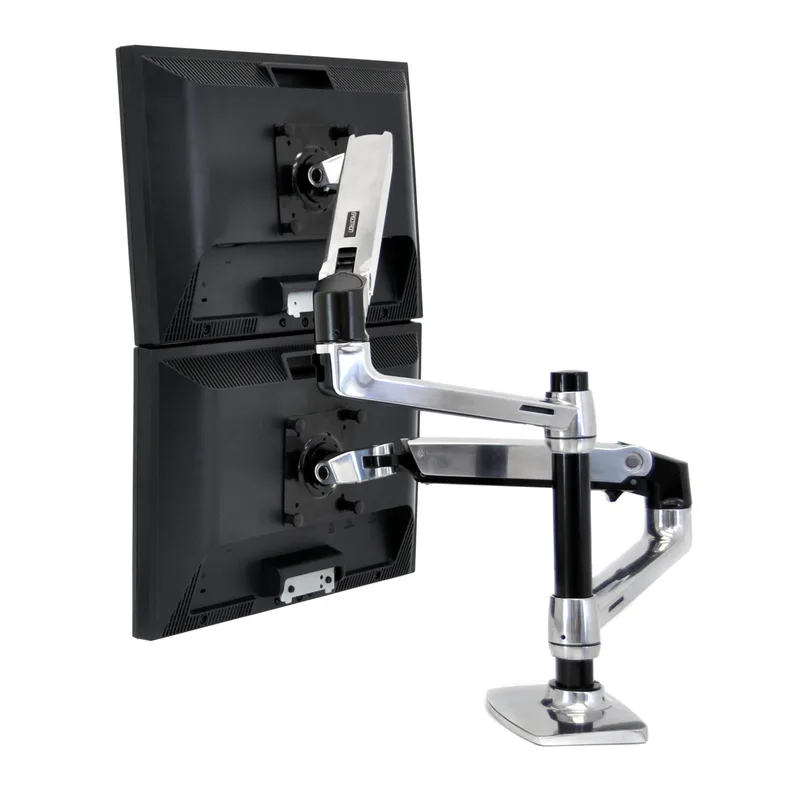
Ergotron LX Dual Monitor Arm
Pros
- ✓ Constant Force mechanism makes fine adjustments tool-free and effortless
- ✓ 10-year warranty is best-in-class for this category
- ✓ Single clamp supports both monitors cleanly without desk clutter
- ✓ Arms move independently — reposition one screen without touching the other
Cons
- ✗ Limited to 27-inch monitors at 20 lbs each — won't suit 32"+ panels
- ✗ Premium price hard to justify if you rarely reposition your screens
- ✗ Installation takes 20–30 minutes and requires careful cable routing
Ergotron LX Dual Monitor Arm — Editor’s Pick
If ergonomics is the point of this exercise, the Ergotron LX Dual is the arm to buy. The Constant Force mechanism is what separates it from every budget arm on this list: you can reposition either monitor with one finger, with no wobble, and it holds in place without any tightening. That matters because proper ergonomic positioning requires frequent micro-adjustments — especially if you switch between sitting and standing.
Two independent arms share a single desk clamp, so you get a clean setup with one penetration point into your desk. Each arm supports monitors up to 27 inches and 20 lbs, which covers the vast majority of office monitors.
The 10-year warranty is not marketing fluff. This arm will outlast the monitors you put on it.
The limitation is the 27-inch cap. Two 32-inch panels won’t work here. For larger screens, look at the MSI option below.
Best for: Anyone who adjusts their setup frequently, uses a sit-stand desk, or just wants to do this once and never think about it again.
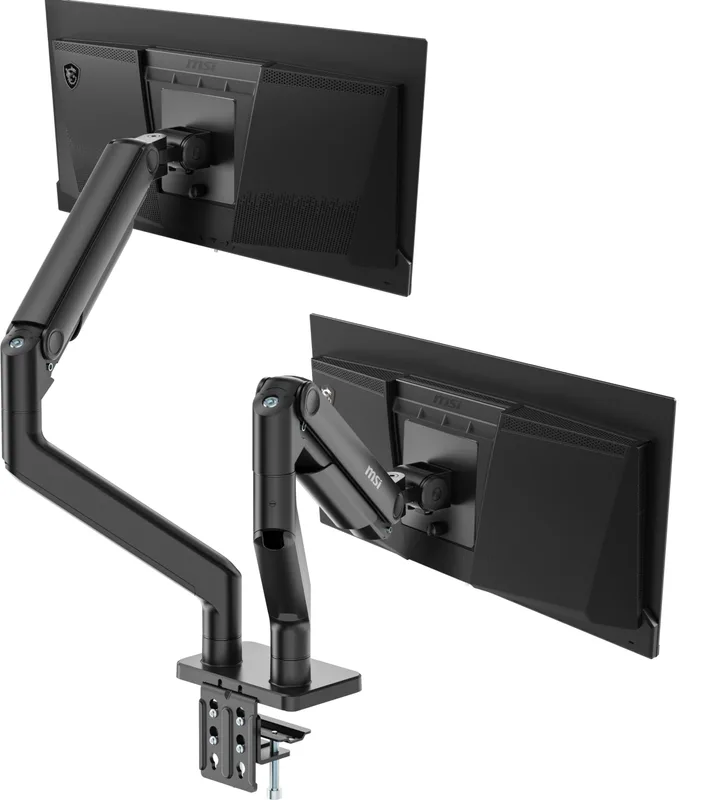
MSI MAG MT201D Dual Monitor Arm — Best Value
The MSI MAG MT201D is one of the few dual monitor arms that can handle genuinely large screens. At up to 45 inches per arm with a 44-pound weight capacity, it covers 27-inch, 32-inch, and even 34-inch ultrawide panels that a typical budget arm can’t touch.
The spring-assisted mechanism is functional — you can reposition monitors without tools, though it requires more force than the Ergotron and occasionally needs tension adjustment as the spring settles. The quick-release mounting plate is a nice touch if you ever need to swap monitors between setups.
At $99, it’s a significant step up from VIVO’s budget option without reaching Ergotron territory.
Best for: Users with larger monitors (28–45 inches) who want solid adjustability without paying Ergotron prices.
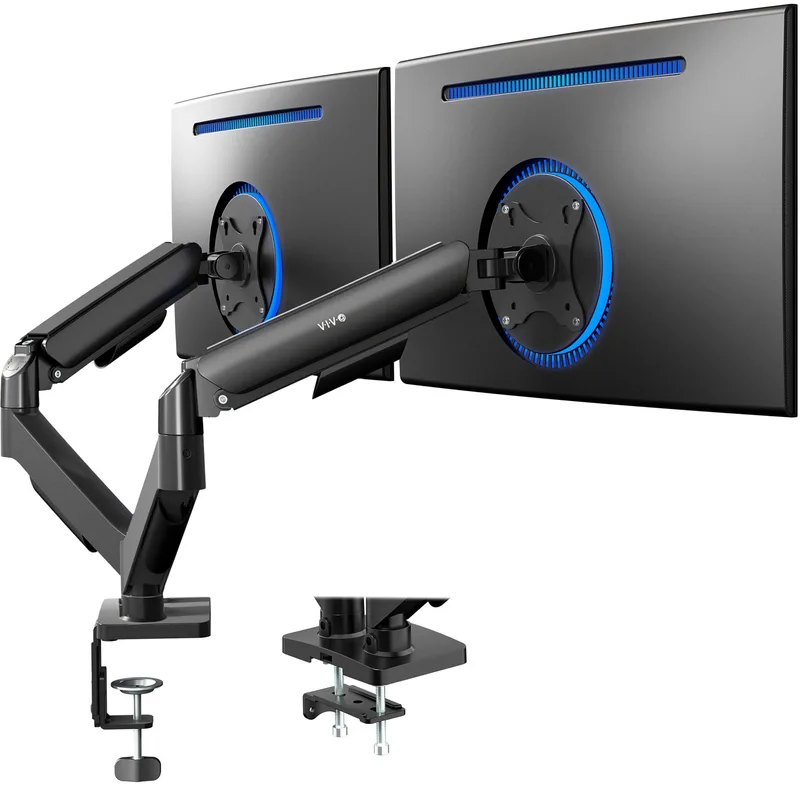
VIVO STAND-V002O Dual Monitor Arm — Best Budget
For around $40, the VIVO STAND-V002O gets you two independently articulating monitor arms that support screens up to 32 inches. The mechanical counterbalance holds position reasonably well, though it needs occasional tightening over time and lacks the effortless glide of gas-spring arms.
For a fixed desk setup where you find your optimal position once and leave it, this is entirely adequate. For sit-stand desks where you’d want to reposition monitors frequently, the adjustment friction becomes annoying.
It’s genuinely the best budget dual monitor arm on Amazon right now. The older VIVO STAND-V002 is a few dollars cheaper, but it’s limited to lighter monitors and lacks the articulation range of the V002O.
Best for: Budget-conscious setups with monitors up to 27 inches where frequent repositioning isn’t needed.
Comparison Table
| Ergotron LX Dual | MSI MAG MT201D | VIVO STAND-V002O | |
|---|---|---|---|
| Price | $289 | $99 | $40 |
| Max Monitor Size | 27” each | 45” each | 32” each |
| Weight Capacity | 20 lbs/arm | 44 lbs/arm | 19.8 lbs/arm |
| Adjustment Type | Constant Force | Spring-assisted | Mechanical |
| Tool-Free Adjust | Yes | Yes | Partial |
| Warranty | 10 years | 1 year | 2 years |
| Best For | Sit-stand, frequent adjustments | Large monitors | Budget setups |
Buying Guide: What to Look for in a Dual Monitor Arm
Arm reach and height range: Both arms need to reach your monitors at the correct ergonomic height and distance. Check the arm’s height adjustment range — if your desk is unusually high or low, the arm may not get monitors to the correct position.
Weight capacity per arm: Weigh your monitors before buying. A 27-inch monitor typically weighs 8–12 lbs. A 32-inch 4K panel can hit 18–20 lbs. An arm rated for “up to 20 lbs” at 19 lbs of monitor is not ideal — the mechanism will wear faster.
Clamp vs. grommet mount: Clamps attach to the edge of your desk and are reversible. Grommet mounts go through a hole in the desk and are more stable for heavier setups. Most dual arms support both.
VESA compatibility: Nearly all monitors sold after 2015 are VESA compatible (75x75 or 100x100 pattern). Exceptions include certain all-in-ones and budget monitors with proprietary stands. Check your monitor’s spec sheet before purchasing.
Single-pole vs. two-arm setup: A dual arm on one pole (like the Ergotron LX Dual) is cleaner and easier to cable-manage than two single arms side by side. It also keeps both monitors in the same vertical plane automatically.
Related Guides
If you’re also upgrading the rest of your workstation, these articles cover the most common paired purchases:
- Best Monitor Arms for Standing Desks in 2026 — single-arm deep dive
- Best Standing Desks 2026 — if you’re building the whole setup
FAQ
Where should the primary monitor be in a dual setup?
Centered directly in front of you, at arm’s length, with the top of the screen at eye level. Your secondary monitor goes to one side at a 30–45 degree angle. If you use both monitors equally, place both screens centered on you with the gap between them at your nose’s centerline.
Should both monitors be at the same height?
Yes, for most setups. Matching monitor heights keeps your neck in a neutral position when switching between screens. The only exception is a stacked (one above the other) vertical arrangement, where the top monitor should tilt downward and the bottom monitor upward toward you.
How far should dual monitors be from your face?
Roughly arm’s length — 20 to 30 inches, depending on your monitor size. 24-inch monitors: 20–24 inches. 27-inch: 23–28 inches. 32-inch: 28–35 inches. If you’re squinting to read text, increase your OS or browser font size rather than pushing the monitors closer.
Is a 34-inch ultrawide better than two monitors for ergonomics?
Recent research suggests an ultrawide can be easier on your neck than a traditional side-by-side dual setup, because it eliminates the neck rotation required to look between two separate screens. However, a properly positioned dual-monitor setup with a monitor arm (both screens centered in front of you) is comparable to an ultrawide in terms of ergonomic load.
Can I use two different-sized monitors?
Yes, but it takes more setup effort. Matching the center height of both screens (rather than the tops) tends to work better ergonomically. A monitor arm with independent height adjustment per arm makes this significantly easier to dial in.
Do I need a dual monitor arm or can I use two single arms?
Either works. A dedicated dual arm on one pole is cleaner: one clamp point, easier cable routing, and both screens on the same vertical plane by default. Two single arms give you more flexibility in positioning but require twice the desk clamp real estate and more cable management work.
Conclusion
Dual monitors can genuinely improve your workflow — but only if both screens are positioned correctly. The most important rules:
- Primary monitor centered — directly in front of you, not to the side
- Top of screen at eye level — looking down slightly, not up
- Arm’s length distance — 20–30 inches depending on screen size
- Secondary screen at 30–45 degrees — and rotated inward to face you
A monitor arm isn’t optional for most setups — it’s the only reliable way to hit the correct height, distance, and angle simultaneously without stacking books under your monitors.
For the best outcome: Ergotron LX Dual if budget allows, MSI MAG MT201D for large monitors at a reasonable price, or VIVO STAND-V002O for the most affordable functional option.