Disclosure: PostureRanked is reader-supported. When you buy through links on our site, we may earn an affiliate commission at no additional cost to you. Our recommendations are based on independent research and testing.
| Product | Price | Rating |
|---|---|---|
| Herman Miller Aeron Remastered | $1,445 | 9.4 |
| Steelcase Gesture | $1,499 | 8.8 |
| UPLIFT V2-Commercial Standing Desk (60x30 Bamboo) | $1,099 | 9.0 |
| Ergotron HX Monitor Arm | $349 | 9.0 |
| ZSA Moonlander MK1 | $365 | 8.7 |
Disclosure: PostureRanked is reader-supported. When you buy through links on our site, we may earn an affiliate commission at no extra cost to you. Learn more
The “quiet luxury” trend that hit home interiors is now fully expressed in the home office in 2026. Less exposed branding, more materials that age well. Less RGB glow, more posture support that actually functions. The most aspirational workspaces right now aren’t the flashiest — they’re the ones where every piece earns its place through performance and build quality.
This guide covers the five categories that determine whether your home office is worth spending money on: the chair, the desk, the monitor arm, the keyboard, and the accessories that round everything out. We also break down complete $3K, $5K, and $10K setups for different budgets.
Quick picks:
- Best overall chair: Herman Miller Aeron Remastered — nothing else distributes weight and supports the spine as consistently for long sessions
- Best desk: UPLIFT V2-Commercial — dual motors, 355 lb capacity, bamboo surface
- Best keyboard upgrade: ZSA Moonlander — the chair of keyboards, if you type 6+ hours a day
Why the Investment Makes Sense
A budget chair from a big-box store lasts 2–3 years before the cushion compresses and the lumbar stops adjusting. A Herman Miller or Steelcase chair lasts 15–20 years, comes with a 12-year warranty, and holds resale value. Spread $1,445 over 15 years and the annual cost is less than most people spend on coffee each month.
More practically: if you’re sitting at a desk for 7–9 hours a day, your chair and desk setup are health infrastructure, not furniture. Cheap chairs compress spinal discs, create forward head posture, and load the hip flexors in ways that take years to accumulate and months to address. Are expensive office chairs worth it? We’ve covered this in depth — the short answer is yes, above a certain threshold, for anyone who sits all day.
The Chair: Start Here
The chair is the most important decision in any office setup. Get the desk wrong and you can compensate. Get the chair wrong and you’ll feel it in your lower back within weeks.
At the luxury tier, you’re choosing from a small group of chairs that have genuinely earned their reputation: the Herman Miller Aeron, Embody, Steelcase Leap V2, Steelcase Gesture, and Humanscale Freedom. For a full breakdown of the top options, see our best luxury office chairs roundup.
Herman Miller Aeron Remastered
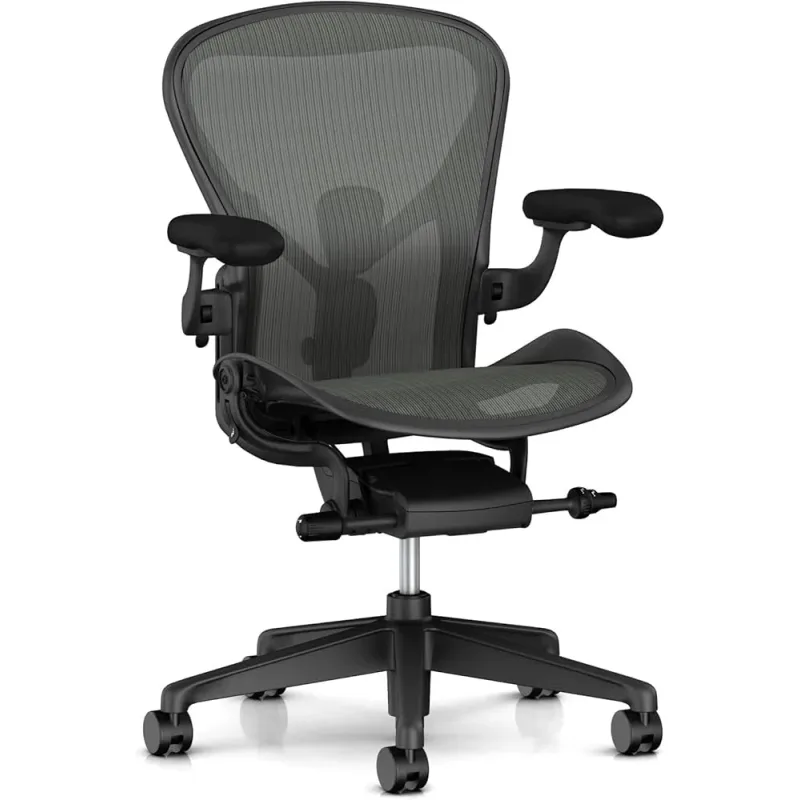
Herman Miller Aeron Remastered
Pros
- ✓ PostureFit SL tilts the pelvis forward to support the natural S-curve of the spine — the only chair that does this consistently
- ✓ 8Z Pellicle mesh distributes weight evenly so there are no hard pressure points under the thighs or lumbar
- ✓ Three sizes (A, B, C) mean nearly everyone can get the right fit instead of forcing their body into one standard shape
- ✓ Strong secondary market — Aerons hold their value and are easy to resell years later
Cons
- ✗ No built-in headrest — the OE1 headrest add-on exists but doesn't suit all users
- ✗ Mesh feel takes a week to adjust to if you're coming from padded seating
- ✗ At $1,445, it demands consistent daily use to justify the cost — occasional sitters are better served elsewhere
The Aeron is the standard by which premium office chairs are measured, and for good reason. The remastered version (updated in 2017, still the current model) brought PostureFit SL — a sacrum-and-lumbar support system that tilts the pelvis forward to maintain the natural S-curve of your spine. It’s the only production chair with dedicated sacral support that actually works consistently across sitting positions.
The 8Z Pellicle mesh divides the seat and back into eight tension zones, each tuned to the weight and pressure needs of that body region. The result is even load distribution that eliminates the hard pressure points under the thighs and across the lower back that you feel after hours in cheaper chairs.
Read our full Herman Miller Aeron review for the complete breakdown.
Best for: Daily desk workers who sit 7+ hours, anyone with lower back issues, people who run hot
Steelcase Gesture
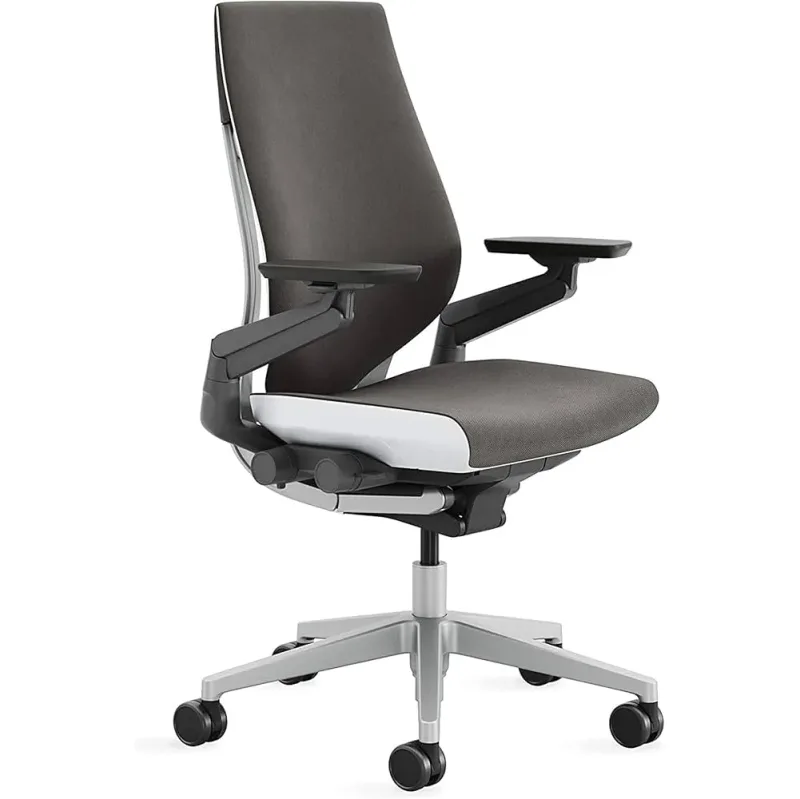
Steelcase Gesture
Pros
- ✓ 360-degree rotating arms follow your arms in any direction — essential for multi-device workflows with tablets, phones, and laptops
- ✓ Handles more sitting postures than any other chair at this price including crossed legs, sideways sitting, and full recline
- ✓ Optional headrest available in the base configuration — unlike the Leap V2
- ✓ Soft, forgiving back feel that many users prefer over firmer mesh designs
Cons
- ✗ Lumbar adjusts but doesn't adapt dynamically like the Leap's LiveBack system
- ✗ Costs more than the base Steelcase Leap at equivalent spec level
- ✗ Less effective at traditional forward-lean desk work than the Leap
The Gesture is Steelcase’s answer to the question of what happens when people use devices in positions no chair was designed for. It’s built for multi-device knowledge workers — people who regularly shift between a tablet on their lap, a phone at arm level, and a monitor at desk height. The 360-degree arm system follows your arms wherever they go, which matters more than it sounds.
It also handles more unusual sitting positions than any chair at this price. If you’re a person who regularly works cross-legged, sideways, or from a deeply reclined position, the Gesture accommodates without fighting you.
For a head-to-head comparison, see our Steelcase Leap V2 review, which includes the Gesture as a primary alternative.
Best for: Multi-device users, laptop-primary workers, anyone who doesn’t sit in a conventional upright position
The Standing Desk: Dual-Motor or Nothing
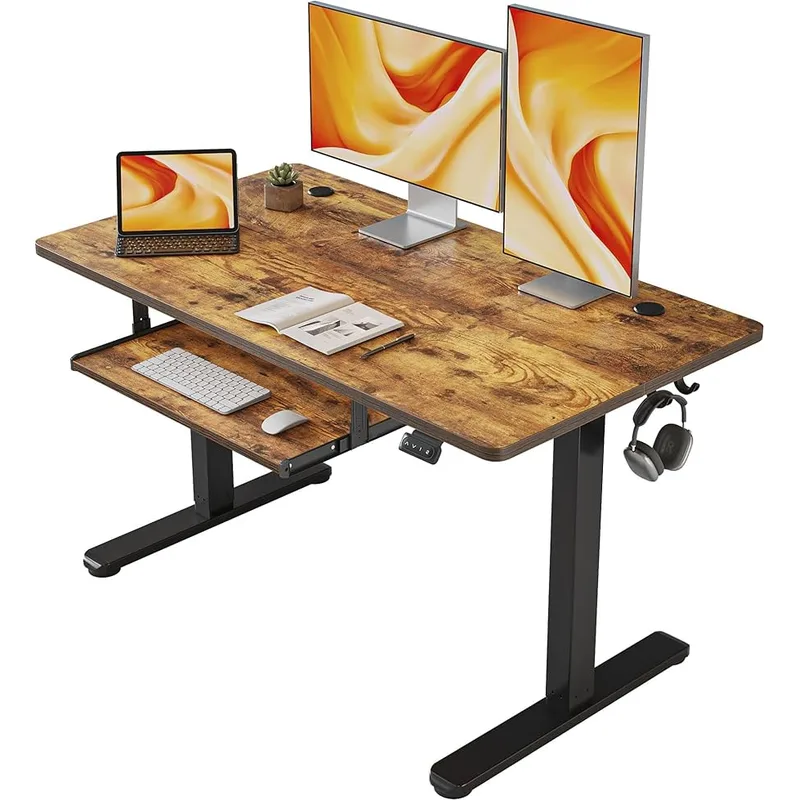
Below a certain budget, standing desks wobble at height, drift between sessions, and have motors that sound like a lawn mower. At $1,000+, you’re buying stability, motor longevity, and a surface that doesn’t flex under load.
UPLIFT V2-Commercial Standing Desk
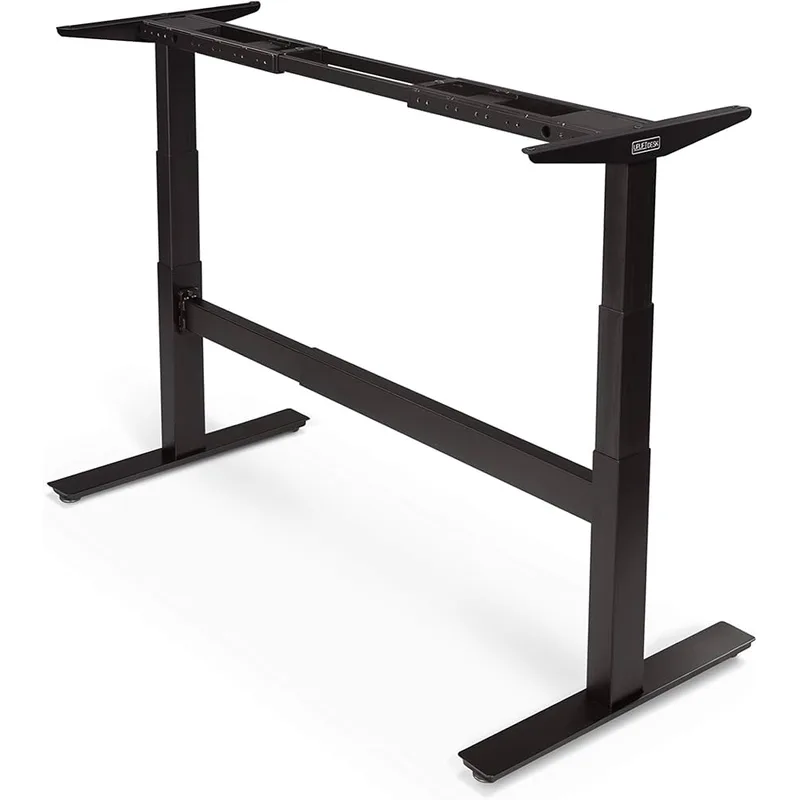
UPLIFT V2-Commercial Standing Desk (60x30 Bamboo)
Pros
- ✓ Dual motors with 3-stage legs move noticeably faster and stop more smoothly than 2-stage competitors
- ✓ 355 lb capacity handles even large multi-monitor setups without sag or drift
- ✓ Bamboo surface is harder and more durable than laminate — resists scratches and heat marks better
- ✓ 48+ mounting points on the frame make accessory attachment simple
Cons
- ✗ Heavier assembly than standard desks — budget 2 hours and a second person
- ✗ No built-in cable management — the wire tray accessory is nearly mandatory
- ✗ Premium pricing means the E7 Pro is a better value for most buyers who don't need 355 lb capacity
The V2-Commercial is UPLIFT’s reinforced frame line — dual motors in each leg rather than one shared motor, 3-stage legs that move faster and stabilize better, and a 355 lb capacity that handles the heaviest dual-monitor setups without sag. At max height, the stability difference between this and a single-motor desk is noticeable.
The bamboo desktop is a genuine material upgrade over standard laminate. Bamboo is harder than most hardwoods (Janka hardness around 1,600 lbf), doesn’t absorb moisture the way wood does, and develops a surface texture over time that makes cheap desks feel hollow in comparison.
The height range of 22.6 to 48.7 inches covers everyone from a 5’1” person sitting to a 6’5” person standing.
Best for: Permanent home office setups, anyone building a long-term workspace, multi-monitor or heavy peripheral configurations
Desk setup resources: Best anti-fatigue mats for standing desks — mats are mandatory if you stand more than 30 minutes at a stretch. Also see how to set up a standing desk properly for ergonomic height and monitor positioning.
Monitor Arms: Free Your Display
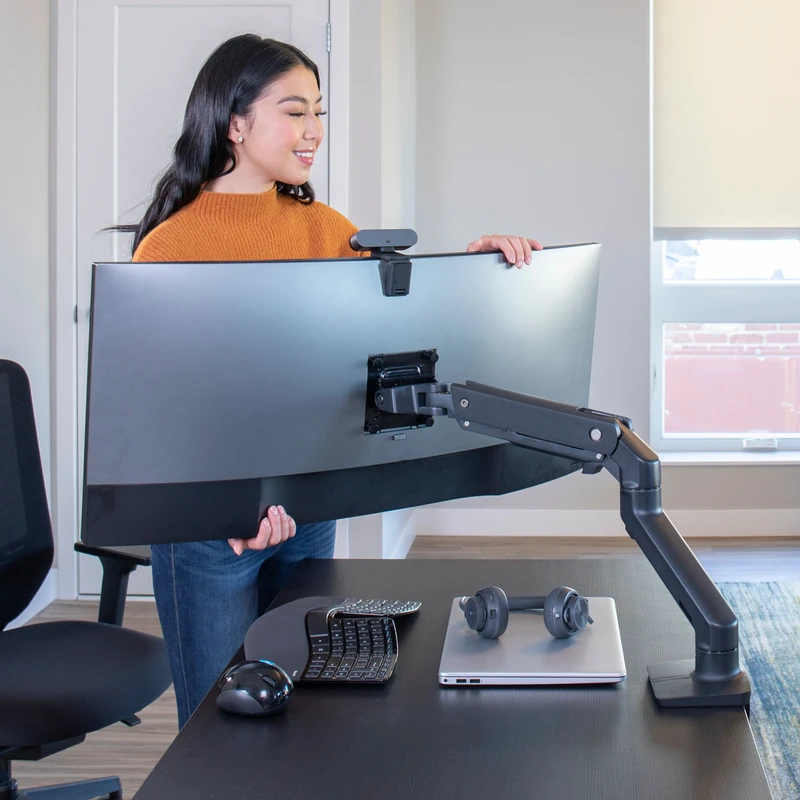
A monitor arm is the cheapest high-impact purchase on this list. Moving your monitor off a fixed stand means you can position it at exactly the right height and distance for your sitting and standing positions, switch between setups in seconds, and reclaim the desk surface the monitor stand was occupying.
Ergotron HX Monitor Arm
Ergotron HX Monitor Arm
Pros
- ✓ Handles monitors up to 42 lbs — one of the only arms that safely supports large ultrawides and heavy gaming monitors
- ✓ Full articulation with internal cable routing keeps the desk clean
- ✓ Polished aluminum finish looks at home in any serious workspace
- ✓ Gas spring mechanism holds position without drift even at max weight
Cons
- ✗ Arm itself is heavy and adds desk surface weight — check your desk clamp can handle it
- ✗ $349 is steep for a single monitor arm when budget options exist under $50
- ✗ Standard pivot only — the wide-screen configuration is a separate model
The Ergotron HX is built for heavy monitors. The standard LX arm (the one most people buy) tops out at 25 lbs — fine for most 27” monitors but not for 32”+ displays or ultrawides that approach 40 lbs. The HX handles 20–42 lbs, which means it works for large gaming monitors, heavy professional displays, and modern ultrawides without the drift and sag you get from an undersized arm.
The gas spring mechanism holds position without gradual drift. The internal cable routing keeps the desk clean. The polished aluminum finish ages well and doesn’t look like tech equipment.
Best for: Any monitor over 25 lbs, ultrawides, 32”+ professional displays
Keyboard: The Most Overlooked Upgrade
Most people upgrade their chair and desk and keep typing on a flat keyboard centered at their body’s midline. Flat, centered keyboards require inward shoulder rotation and wrist pronation — two joint positions that, held for hours daily, are associated with repetitive strain injuries over time.
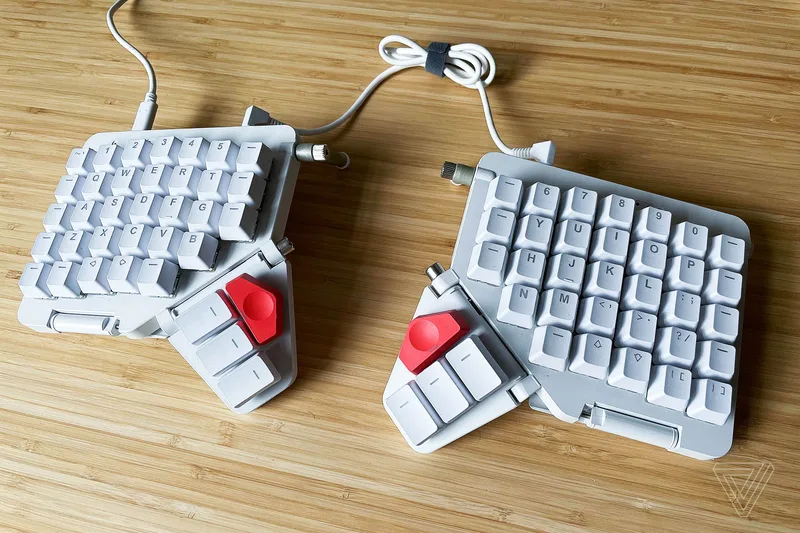
A split keyboard solves this by letting each half sit at shoulder width. Your arms point forward naturally, your wrists stay neutral, your elbows don’t need to angle inward.
ZSA Moonlander MK1
ZSA Moonlander MK1
Pros
- ✓ Split layout lets each half sit at shoulder width — eliminates the internal shoulder rotation that causes wrist and elbow strain
- ✓ Hot-swap switches mean you can change the feel without soldering
- ✓ Oryx configurator runs in a browser — no command line needed to customize every key
- ✓ Tenting legs raise the thumb cluster to a natural neutral wrist position
Cons
- ✗ Learning curve is real — expect 4–6 weeks before you're back to full typing speed
- ✗ $365 before shipping is expensive for a keyboard that requires relearning how to type
- ✗ Direct-only, no Amazon purchase option
The Moonlander is the most accessible serious ergonomic keyboard available in 2026. Unlike the Kinesis Advantage360 ($400+), it doesn’t require you to cup your hands around a bowl-shaped layout. It’s a standard split ortholinear board with a thumb cluster on each half and enough tenting adjustment to get your wrists into a neutral position.
The hot-swap switch sockets mean you can try different switches without soldering — linear, tactile, or clicky based on your preference. The Oryx configurator handles key remapping from a browser, no command line required.
The learning curve is real. Plan for 4–6 weeks of slower typing before the new muscle memory takes over. Most people who get through that period don’t go back to a flat keyboard.
Not for: Casual users, anyone who can’t commit to 6 weeks of relearning. For a less disruptive ergonomic upgrade, a basic split keyboard (Logitech ERGO K860, $120) is a better starting point.
Desk Accessories Worth the Spend
A few accessories convert a good setup into one that looks and functions at a high level:
Grovemade Walnut Desk Shelf (~$200–$299 at grovemade.com): Elevates the monitor to eye level while creating organized storage underneath. Solid walnut, not the veneer-over-MDF that most desk shelves use. The material difference is immediately apparent.
Orbitkey Desk Mat (~$99 at orbitkey.com): Leather desk mat with a document holder built in. Quiet keyboard surface, protective of any desktop material. The luxury version of a large mouse pad.
Herman Miller Monitor Arm / Ollin Arm: If you own other Herman Miller furniture, the Ollin arm integrates visually and is engineered for monitors in the 10–25 lb range. Worth it for aesthetic consistency; the Ergotron HX is better for heavy displays.
Complete Setup Tiers
$3,000 Budget
The chair is the priority. Everything else can be upgraded later. At this level, buy a new Aeron or a certified refurbished unit and pair it with a mid-range adjustable desk.
- Chair: Herman Miller Aeron (Size B) — $1,445
- Desk: FlexiSpot E7 Pro (60x24) — $440
- Monitor Arm: Budget monitor arm (LX tier, upgrade to HX later) — $165
- Keyboard: Logitech ERGO K860 — $120
- Mat: Topo Comfort Mat by Ergodriven — $99
- Estimated total: ~$2,270 (leaves room for a monitor)
Don’t compromise the chair budget. The desk and arm can come from the mid-tier without noticeable quality loss.
$5,000 Budget
Now you can build the full core: chair, desk, arm, and keyboard all at the right level.
- Chair: Herman Miller Aeron (Size B) — $1,445
- Desk: UPLIFT V2-Commercial Bamboo 60x30 — $1,099
- Monitor Arm: Ergotron HX — $349
- Keyboard: ZSA Moonlander MK1 — $365
- Desk Shelf: Grovemade Walnut Desk Shelf — $249
- Anti-Fatigue Mat: Topo Comfort Mat — $99
- Estimated total: ~$3,606 (leaves room for a quality monitor or two)
Every high-impact ergonomic category covered at a premium level. The Ergotron HX handles monitors up to 42 lbs so future-proofing is covered.
$10,000 Budget
The full expression of what this category offers. At this level, the Herman Miller Embody replaces the Aeron. The Embody’s pixelated support system is more adaptive for computing-heavy work — see our Herman Miller Embody review and Aeron vs. Steelcase Leap comparison before deciding which suits your posture better.
- Chair: Herman Miller Embody — $1,795
- Desk: UPLIFT V2-Commercial Bamboo 72x30 — $1,299
- Monitor Arms (x2): Ergotron HX × 2 — $349 each
- Keyboard: Kinesis Advantage360 — $399
- Monitors: 2x Dell UltraSharp 32” 4K — ~$1,600
- Desk Shelf: Grovemade Walnut System — $399
- Desk Mat: Orbitkey Leather — $149
- Anti-Fatigue Mat: Topo Comfort Mat Pro — $149
- Cable Management: Bluelounge CableBox — $79
- Estimated total: ~$6,567
Comparison Table
| Product | Category | Price | Rating | Best For |
|---|---|---|---|---|
| Herman Miller Aeron | Chair | $1,445 | 9.4/10 | Long daily sessions, back support |
| Steelcase Gesture | Chair | $1,499 | 8.8/10 | Multi-device users, varied postures |
| UPLIFT V2-Commercial | Desk | $1,099 | 9.0/10 | Stable sit-stand, heavy setups |
| Ergotron HX | Monitor Arm | $349 | 9.0/10 | Heavy monitors, ultrawides |
| ZSA Moonlander MK1 | Keyboard | $365 | 8.7/10 | Wrist health, programmers |
Buying Guide: What to Prioritize
Chair before everything else. It has the greatest ergonomic impact per dollar of any item on this list. A $1,445 chair at a $400 desk is a better daily experience than a $400 chair at a $1,445 desk.
Standing desk if you sit 8+ hours. Not for weight loss or calorie burn — the evidence for that is weak. For breaking up static loading of the lumbar spine and hip flexors. A sit-stand desk used consciously (30 minutes standing per hour) produces meaningful reduction in lower back fatigue over months.
Monitor arm before a monitor upgrade. A $350 arm that positions your existing monitor at the right height and distance does more for neck and shoulder strain than a better display at a fixed height. Most monitor-related headaches and shoulder tension are positioning issues, not image quality issues.
Don’t buy a split keyboard until you’re committed. The Moonlander is a meaningful ergonomic upgrade but it requires relearning. Buy it when you’re ready to invest in the transition, not as an impulse purchase.
FAQ
How much should I spend on a luxury home office?
For a setup with real long-term ergonomic and quality benefit, budget $2,000–$3,500 minimum covering a premium chair, adjustable desk, and monitor arm. Below $1,500 you can get a quality chair or desk but not both at the level where materials and mechanisms start making a genuine difference.
Is the Herman Miller Aeron worth it at $1,445?
For someone sitting 7+ hours daily, yes. The Aeron’s build quality is designed for 15–20 years of use, it has a 12-year warranty, and it holds resale value better than any other office chair. Over 15 years the cost is under $100 per year. See our full Aeron review and the are expensive chairs worth it guide for the detailed case.
Herman Miller Embody vs Aeron — which one?
Short answer: Aeron for traditional desk work with a keyboard; Embody for computing-heavy work (coding, writing, editing) where you’re leaning slightly forward for hours. The Embody’s pixelated support matrix responds to forward lean better than the Aeron’s recline-focused PostureFit SL. Full comparison: Herman Miller Aeron vs Steelcase Leap.
Do I need a standing desk mat?
Yes, if you stand for more than 20 minutes at a stretch. Standing on a hard floor increases the compressive load on the feet and knees in ways that quickly make standing feel worse than sitting. A quality anti-fatigue mat with cushioning and topographical variations encourages micro-movements that keep circulation active. Our best standing desk mats guide covers the full range.
What’s the cheapest entry point to a high-quality home office?
Buy a used Herman Miller Aeron (refurbished units from certified dealers go for $700–$900), pair it with a mid-range desk like the FlexiSpot E7 Pro, and add an Ergotron LX arm. That covers the three highest-impact categories for under $1,500. Upgrade the desk and keyboard later.
Are split keyboards actually better for ergonomics?
The evidence for reduced wrist deviation and shoulder rotation with split keyboards is solid. Whether that translates to reduced injury risk depends on individual typing habits, existing strain history, and how much time you spend typing. If you type 4+ hours daily and have any existing wrist or shoulder tension, a split keyboard is worth the learning curve investment.
Conclusion
A luxury home office isn’t about spending more than you need to. It’s about buying things that last, work correctly, and support the body in ways that matter over years of daily use.
Start with the chair — the Herman Miller Aeron for most people, the Steelcase Leap V2 if you want more lumbar adjustment control, the Herman Miller Embody if you’re primarily computing. Add the UPLIFT V2-Commercial when the budget allows. The Ergotron HX when you add a heavy monitor. The ZSA Moonlander when you’re ready to commit to the transition.
Each piece earns its place on its own merits. None of them need the others to justify the purchase. That’s how to build a workspace that works for decades.