The Eye Strain Problem Nobody Talks About Enough
Desk workers in 2026 are averaging nearly 100 hours of screen time per week — almost every waking hour. A February 2026 report found that 71% of desk workers say screen-related eye strain is actively hurting their productivity, and one in four has already taken time off work because of it.
Digital eye strain — medically called Computer Vision Syndrome (CVS) — isn’t a single symptom. It’s a cluster: dry eyes, blurred vision, headaches, neck tension, and difficulty refocusing after close-up work. Most of it is preventable with setup changes that cost nothing.
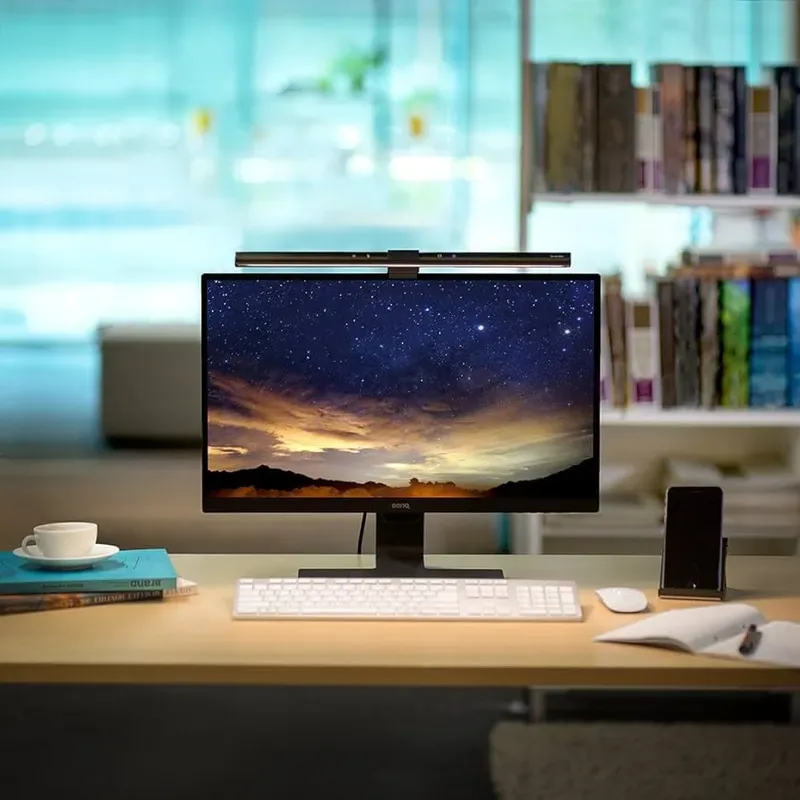
Quick fix if you only do one thing: Set your monitor to 20–28 inches from your face, reduce brightness to match your room, and pick up the BenQ ScreenBar to eliminate the screen-versus-darkness contrast that drives evening headaches. Everything else in this guide builds on those basics.
What Actually Causes Eye Strain at a Desk
Your eyes weren’t designed for sustained close-up focus. Staring at a screen 18–24 inches away for 8+ hours forces the ciliary muscles (which control your lens) to hold a fixed focal length far longer than normal — the same as holding your arm extended for hours.
Three factors compound this:
- Reduced blink rate. You normally blink 15–20 times per minute. While focused on a screen, that drops to 5–7 times. Result: dry, irritated eyes.
- Blue light scatter. High-energy visible (HEV) blue light in the 400–500nm range scatters more inside the eye, creating visual noise that forces your visual cortex to work harder to resolve a sharp image.
- Screen-versus-room contrast. If your screen is significantly brighter or darker than the room around it, your pupils constantly readjust — exhausting the iris muscles over hours.
Fix these three things and you fix 80% of most people’s eye strain.
The 20-20-20 Rule (And Why Most People Do It Wrong)
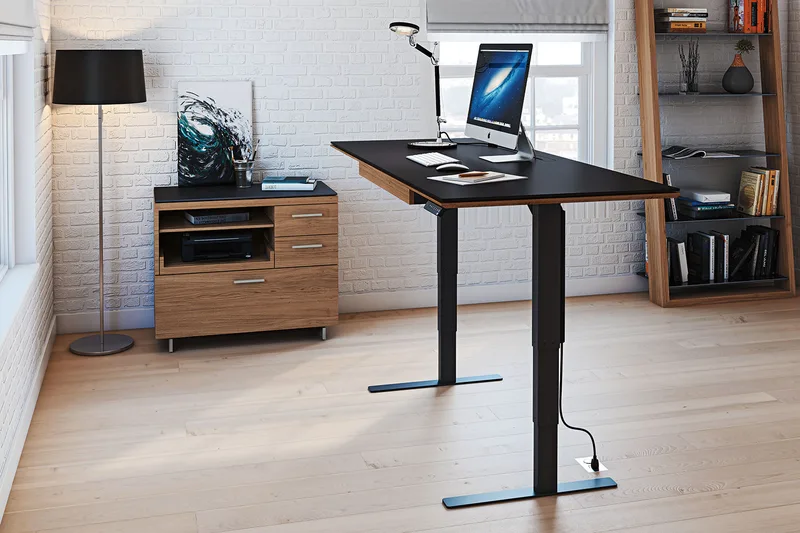
Every 20 minutes, look at something 20 feet away for 20 seconds. Simple in theory, ignored in practice.
The 20-foot part matters. Anything closer than about 6 meters doesn’t fully relax your ciliary muscles — you’re still partially focusing. A point across a large room, out a window, or down a hallway is what you want. Your monitor on the other side of the desk doesn’t count.
How to actually make it stick:
- Set a recurring 20-minute phone timer — not a computer reminder, because you need to look away from the screen
- While looking at your 20-foot point, blink slowly 10 times to recoat your eyes with tear film
- Stand up if possible; the neck and shoulder tension from sustained desk posture amplifies eye fatigue
Apps that help: Stretchly (free, cross-platform) triggers full-screen break overlays at set intervals. Time Out on macOS does the same.
Monitor Distance and Height
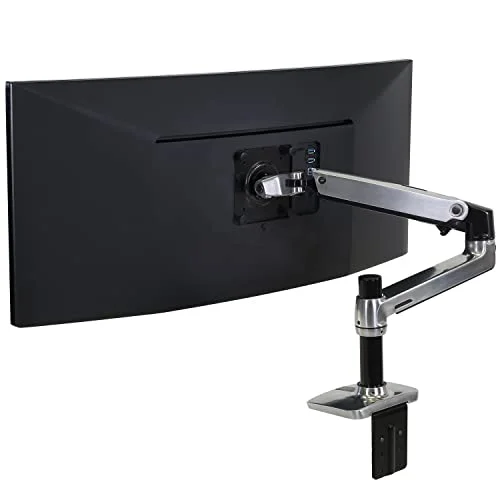
The optimal monitor distance is 20–28 inches from your eyes. Most people sit at 16–18 inches because their monitors feel small or their desks are cramped.
If you can’t push the monitor back:
- Increase your font size instead (Ctrl/Cmd + in browsers; 125–150% zoom in primary apps)
- Use your OS accessibility settings to scale the entire interface up
Monitor height: The center of your screen should be 15–20 degrees below your horizontal line of sight. This positions your eyes in a slightly downward gaze, which naturally reduces evaporative tear loss — your eyelids cover more of the eye surface. Looking up at a screen is both a posture problem and an eye strain problem simultaneously.
Dual monitor setups: Place your primary monitor directly in front of you. The secondary monitor should require no more than a 35-degree head rotation. If you split time equally between both screens, center them as a pair so neither is directly in front. Spending hours turned to one side adds neck strain to the eye strain equation.
Brightness, Contrast, and Color Temperature
The brightness rule: your monitor should roughly match the brightness of the room around it. A glowing screen against a dark wall is one of the most common and fixable causes of eye strain.
Factory brightness settings are typically 250–300 cd/m² — far higher than most indoor environments need. Target 100–150 cd/m² for typical office use.
A simple calibration:
- Open a white webpage (Google’s homepage works)
- Hold a white sheet of paper next to your screen
- Adjust brightness until the paper and screen appear roughly the same brightness
For contrast, 70–80% works well for most displays. Don’t max it out — high contrast creates harshness at text edges that increases focus strain.
Color temperature: Cooler (6500K, bluer) light is appropriate for morning work when you want alertness. Warmer tones (4000–5000K) in the afternoon reduce evening circadian disruption. Most monitors have color temperature presets or an “eye care” mode — use them. The default “sRGB” or maximum brightness preset is rarely the right choice for desk use.
Blue Light Management
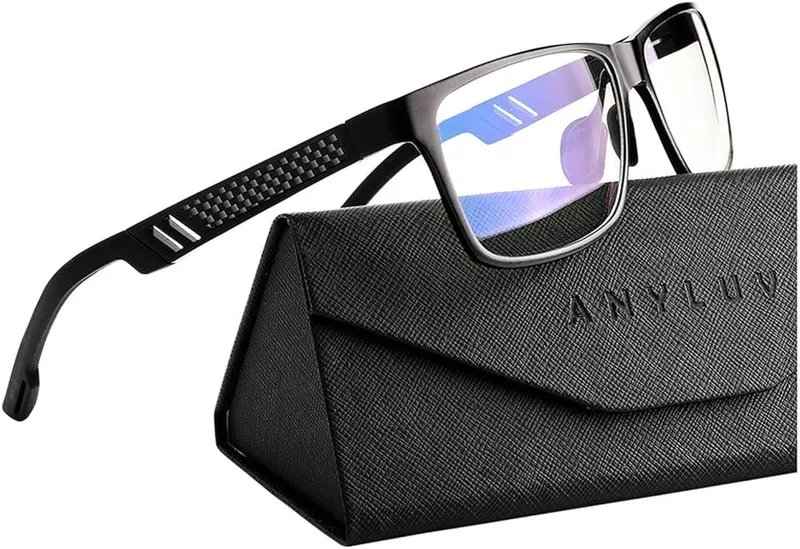
OS Night Mode (Free, Do This Today)
Both major operating systems have built-in blue light reduction:
macOS — Night Shift:
- System Settings → Displays → Night Shift
- Set schedule to “Sunset to Sunrise” or choose custom hours
- Drag the color temperature slider toward “More Warm” (aim for roughly 4000K in the evening)
Windows — Night Light:
- Settings → System → Display → Night Light
- Toggle on, then click “Night Light Settings”
- Set strength to around 60–70% for evening sessions
- Enable the hours schedule so it activates automatically
Linux: Install redshift for manual or automatic color temperature shifting, or enable the built-in night light in GNOME via Settings → Displays.
These tools shift the entire display warmer after your chosen time. They don’t replace a calibrated monitor color temperature setting, but they’re effective and free.
Blue Light Glasses
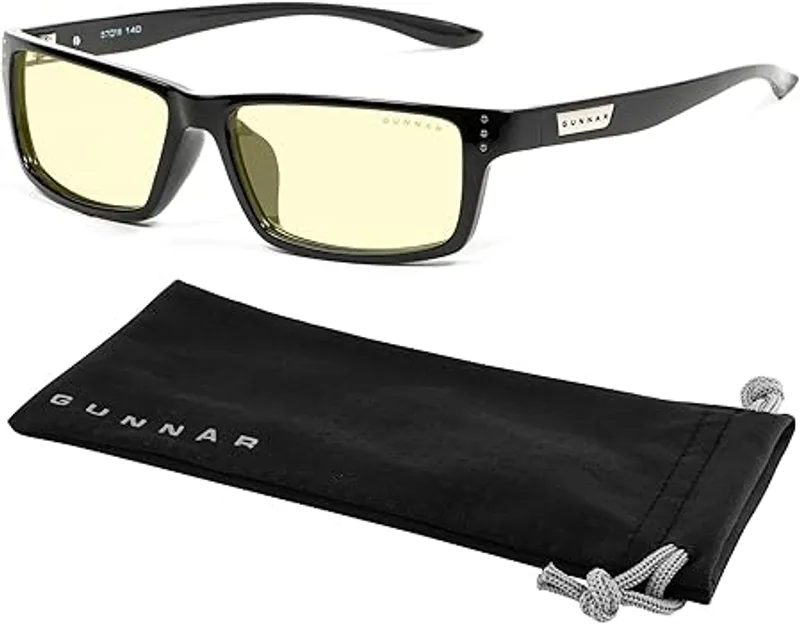
The clinical evidence on blue light glasses is mixed — randomized controlled trials haven’t shown them to consistently reduce eye strain on their own. But the majority of regular users report subjectively more comfortable extended sessions, and there’s a plausible mechanism: the slight optical magnification in most blue light lenses reduces the focusing effort on fine text, and the tint encourages a higher blink rate.
GUNNAR is the category leader. Their Intercept blocks 65% of blue light at 450nm and costs $69.99 — the most evidence-backed blocking level without going to the “amber max” versions that significantly distort color. For a full comparison including budget picks, see our best blue light glasses roundup.
Prescription wearers: Blue light filtering coatings can be added to your next prescription lenses at most opticians for $20–50. This version is more effective than clip-ons or overlays — no adaptation period, no color distortion from a separate tinted lens, and it works all the time without requiring you to remember to put them on.
Ambient Lighting: The Biggest Overlooked Fix
The contrast between a bright screen and a dim room is among the leading causes of evening desk eye strain — and the one most people never address. The solution isn’t to flood your room with overhead light (which creates its own glare problems). It’s to match the ambient brightness directly around your monitor.
This is what monitor light bars are designed to solve. A standard desk lamp pointed at the wall or ceiling is too diffuse and often reflects off your screen. A clip-on monitor light directs illumination downward onto your desk surface without touching the display.
The BenQ ScreenBar is the most widely used option: a 45cm bar that clips to your monitor’s top edge and uses an asymmetric lens to point all light downward onto your keyboard and desk. The auto-dimmer reads ambient light levels and adjusts automatically. No screen glare, no screen-versus-darkness contrast problem, and no desk space used. Full breakdown in our BenQ ScreenBar review.
For a broader comparison including desk lamps at various price points, see our best desk lamps for eye strain guide.
What to avoid: single overhead lighting behind you. One ceiling light in a dark room creates exactly the bright-screen-against-dark-background problem. If overhead lighting is your only option, point it at the wall in front of you to create indirect, diffuse fill light rather than shadows and hot spots.
Anti-Reflective Coatings
If you wear prescription glasses, anti-reflective (AR) coating is one of the highest-value upgrades available. It eliminates the secondary reflections from overhead lights and screen surfaces that occur on bare glass or plastic lenses — reflections your visual system is constantly trying to suppress in the background.
AR coatings typically add $30–80 to a prescription pair. They’re permanent, color-neutral (unlike blue light tints), and require no behavior change to benefit from.
For monitor panels themselves, matte-finish displays beat glossy for desk use in most situations. The embedded anti-glare coating on matte panels significantly reduces reflections without any external accessory. If you’re stuck with a glossy display, an anti-glare screen overlay ($20–60 for most monitor sizes) applies a diffusion layer that cuts reflections — useful especially in offices with windows or bright overhead lights.
Comparison: Eye Strain Tools at a Glance
| Tool | Cost | What It Solves | Best For |
|---|---|---|---|
| BenQ ScreenBar | $49 | Screen-versus-room brightness contrast | Everyone with overhead-only lighting |
| GUNNAR Intercept | $69.99 | Blue light, focusing effort | Extended evening screen sessions |
| AR lens coating | $30–80 (optician) | Lens reflections, glare from lights | Prescription glasses wearers |
| OS Night Light / Night Shift | Free | Evening blue light and circadian shift | Late-night workers |
| 20-20-20 rule | Free | Ciliary muscle fatigue | Everyone, every day |
Buying Guide: What Actually Matters
Don’t start with products. Fix your setup first — monitor distance, font size, brightness calibration, and the 20-20-20 habit. These changes cost nothing and address the majority of eye strain for most people.
If you’ve fixed the basics and symptoms persist:
- Headaches at end of day → monitor brightness or contrast issue; also consider a prescription check
- Dry, burning eyes → blink rate and room humidity; a small desktop humidifier helps in dry climates
- Blurred vision after sessions → proximity focus fatigue; increase monitor distance or font size
- Difficulty focusing in evenings → blue light glasses or OS night mode
What to look for in a monitor light bar:
- Asymmetric lens (light goes down toward the desk, not toward the screen)
- Auto-dimming (adjusts to room brightness automatically)
- Color temperature range of at least 3500K–6500K
- Width appropriate for your monitor (45cm works for most standard displays)
What to look for in blue light glasses:
- 65% blocking at 450nm minimum — clear lenses marketed at 15–20% blocking have limited measurable effect
- Prescription compatibility if you already wear corrective lenses
- Comfortable frame for 6–8 hour wear — try before buying where possible
Frequently Asked Questions
Does the 20-20-20 rule actually work?
Yes, with context. It reduces ciliary muscle fatigue — the focusing strain from sustained close-up work. What it doesn’t fix on its own: dry eye from reduced blinking, brightness contrast, or blue light exposure. It works best as part of a broader set of habits rather than as a standalone solution.
Are blue light glasses worth buying?
For evening and late-night screen sessions, most users find them genuinely helpful. Clinical trials on eye strain reduction specifically are mixed, but the slight magnification built into most blue light lens designs does reduce focusing effort — and that’s a real benefit for 8+ hour desk sessions. Amber lenses at 65% blocking are the most effective option; clear lenses at 15–20% blocking have weak evidence behind them.
How far should my monitor be from my face?
20–28 inches is the target range, with the center of the screen 15–20 degrees below your eye level. If you have to lean in to read text comfortably at that distance, increase your system font size or display zoom rather than moving the monitor closer.
Should I use Night Mode all day?
No. The color warm-shift that makes night mode effective for circadian management also reduces color accuracy during the day. Use it on a schedule — set it to activate a few hours before your usual bedtime and leave daytime work in a calibrated color temperature (around 6500K daylight or whatever your monitor’s “day” preset produces). The automatic scheduling in both Windows Night Light and macOS Night Shift handles this without any manual switching.
What monitor settings reduce eye strain the most?
Start with: brightness at 100–150 cd/m² (adjust until a white screen matches a white sheet of paper in your room), contrast at 70–80%, color temperature at 6500K for daytime or 4000–5000K for evening. Enable your monitor’s “eye care” or “reader” mode if available — many displays ship with these settings inactive.
Can eye strain cause permanent vision damage?
Current medical consensus says no — digital eye strain doesn’t cause lasting damage to the eyes. Symptoms are uncomfortable but resolve with rest and habit changes. That said, if symptoms persist after fixing your setup, an eye exam is worth scheduling. A prescription that needs updating is one of the most common overlooked contributors to desk eye strain.
Bottom Line
Most desk eye strain is a solvable setup problem:
- Fix distance first — 20–28 inches from your face, screen center below eye level
- Calibrate brightness — match your room’s ambient light, not the factory maximum
- Start the 20-20-20 habit — a phone timer works better than a computer reminder
- Add desk-level lighting — the BenQ ScreenBar at $49 eliminates the biggest contrast problem without adding glare
- Enable OS night mode on a schedule — free and effective for evening sessions
- Consider blue light glasses for late-night work — the GUNNAR Intercept at $69.99 is the most effective non-prescription option
Most people see noticeable improvement from steps 1–3 alone. The products help at the margin — but the habits do the heavy lifting.
See also: Best Desk Lamps for Eye Strain · Best Blue Light Glasses for Desk Workers · BenQ ScreenBar Review