Hybrid work is no longer a temporary situation — it’s the default. In 2026, most knowledge workers spend at least three days a week at a home desk, and a growing number work from home full-time. That’s good news for flexibility. It’s terrible news for your back if the setup isn’t right.
The problem isn’t that people don’t care about posture. It’s that the typical WFH setup — laptop on a kitchen table, chair that came with the dining room, screen positioned wherever it fits — was never designed for eight-hour work sessions. Ergonomic offices took decades of refinement. Most home setups took zero minutes of thought.
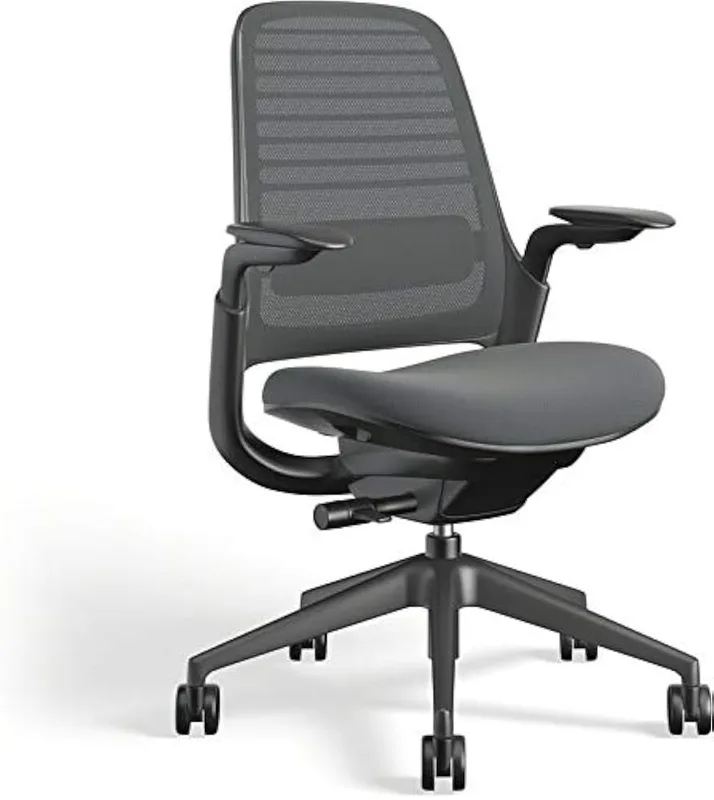
This guide covers the four posture checkpoints that matter most, the most common WFH setup mistakes, and the gear that makes the biggest difference. If you’re short on time: an ergonomic chair with lumbar support (Branch Ergonomic Chair) and getting your laptop screen up to eye level will solve the majority of the problem.
Why WFH Posture Fails So Often
Office ergonomics exists because employers discovered decades ago that bad posture costs money — in sick days, reduced productivity, and workers’ compensation. Home offices don’t have that incentive. You bought the chair that was on sale and the desk you found on Facebook Marketplace.
Three specific traps destroy WFH posture:
The laptop trap. Laptop screens are too low. When you place a laptop flat on a desk and look at the screen, your chin drops toward your chest. Over time this compresses the cervical spine and tightens the muscles running from your neck into your upper back. Working this way for even two hours daily adds up fast.
The “it’s comfortable” trap. The couch feels comfortable, but it forces you into a posterior pelvic tilt — your lower back rounds, your core switches off, and your thoracic spine collapses forward. Comfortable in the short term, damaging in the long term.
The frozen setup trap. Office workers occasionally stand, walk to meetings, and move. WFH workers sometimes spend four hours in an identical position without realizing it. Static load on muscles causes fatigue and pain just as much as bad alignment does.
The 4 WFH Posture Checkpoints
Go through these in order. Each one builds on the previous.
Checkpoint 1: Feet and Legs
Feet should be flat on the floor. Knees at roughly 90 degrees or slightly open (100–105 degrees actually reduces lumbar compression more than 90 degrees). Thighs should be roughly parallel to the floor, not angled sharply up or down.
If your feet don’t reach the floor when your chair is at the right height for your desk, use a footrest. If your thighs are angled steeply upward, your chair is too low and you’re cutting off circulation.
Checkpoint 2: Hips and Seat
This is where most WFH setups fail hardest. A proper ergonomic chair creates an anterior pelvic tilt — a slight forward rotation of your pelvis that maintains the natural lumbar curve of your spine. A bad chair forces a posterior tilt where your spine rounds and your weight shifts to your tailbone.
Key seat adjustments to look for: height adjustment (obvious), seat depth adjustment (less obvious — slide the seat forward or back until there’s 2–3 finger widths between the front edge of the seat and the back of your knees), and lumbar support positioned at the curve of your lower back (typically between the top of your pelvis and the bottom of your ribcage).
For a deeper read on chair mechanics, see our ergonomic chair selection guide or our roundup of the best ergonomic chairs for programmers.
Checkpoint 3: Spine and Back
A neutral spine is not a straight spine. Your lumbar (lower back) should have a gentle inward curve. Your thoracic spine (mid-back) should have a gentle outward curve. Your cervical spine (neck) curves forward again at the top.
When you collapse forward to look at a screen, you lose the lumbar curve first. The thoracic rounds. The neck juts forward — every inch your head moves in front of your shoulders adds roughly 10 lbs of effective load on the cervical spine. That’s the physics behind “tech neck.”
The fix at this checkpoint is mostly about chair quality and your awareness of what neutral feels like.
Checkpoint 4: Head, Neck, and Monitor
The top of your monitor should be at or just below eye level. Your gaze should land naturally in the upper third of the screen without tilting your head down.
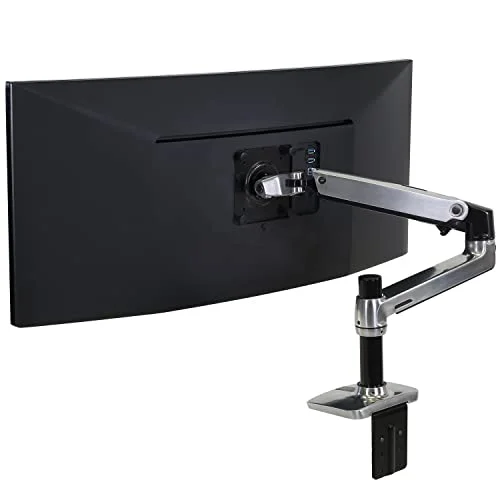
For desktop monitors, a monitor arm is the best solution — it puts the screen exactly where you need it rather than where the desk happens to be. For laptop users, the monitor is fundamentally in the wrong position. Elevating the laptop with a stand and adding an external keyboard gets you to the right geometry.
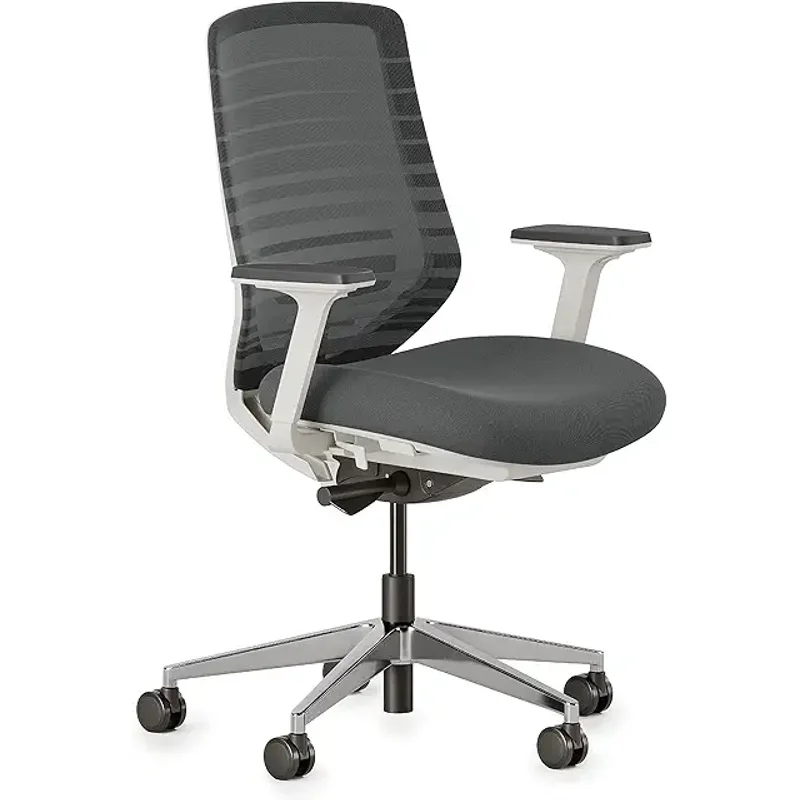
Best Ergonomic Chair for WFH: Branch Ergonomic Chair
Branch Ergonomic Chair
Pros
- ✓ Eight adjustment points let you dial in a truly personalized fit
- ✓ Adjustable lumbar that moves both vertically and in depth — rare at this price
- ✓ Breathable mesh back keeps you cool through long work sessions
- ✓ 7-year warranty gives real peace of mind on a $329 investment
Cons
- ✗ Seat cushion feels firm for the first few weeks before breaking in
- ✗ Armrests don't fold down, which limits desk clearance
- ✗ Assembly takes 30-45 minutes and requires patience
Most people working from home either have a dining chair, an old office chair with no adjustment, or a gaming chair that prioritizes looks over support. The Branch Ergonomic Chair is the clearest upgrade path that doesn’t require spending $1,000+.
Eight adjustment points — seat height, seat depth, lumbar height, lumbar depth, armrest height, armrest width, armrest angle, and recline — let you configure the chair to your body rather than adapting to the chair. The adjustable lumbar support targets where your back actually is, not where the chair manufacturer assumed it would be.
Owner reports consistently highlight that the chair “feels like a proper office chair, not a budget knockoff,” which is the key distinction at the $329 price point. The 7-year warranty backs that up.
For more chair options across different budgets, see our best ergonomic desk chairs under $500 roundup.
Best Monitor Arm for WFH: Ergotron LX Pro Premium Monitor Arm
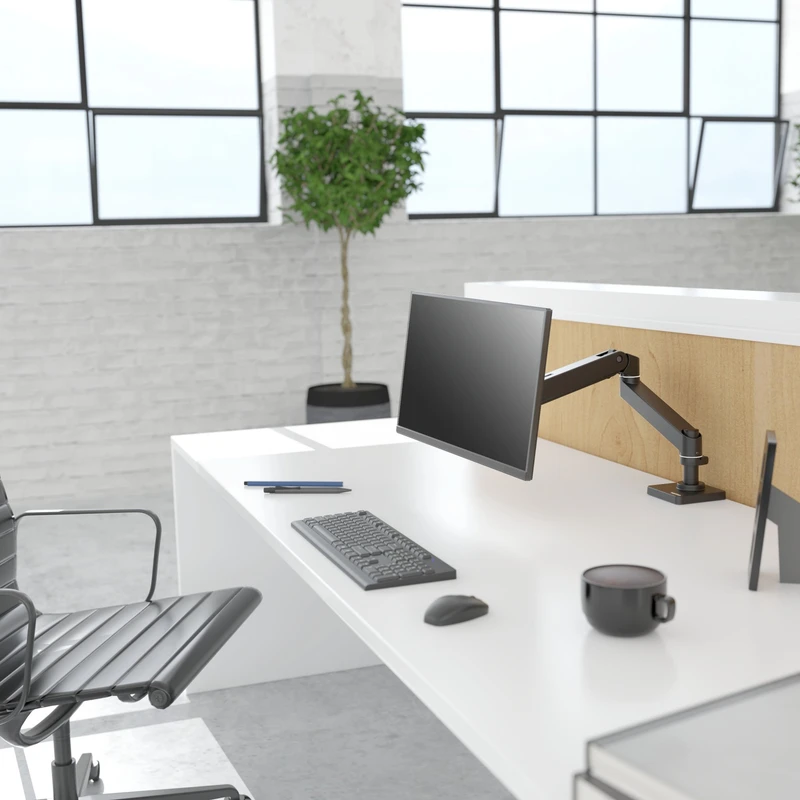
Ergotron LX Pro Premium Monitor Arm
Pros
- ✓ Upgraded spring mechanism holds position precisely with zero drift
- ✓ Smooth, single-finger repositioning unlike cheaper arms that need two hands
- ✓ Full articulation brings monitor to exact eye level from any seated position
- ✓ Clean cable management channel keeps desk wire-free
Cons
- ✗ Premium pricing over the standard LX arm
- ✗ Clamp mount adds 3-4 inches of desk thickness requirement
- ✗ Dark Grey color only — limits aesthetic matching
A monitor arm is the single highest-impact accessory for people who use a desktop monitor. The Ergotron LX Pro is the 2026 upgrade over the already-excellent LX, with a tightened spring mechanism that holds position without drift and a smoother repositioning action.
The practical benefit: you can drop the arm between monitor heights during the day, tilt it away when video calling, or swing it to the side when you need full desk space — and it holds wherever you put it. That kind of on-the-fly repositioning encourages the movement and position changes that static setups don’t allow.
VESA compatible with virtually every monitor made in the last decade (75x75mm or 100x100mm), supports screens up to 34 inches and 22 lbs, and clamps to any desk up to 3.9 inches thick.
For multi-monitor setups, see our guide on the best monitor arms for standing desks.
Best Laptop Stand for WFH: Rain Design mStand
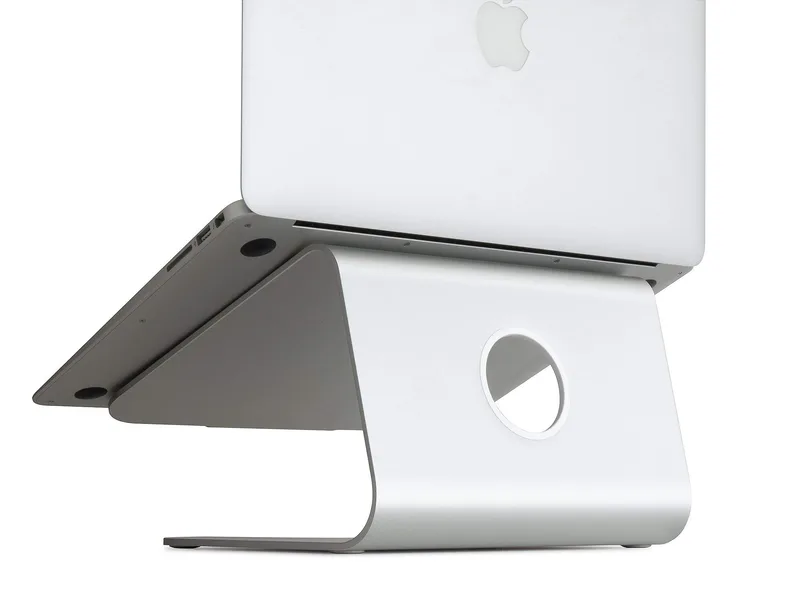
Rain Design mStand Laptop Stand
Pros
- ✓ Raises any laptop screen to near-eye level — eliminates neck-down position instantly
- ✓ Solid aluminum feels permanent, not cheap — won't shift mid-session
- ✓ Open base design improves laptop cooling during heavy work
- ✓ Works with any laptop from 11 to 17 inches without adjustment
Cons
- ✗ No height adjustment — one fixed elevation works for most but not everyone
- ✗ Requires an external keyboard and mouse to use comfortably once elevated
- ✗ No cable management features
Laptop users have a geometry problem: the keyboard is attached to the screen, so you can’t fix both simultaneously with just one device. The compromise is to elevate the laptop screen with a stand, then use an external keyboard and mouse at the right height.
The Rain Design mStand raises any laptop 6 inches — enough to bring a 13” to 16” laptop screen close to eye level for average adult heights. It’s solid aluminum with no wobble, no plastic clips, and no adjustment needed. You set it down, slide the laptop in, and it stays.
At $43, it’s the most cost-effective posture upgrade in this guide. Owner reviews over 15+ years of this product being on the market consistently call it “the best $40 I’ve spent on my setup.” It improves airflow under the laptop as a bonus.
For more laptop stand options, see our best laptop stands for standing desks roundup.
Best Keyboard for WFH: Logitech MX Keys S Wireless Keyboard
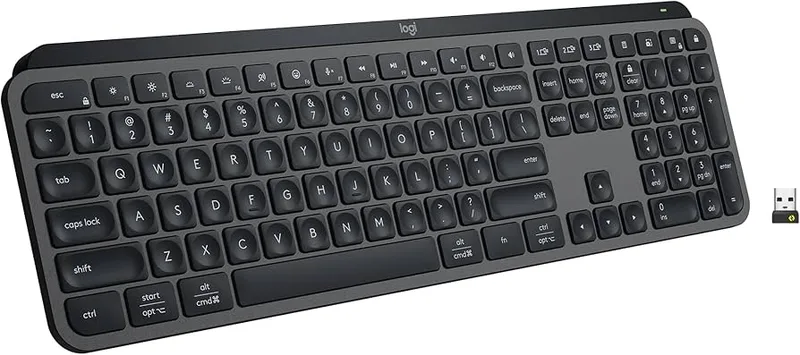
Logitech MX Keys S Wireless Keyboard
Pros
- ✓ Spherically concave keycaps align with your fingertips for naturally reduced wrist angle
- ✓ Low-profile design keeps wrists closer to neutral than tall mechanical keyboards
- ✓ Quiet enough for shared spaces — no clack
- ✓ Connects to three devices and switches instantly — ideal for WFH multi-device setups
Cons
- ✗ No split or tented design for those with existing wrist pain
- ✗ Backlit keys drain battery faster than the 5-month estimate
- ✗ No palm rest included — needed for true wrist neutrality
Once your laptop is elevated, you need an external keyboard. The Logitech MX Keys S is worth recommending beyond “any keyboard will do” because the key design actually matters for wrist ergonomics.
The MX Keys S uses spherically concave keycaps — each key is dished slightly in the center to align with the natural curve of your fingertip. Combined with the low-profile switch design, wrists stay closer to a neutral position than with most full-height keyboards. It’s not a split or tented keyboard, but for most users it’s a significant improvement over whatever was attached to the laptop.
Connects to up to three devices via Bluetooth or the included USB receiver, with a 10-day battery life when backlit (5 months without). The Smart Actions programmable keys are useful if you set them up, easy to ignore if you don’t.
For more keyboard options specifically for long typing sessions, see our best ergonomic keyboards for programmers guide.
Best Posture Trainer: Upright GO 2 Premium

Upright GO 2 Premium Posture Trainer
Pros
- ✓ Vibration feedback retrains your body rather than just reminding you — real behavior change
- ✓ Strapless and invisible under any shirt, easy to wear all day
- ✓ App tracks posture score over time so you see measurable progress
- ✓ 14-day training program builds good habits incrementally
Cons
- ✗ Adhesive tabs last only a few days and need regular replacement
- ✗ Requires a smartphone to function — no standalone mode
- ✗ Some owners report calibration drift after several months of use
The gear above creates the conditions for good posture. The Upright GO 2 trains your body to actually maintain it.
The device attaches to your upper back with an adhesive strip. Its six motion sensors detect when you deviate from your calibrated upright position and send a gentle vibration through the device. In Training Mode, you set a tolerance and session duration and the device buzzes when you cross the threshold. In Tracking Mode, it records data without vibrating so you can see trends in the app.
Compared to physical braces and straps, the biofeedback approach is more effective at creating lasting change because it teaches self-correction rather than forcing position. Owner reports across 50,000+ Amazon reviews reflect this — people cite real posture improvements over 2–4 weeks of consistent use.
For more posture corrector options including braces and straps, see our full best posture correctors roundup.
Comparison Table
| Product | Price | Category | Best For | Rating |
|---|---|---|---|---|
| Branch Ergonomic Chair | Unavailable | Chair | All-day seated work | 8.8 |
| Ergotron LX Pro Monitor Arm | $199.00 as of Oct 18, 2026 | Accessories | Desktop monitor users | 9.0 |
| Rain Design mStand | $34.00-$39.90 as of Oct 18, 2026 | Accessories | Laptop users | 8.5 |
| Logitech MX Keys S | $100.09-$119.99 as of Oct 18, 2026 | Keyboard | Typing comfort | 8.7 |
| Upright GO 2 | $89.95 as of Oct 18, 2026 | Posture Trainer | Active habit retraining | 8.3 |
WFH Posture Buying Guide: What Matters Most
Start with the chair. If your chair has no lumbar support, no height adjustment, or a seat that slopes backward, no amount of monitor arm positioning will fix your posture. The chair is the foundation. Budget $250–$400 for something with genuine adjustment range.
Then fix the screen height. The second-biggest driver of neck pain and tech neck is looking down at a screen. A monitor arm ($150–$210) or laptop stand ($40–$60) directly addresses this.
Add a keyboard and mouse if using a laptop. You cannot fix both wrist position and screen height simultaneously with a laptop — you need to separate input from display. A decent external keyboard runs $50–$130.
Posture trainers come last. A biofeedback device like the Upright GO 2 works best after you’ve addressed the physical setup. Otherwise you’re training yourself to hold good posture in a setup that fights you.
Budget breakdown:
- Under $100: Rain Design mStand ($43) + any basic external keyboard
- Under $200: Add Upright GO 2 ($69.95)
- Under $400: Add Logitech MX Keys S ($110) and choose between monitor arm or chair upgrade
- Full setup: All five products above for approximately $760 total
FAQ
How long does it take to improve posture while working from home?
Most people notice reduced back and neck fatigue within 1–2 weeks of correcting their setup. Actual muscle retraining — where good posture becomes automatic rather than effortful — takes 6–12 weeks of consistent practice, which is where a device like the Upright GO 2 helps.
Can a standing desk fix bad posture?
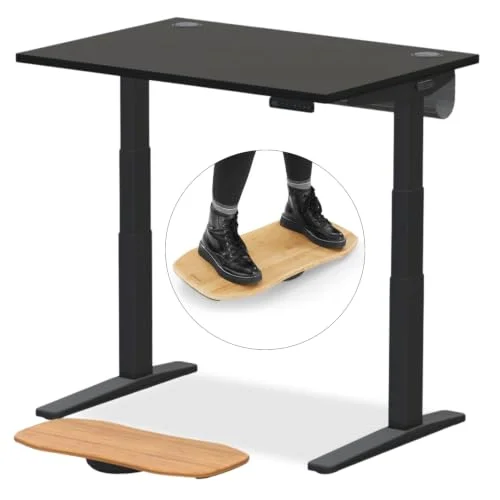
Partially. Standing desks help by breaking up the static load of sitting all day, which reduces cumulative spinal compression. But standing with bad posture (pelvis tilted, back swayed, weight on one leg) creates its own problems. A standing desk is more valuable as an alternative to sitting than as a direct posture fix. See our complete standing desk setup guide for proper technique.
Is an ergonomic chair worth it if I only work 4–5 hours a day?
Yes — but at a lower budget tier. At under 5 hours daily, a chair in the $150–$250 range with basic lumbar support and height adjustment will address most issues. You don’t need a full 8-adjustment premium chair unless you’re clocking 7+ hours seated.
What’s the fastest single thing I can do to improve WFH posture today?
Raise your laptop on a stand, or lower your monitor, until your eye line hits the top third of the screen without tilting your head down. This one change — screen at eye level — immediately removes the forward head position that drives most WFH neck pain. A $43 laptop stand accomplishes this in minutes.
Do posture corrector braces actually work?
Physical braces work by forcing your shoulders back, but they work passively — your muscles don’t learn anything. The moment you take the brace off, you return to your habitual posture. Biofeedback devices like the Upright GO 2 are more effective at creating lasting change because they train awareness and self-correction. See our posture corrector vs. ergonomic chair comparison for a full breakdown.
Can ergonomic keyboards really help with posture?
Keyboards affect wrist and forearm position, which indirectly affects shoulder and upper back tension. A low-profile keyboard like the Logitech MX Keys S reduces the wrist extension angle compared to thick mechanical keyboards. Full ergonomic (split, tented) keyboards go further but have a steep adjustment curve. For most people, a low-profile keyboard is a meaningful improvement over a standard keyboard without requiring weeks of re-learning.
Conclusion
WFH posture doesn’t require spending thousands or replacing your entire setup at once. The sequence matters more than the budget.
Fix your chair first — you need a seat that supports your lower back and adjusts to your body. Then fix your screen height so your neck isn’t bent forward all day. If you use a laptop, a $43 stand plus any external keyboard solves most of the problem. Add a posture trainer to build the habits that make everything else stick.
Best overall chair: Branch Ergonomic Chair — 8 adjustment points, 7-year warranty, $329 Best for desk workers: Ergotron LX Pro Monitor Arm — full articulation, precise positioning, $209 Best for laptop users: Rain Design mStand — raises screen 6 inches, solid aluminum, $43 Best keyboard: Logitech MX Keys S — low-profile, multi-device, $110 Best posture trainer: Upright GO 2 — biofeedback, 14-day program, $69.95