Fifty doesn’t change how much you work — it changes what your hands, eyes, and joints tolerate while you’re doing it. Stiffness that used to fade by 10 a.m. now settles in and stays. Small print that used to be readable at arm’s length now needs a squint. And a home office setup bought years ago for a younger set of joints is quietly working against you every day. 2026’s home office gear has leaned hard into this — vertical mice and split keyboards have gone from niche accessories to genuinely mainstream picks for hybrid workers, and that shift benefits nobody more than desk workers over 50.
If you only fix one thing: start with the Logitech ERGO K860 split keyboard at $127.49. The keyboard gets more total contact time than any other input device on your desk, and a flat one is the single biggest contributor to wrist strain in this age group.
Why Ergonomics Change After 50
Three things shift with age that most desk setups never account for: joint stiffness (especially in the hands, wrists, and shoulders), reduced near vision from presbyopia, and slower recovery from repetitive strain. None of this means working less — it means the tools need to ask less of the joints and eyes that are doing more work than they used to.
The good news is that almost none of the fixes below require replacing your whole setup. Most are single-device swaps that address a specific pain point.
Fixing Joint and Wrist Strain First
A flat mouse forces the forearm to rotate inward and the wrist to bend upward for hours at a time — tolerable for younger joints, but a real source of pain once arthritis or general stiffness sets in.
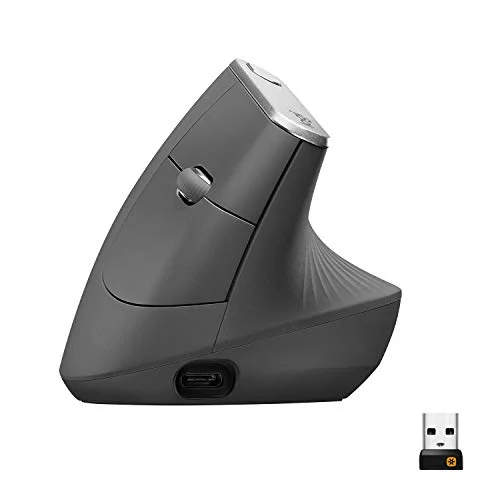
Logitech MX Vertical Advanced Ergonomic Mouse
Pros
- ✓ 57-degree vertical grip keeps the forearm in a natural handshake position instead of pronated flat, which eases strain on sensitive joints
- ✓ Works across up to three computers via Logi Flow — useful for anyone splitting time between a work machine and a personal one
- ✓ Rechargeable battery lasts months per charge rather than days
- ✓ Textured rubber grip stays comfortable through a full day for both large and small hands
Cons
- ✗ The vertical angle takes a week or two to adjust to after decades on a flat mouse
- ✗ Right-hand only — no left-handed version exists
- ✗ Bulkier footprint than a standard mouse, so it needs a bit more desk clearance
The Logitech MX Vertical holds the hand in a natural handshake angle instead of flat, which takes the twist out of every click and drag. It’s the easiest single swap if your pain is mouse-hand specific and you want to keep using a standard point-and-click device.
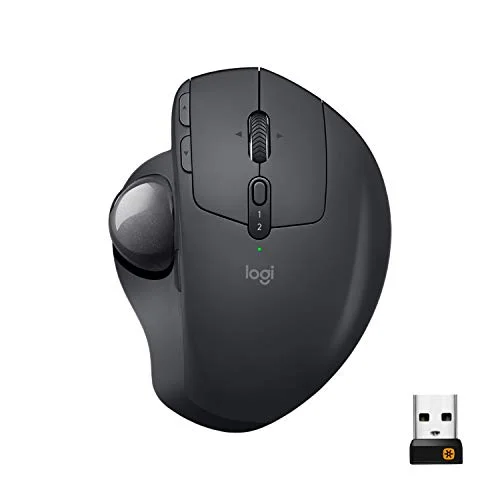
Logitech MX Ergo Wireless Trackball Mouse
Pros
- ✓ Trackball control means the cursor moves with a thumb, not the whole arm or wrist — useful when grip strength or shoulder mobility is limited
- ✓ Adjustable tilt hinge lets you angle the trackball into a comfortable wrist position instead of resting flat
- ✓ Precision scroll wheel makes small, controlled movements easier than flicking a standard mouse wheel
- ✓ Rechargeable battery lasts months per charge and pairs over Bluetooth or USB
Cons
- ✗ Trackball control has its own learning curve and isn't comfortable for everyone right away
- ✗ The trackball mechanism needs occasional cleaning to keep tracking smooth
- ✗ Fewer programmable buttons than a full gaming-oriented trackball
If grip strength or shoulder mobility is the bigger issue, a trackball is worth trying instead. The Logitech MX Ergo moves the cursor with thumb motion alone — no reaching, sliding, or gripping required — and its tilt hinge lets you set the wrist angle instead of accepting whatever angle a flat desk gives you. For a deeper comparison of trackball options at every price point, see our best ergonomic trackballs guide.
If wrist pain is already a daily issue rather than an occasional one, pair either mouse with a proper wrist brace built for typing and everyday use, and read through our full guide to preventing wrist pain from typing — the device swap helps, but posture and typing habits matter just as much.
A Keyboard That Doesn’t Fight Your Hands
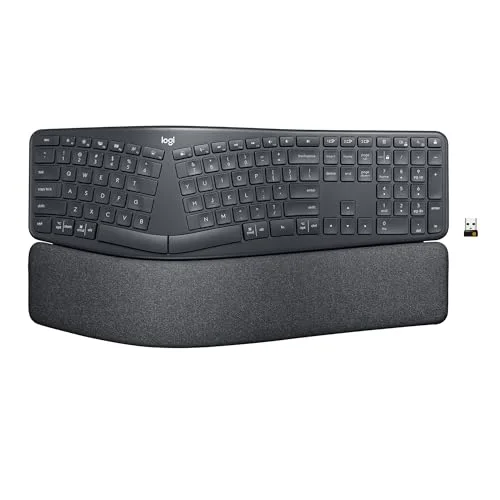
Logitech ERGO K860 Wireless Split Keyboard
Pros
- ✓ Curved split keyframe reduces the inward wrist bend a flat keyboard forces, a common source of pain for arthritic hands
- ✓ Negative tilt option slopes the keyboard away from you instead of toward you, keeping wrists straighter than a standard flat board
- ✓ Attached cushioned palm rest means no separate wrist rest to buy, lose, or reposition
- ✓ Full-size layout with a number pad, so nothing gets left out for spreadsheet or data-entry work
Cons
- ✗ Wider than a standard keyboard — needs a full-width desk or keyboard tray to sit comfortably
- ✗ The split layout takes a few days for practiced touch-typists to adjust to
- ✗ Function-row keys are smaller than the main keyframe, which can be harder to read for anyone with reduced close-up vision
The keyboard is the device your hands touch the most, which makes it the highest-value ergonomic upgrade on this list. A flat keyboard forces both wrists into the same bent, rotated position the entire time you type. The Logitech ERGO K860 splits the keyframe and curves it, which lets each hand type at a more natural angle, and its negative-tilt option slopes the board away from you rather than toward you — the opposite of what most flat keyboards do.
It takes a few days to adjust to the split layout if you’ve touch-typed on a standard board for decades, but most people who stick with it don’t go back. If you want a broader roundup of ergonomic keyboard options, including other split and low-profile designs, our ergonomic keyboards for programmers guide covers several worth comparing.
When Typing Itself Becomes the Problem
Nuance Dragon Professional 16 Speech Recognition Software
Pros
- ✓ Removes typing and mousing from the equation entirely for email, documents, and web browsing
- ✓ One-time purchase with no recurring subscription fee
- ✓ Voice commands can control the desktop itself, not just dictate text
- ✓ Recognition accuracy improves over time as it learns a specific voice and vocabulary
Cons
- ✗ Windows only — no Mac version has existed since 2018
- ✗ $699.99 is a serious investment compared to a hardware fix
- ✗ Needs a quiet room and a decent microphone; noisy or shared spaces reduce accuracy noticeably
For anyone dealing with arthritis severe enough that any keyboard or mouse causes pain, Dragon Professional 16 is worth the $699.99 price tag. It’s a one-time purchase, not a subscription, and it handles dictation, document editing, and basic desktop voice control on Windows. It’s not a casual purchase, and it’s Windows-only, but for someone who genuinely cannot type or click comfortably for extended periods, it removes the problem instead of just softening it.
Protecting Aging Vision at the Desk
Presbyopia — the gradual loss of close-up focusing ability that affects nearly everyone by their mid-40s to 50s — means the monitor setup that worked at 35 often doesn’t work as well now. A few fixes matter more than others:
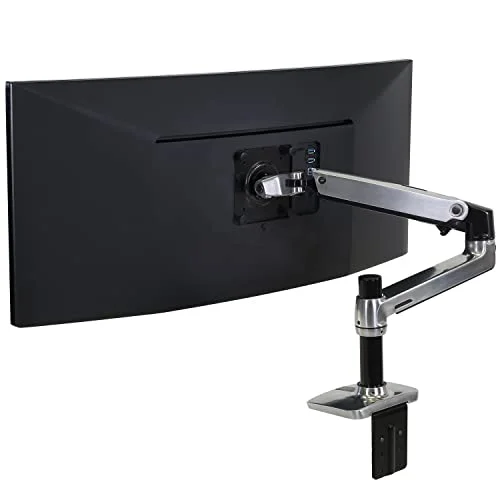
- Screen distance and size. Rather than leaning in toward a small monitor, raise and reposition it with a proper monitor arm so it sits at the right height and distance without forcing you to lean.
- Glare. Aging eyes are more sensitive to screen glare and reflections. An anti-glare screen protector cuts reflections without any change to your monitor settings.
- Desk lighting. Matching the brightness around your screen to the screen itself reduces the pupil strain of constantly readjusting between a bright display and a dim room — our desk lamps for eye strain guide covers the options that do this well.
For the full picture on reducing digital eye strain — including the 20-20-20 rule and blue light settings — our eye strain prevention guide walks through the rest.
Chair and Posture Support for Stiffer Joints
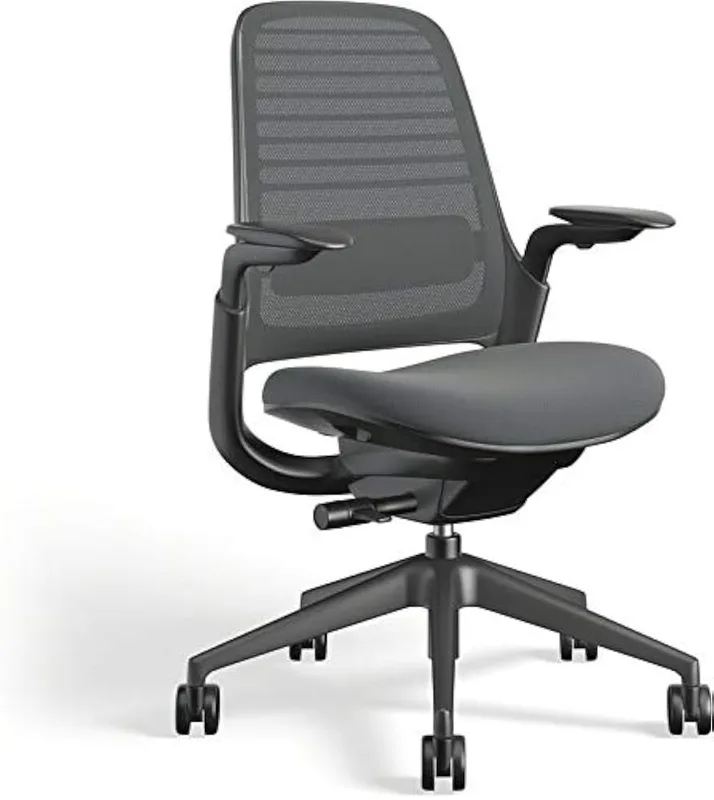
Joint stiffness makes sitting still for long stretches harder, not easier, which is the opposite of what most office chairs assume. A few targeted additions help more than a full chair replacement in most cases:
- A lumbar support cushion reduces the lower-back strain that comes from sitting longer without shifting position as often as you used to.
- Adjustable armrests take pressure off the shoulders, which stiffen up faster than most other joints with age.
- A supportive seat cushion helps with hip and tailbone discomfort that can make a perfectly good chair feel unbearable after an hour.
- A footrest improves circulation in the legs and feet during long seated stretches — see our best footrests for office workers guide for options.
Movement Still Matters — Maybe More Than Before
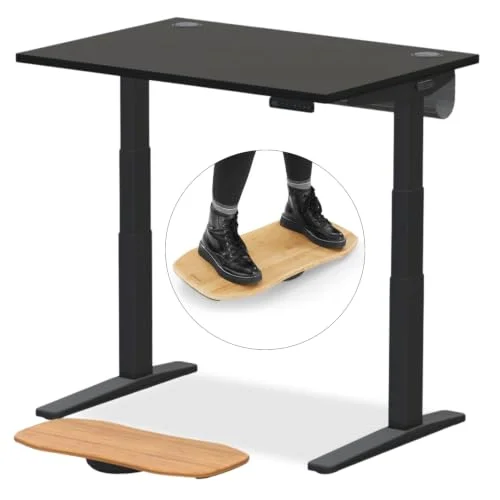
Staying in one position, seated or standing, is harder on older joints than moving between positions. If you already have or are considering a standing desk, pair it with a supportive anti-fatigue mat — standing on a hard floor for extended periods is rough on hips and knees regardless of age, and more so past 50. Building in short movement breaks matters just as much as any piece of gear; our best stretches for desk workers guide has a set that specifically targets the shoulders, wrists, and lower back.
Buying Guide: What to Prioritize First
Start with whichever joint hurts most. If it’s your typing hand, the keyboard is the highest-impact fix. If it’s your mouse hand or shoulder, start with the mouse or trackball. Don’t try to fix everything at once — one well-chosen swap, given a couple of weeks to adjust to, tells you more than five simultaneous changes.
Budget expectations: A vertical mouse or trackball runs $95–$100. A quality split keyboard runs $125–$130. These are the highest-value fixes for the money. Voice dictation software at $699.99 is a much bigger investment and makes sense specifically when typing or clicking itself has become painful, not as a first step.
Don’t ignore the chair and monitor. Input devices fix hand and wrist strain, but posture support and screen setup address the back, hips, and eyes — all of which tend to need more help after 50, not less.
Frequently Asked Questions
Do ergonomic keyboards and mice actually help with age-related joint pain?
Yes, for the specific strain caused by repetitive flat-wrist positioning. A split keyboard and a vertical mouse or trackball reduce the awkward angles that cause a lot of desk-related joint pain. They won’t treat arthritis itself, but they remove one of its most common daily aggravators.
What’s the single best ergonomic upgrade for someone over 50?
The keyboard, in most cases. It gets more total hand contact time per day than any other device, and a flat keyboard forces both wrists into a bent position for the entire session. A split, curved design like the ERGO K860 addresses that directly.
Is a trackball or a vertical mouse better for arthritis?
It depends on where the strain is. A vertical mouse still requires arm and wrist movement but in a more natural angle — good for general wrist strain. A trackball removes arm movement almost entirely, which helps more when grip strength or shoulder mobility is the limiting factor.
Is voice dictation software worth it for everyday use?
For most people, no — it’s a bigger adjustment and expense than most desk work requires. It’s worth it specifically when typing or clicking has become genuinely painful rather than just occasionally uncomfortable, since it removes the need for either.
Do I need to replace my whole desk setup at once?
No. Pick the single device causing the most discomfort, replace that first, and give yourself a couple of weeks to adjust before deciding on the next change. Most people find one or two swaps handle the bulk of their discomfort.
Does a bigger monitor help with aging vision?
It helps less than repositioning the monitor you already have. Moving the screen closer to the 20–28 inch range and raising it to eye level with a monitor arm addresses presbyopia more directly than screen size alone. Larger text settings in your operating system also go further than most people expect.
Bottom Line
Joint pain and vision changes after 50 aren’t a sign your home office setup failed — they’re a sign it was built for a different set of joints and eyes. The Logitech ERGO K860 at $127.49 is the best place to start for most people, since the keyboard sees more use than anything else on the desk. If your pain is more mouse-hand specific, the Logitech MX Vertical at $99.99 or the Logitech MX Ergo trackball at $99.99 are both strong, less drastic changes. And if typing itself has become the problem rather than just uncomfortable, Dragon Professional 16 is a legitimate, if expensive, way around it entirely.
Pair whichever input device you choose with better screen positioning and a bit more back and hip support, and most of the desk discomfort that shows up after 50 is very fixable.