Repetitive strain injury affects more than 10% of computing professionals, according to ergonomics researchers — and in 2026, the problem is getting worse. More developers are splitting time between poorly configured home setups and office hot desks that change week to week. Different chair heights, different monitor positions, different keyboard angles every time you sit down. The cumulative effect shows up as wrist pain, neck stiffness, and shoulder tension that starts subtle and turns chronic.
The good news: most developer-specific ergonomic problems are solvable. This guide covers the five workstation elements that actually matter for programmers — keyboard, chair, monitor arm, mouse, and anti-fatigue mat — with specific product recommendations at every budget.
If you just want the quick answer: the Logitech Ergo K860 is the split keyboard I’d start with, and the Steelcase Series 1 is the developer chair worth buying once and not thinking about again.
Keyboard Setup: The Most Important Decision for Developers
Developers type more than any other knowledge worker. Hours of repetitive keystroke patterns on a poorly positioned keyboard are the primary driver of carpal tunnel syndrome and cubital tunnel syndrome in programmers. The fix is usually two things: a split-style keyboard and better wrist positioning.
A split keyboard — whether a two-piece fully-split board or a single-unit curved keyboard — keeps your hands at shoulder width. Standard keyboards force your arms inward and your wrists to deviate outward (ulnar deviation). That constant deviation accumulates stress on the tendons that pass through your wrist. A split layout eliminates it.
Logitech Ergo K860 Wireless Ergonomic Keyboard
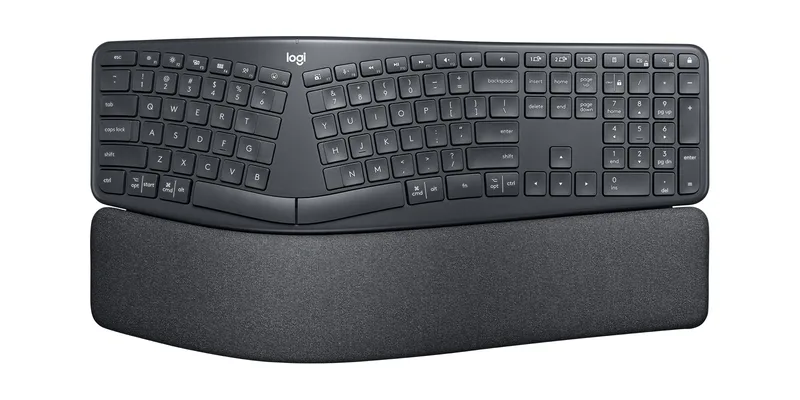
At $129.99, the K860 is the ergonomic keyboard I’d recommend to any developer who types more than four hours a day and hasn’t made the switch yet. The curved split layout reduces shoulder tension while keeping the standard key spacing developers expect. There’s no relearning involved — the keys are in the exact same positions, just curved.
The built-in memory foam wrist rest does real work. It’s covered in stain-resistant fabric (important for all-day desk use) and positions your wrists at the neutral angle the keyboard geometry is designed around. Bluetooth and Logi Bolt support means you can pair it to three devices and switch between your workstation, laptop, and personal machine.
If you want a deeper look at split keyboard options including fully-split boards for serious ergonomic cases, the best ergonomic keyboards for programmers roundup covers them in detail.
Perixx PERIBOARD-512B Ergonomic Split Keyboard
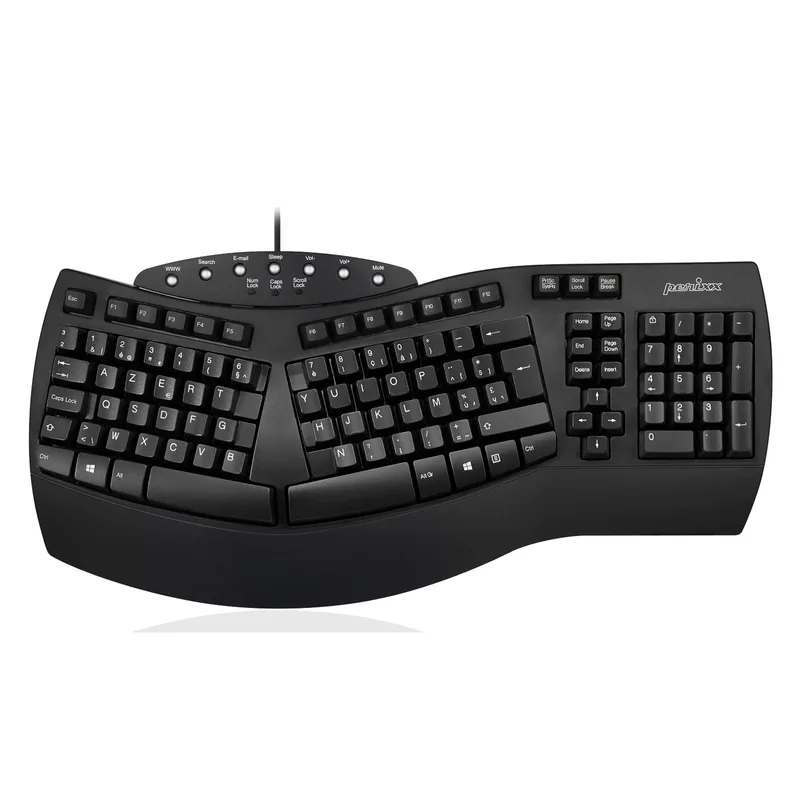
For developers who want to try ergonomic keyboards before spending $150, the Perixx PERIBOARD-512B at $39.99 is a solid entry point. The split-key layout mimics the classic Microsoft Natural Keyboard design that ergonomists recommended for years. It’s wired, it’s plastic, and the membrane switches won’t impress anyone — but users recovering from wrist strain consistently report that the layout change alone makes a significant difference.
Think of it as a proof-of-concept purchase. If the ergonomic layout helps and you’re ready for something better, step up to the K860 or a mechanical split option.
Chair Setup: Position First, Hardware Second
The right chair for developers is one that adjusts to support neutral spine alignment during deep focus work — including the slight forward lean many developers fall into when concentrating on the screen.
Before buying a new chair, audit your current setup. Seat height should position your feet flat on the floor with thighs parallel to the ground. Armrests should lift your arms just enough to take weight off your shoulders without hiking them up. If your current chair doesn’t hit both of those marks, no chair cushion will fix it.
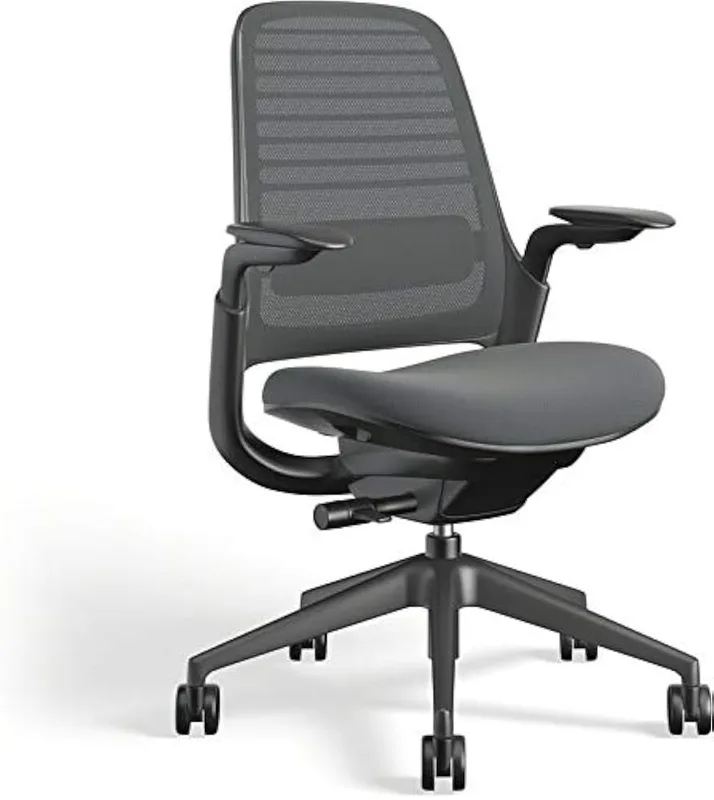
Steelcase Series 1 Ergonomic Chair
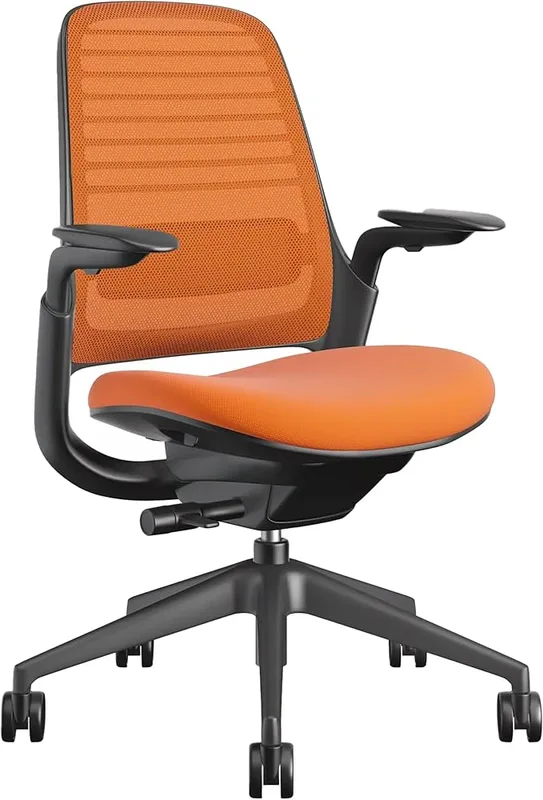
The Series 1 is the developer-friendly Steelcase chair. Not the $1,500 Leap, not the $1,400 Gesture — the $499 chair that ships from Amazon and arrives in a box you can actually assemble in 20 minutes.
The LiveBack technology is the headline feature: the chair back flexes and pivots to follow your spine as your posture shifts throughout the day. Developers lean forward to read a bug, tilt back to think through architecture, sit upright to write documentation. The Series 1 moves with you without needing manual adjustment.
The 4D armrests are worth calling out specifically. Height, width, depth, and pivot adjustment means you can dial in the exact position that lets your forearms float in front of the keyboard without shoulder shrugging. That armrest position is the single biggest factor in shoulder pain for developers.
For more options at this price, see best ergonomic desk chairs under $500.
Monitor Setup: Height and Distance for Reading Code
Monitors are where developer ergonomics diverges most from general office advice. Standard ergonomic guidance puts eye level at the top third of your screen. But code is different — you scan vertically and read dense text. Many developers do better with the monitor slightly lower than the standard recommendation, so they can read middle-screen content without lowering their chin.
The practical guide: position the top of your monitor at eye level and see how it feels after a week. If your neck drifts forward or down when reading code, lower the monitor one inch at a time until your head stays naturally upright.
Distance matters too. Optimal reading distance for most monitors is 20–28 inches from your eyes. At 24 inches with a 27-inch monitor at 1440p, you’ll want a font size of 13–14pt for comfortable all-day code reading.
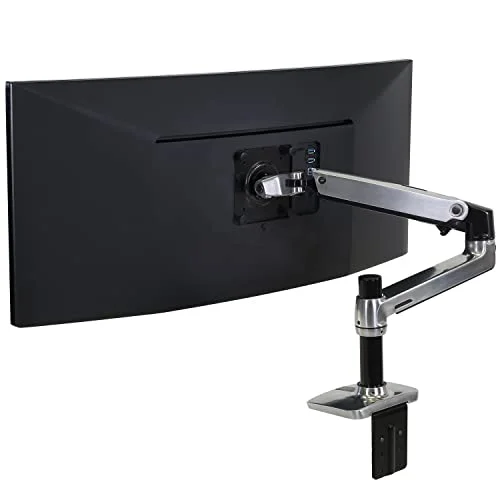
Ergotron LX Single Monitor Arm
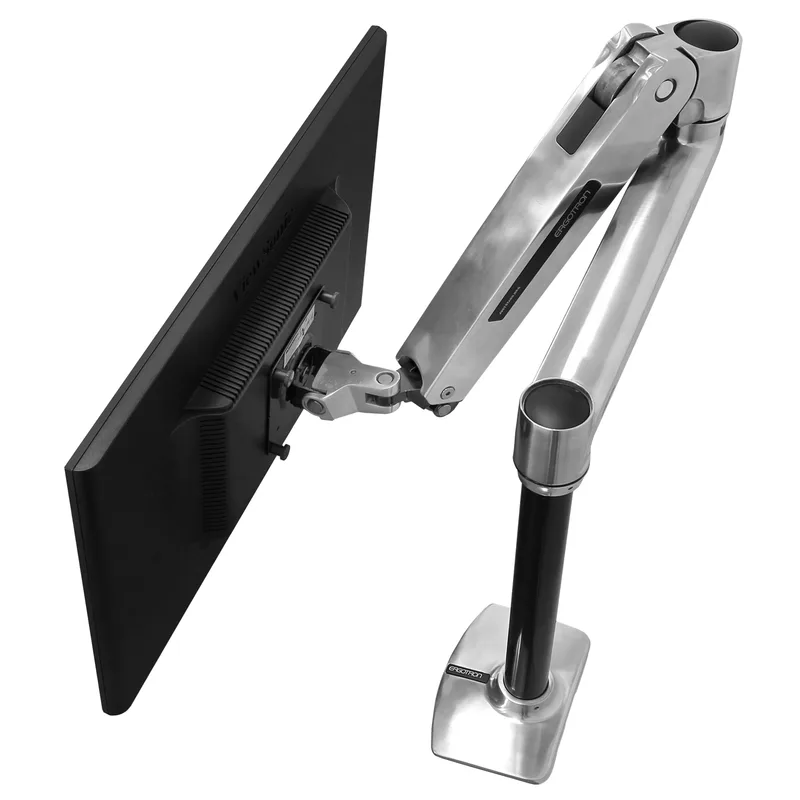
For a single-monitor setup, the Ergotron LX is the benchmark. The spring-balanced arm holds any position you place it in with zero drift — a problem that plagues cheaper arms. The 17-inch vertical lift range means it works with any desk height, including sit-stand desks where the desktop moves by 18+ inches during transitions.
Internal cable routing through the arm keeps the desk surface completely clean, which matters if you’re already managing power, USB, and audio cables. For a deeper dive into monitor arms for standing desks, see the complete monitor arm buying guide.
VIVO STAND-V002O Dual Monitor Arm
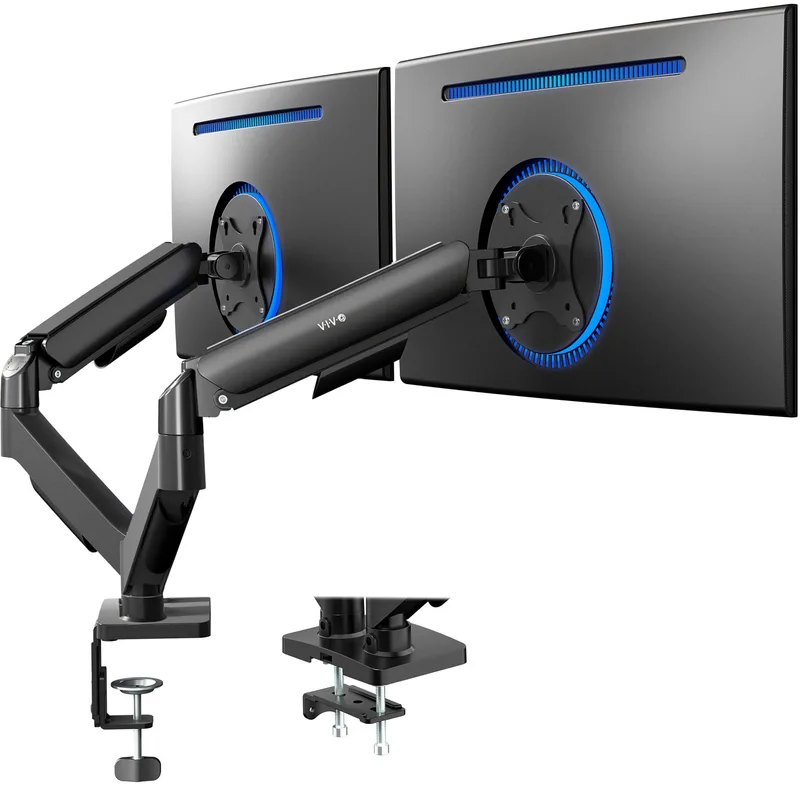
Two monitors are standard in developer setups. The VIVO STAND-V002O gets both screens off the desk for $49. That’s a practical price for a setup improvement that frees significant desk surface and puts both screens at exactly the height you need.
The tradeoffs are real: the movement is stiffer than premium arms, and cables route along the outside of the pole rather than through internal channels. For most developers, neither of those limitations matter once the monitors are positioned and you’re not adjusting them daily.
Mouse Ergonomics: Your Other Hand
Keyboard gets all the attention in developer ergonomics, but the mouse is often where forearm and elbow pain originates. Standard flat mice force your forearm into full pronation — palm facing down. Hold that position for six hours and the muscles in your forearm stay under continuous tension.
Logitech MX Vertical Wireless Mouse
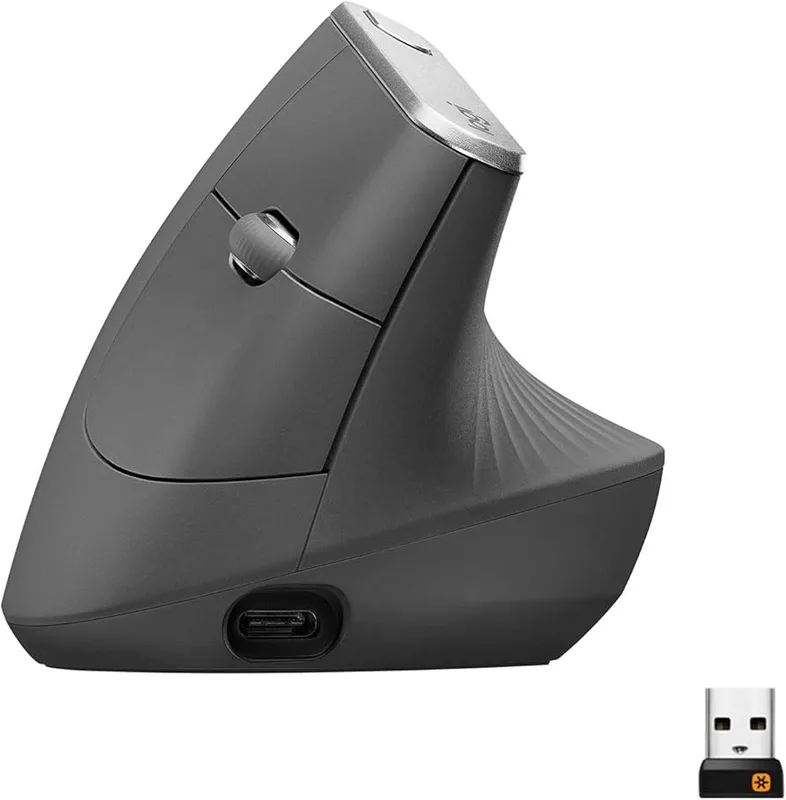
A vertical mouse like the Logitech MX Vertical tilts your hand 57 degrees, putting your palm in a “handshake” position. That rotation takes your forearm out of full pronation and removes the muscular tension that causes lateral epicondylitis (tennis elbow) in mouse-heavy users.
Owner reports consistently describe a 2–3 week adjustment period before movement feels natural. After that, most users say they can’t go back to a flat mouse. The USB-C rechargeable battery lasts four months on a charge and the Easy-Switch button pairs with three devices.
Standing Desk Usage for Developers
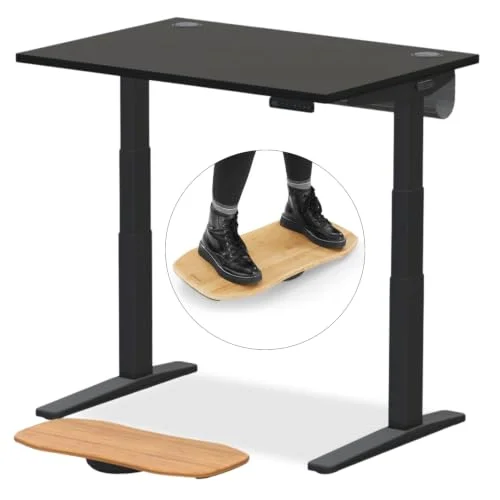
The research on standing desks is nuanced: standing continuously has its own set of problems (lower back fatigue, varicose veins). The evidence supports alternating between sitting and standing, not replacing one with the other.
For developers, a practical protocol is 45 minutes sitting followed by 15 minutes standing. Code review and documentation tasks are good standing candidates — tasks where you’re reading more than actively typing. Deep focus work like debugging and architecture typically benefits from seated concentration.
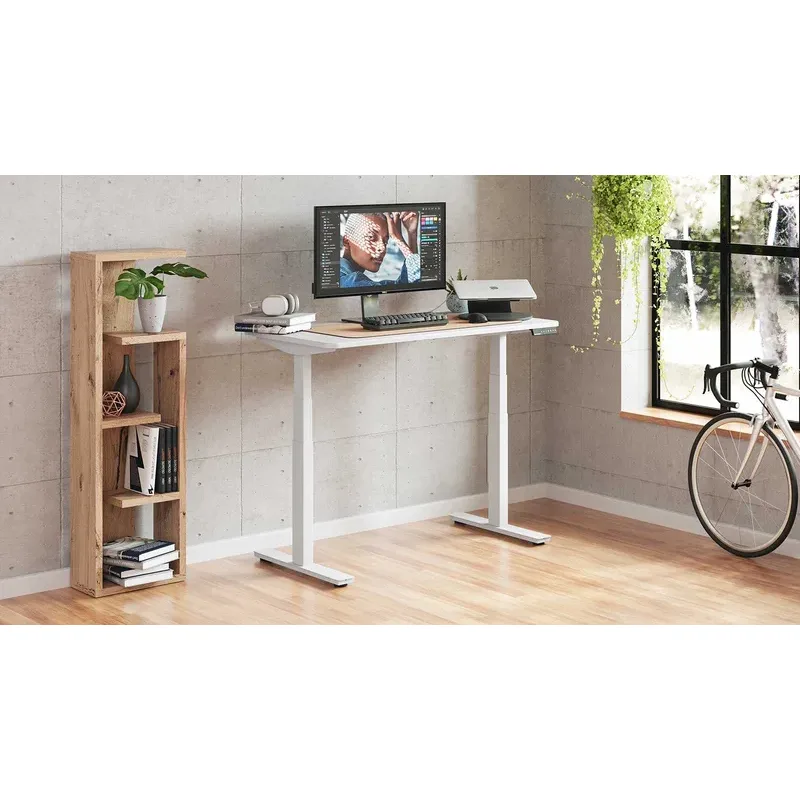
For electric sit-stand desk recommendations, the best standing desks for programmers roundup covers options from budget frames to premium motorized desks.
Anti-Fatigue Mat: Required for Standing Desk Users
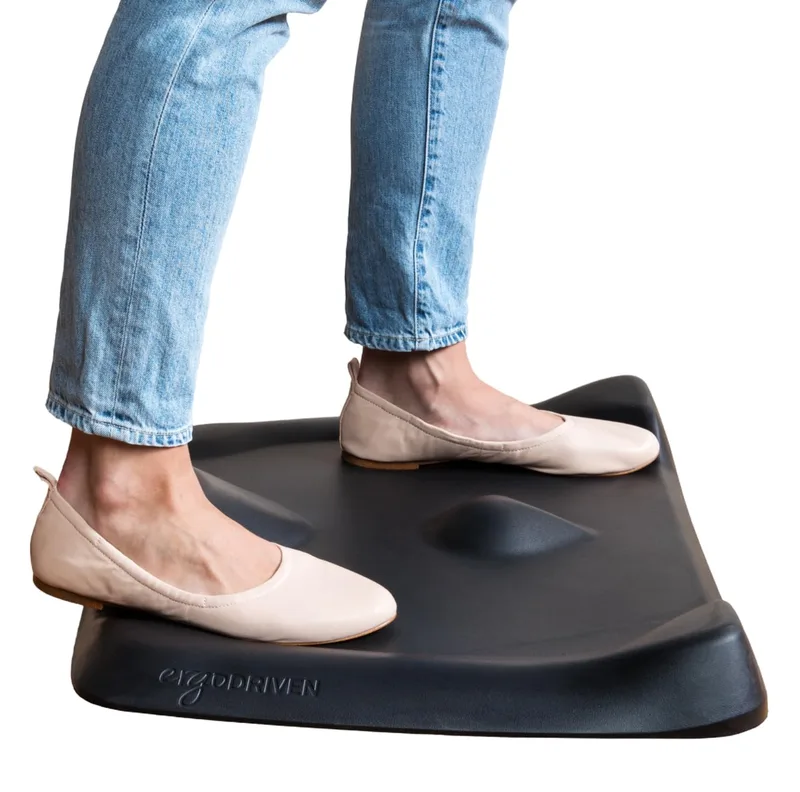
Ergodriven Topo Anti-Fatigue Mat
Pros
- ✓ Varied terrain encourages constant micro-movement — not just flat standing
- ✓ Heel bar relieves calf tightness during long standing sessions
- ✓ Durable closed-cell foam holds up to daily use over years
- ✓ Compact footprint fits neatly under most standing desks
Cons
- ✗ $99 is more expensive than flat anti-fatigue mats
- ✗ Raised areas take adjustment — some users need a week before it feels natural
- ✗ Heavier than flat mats — harder to move when rearranging your setup
If you add a standing desk to your developer setup, you need an anti-fatigue mat. Standing on a hard floor transfers impact directly to your joints. An anti-fatigue mat compresses underfoot and encourages micro-movement that keeps blood circulating in your lower legs.
Ergodriven Topo Anti-Fatigue Mat
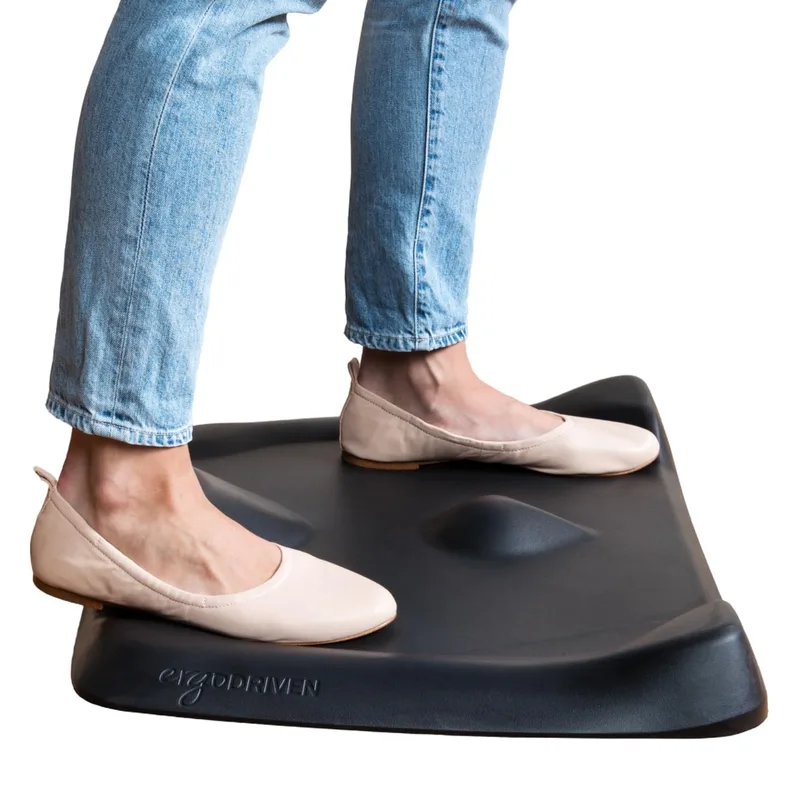
The Topo is the mat anti-fatigue mat reviewers keep recommending because it has varied terrain instead of a flat surface. The heel bar, toe ridge, and rocker zones encourage shifting your weight and moving your feet in small ways throughout a standing session. That constant micro-movement is the mechanism that makes standing tolerable for 30-60 minute intervals.
At $99 it’s more expensive than flat mats, but the durability record is strong — the closed-cell polyurethane holds its shape for years of daily use. For a full comparison including budget options, see best standing desk mats in 2026.
Developer Ergonomics at a Glance
| Product | Price | Use Case | Rating |
|---|---|---|---|
| Logitech Ergo K860 | $76.79-$119.99 as of Oct 18, 2026 | Primary keyboard for 4+ hr/day typing | 9.0 |
| Steelcase Series 1 | $616.72 as of Oct 18, 2026 | All-day seated dev work | 8.8 |
| Logitech MX Vertical | $59.39 as of Oct 18, 2026 | Mouse to prevent forearm/elbow pain | 8.5 |
| Ergotron LX Monitor Arm | $165.99-$199.99 as of Oct 18, 2026 | Single monitor positioning | 9.0 |
| VIVO STAND-V002O | $46.05-$49.99 as of Oct 18, 2026 | Dual monitor setup on a budget | 7.8 |
| Perixx PERIBOARD-512B | $38.98-$49.99 as of Oct 18, 2026 | Budget entry to ergonomic keyboards | 7.8 |
| Ergodriven Topo Mat | $109.00 as of Oct 18, 2026 | Standing desk companion | 8.7 |
Buying Guide: What to Prioritize by Budget
Under $100 — Start here: A split keyboard makes more difference than any other single change. The Perixx PERIBOARD-512B at $39.99 is the lowest-risk way to test whether a split layout helps your wrists. If it does, upgrade later. If your mouse arm is the pain point, the Logitech MX Vertical at $74.99 is worth the investment.
$100–$300 — The keyboard tier: At this level, the K860 at $129.99 is the obvious pick. Add the VIVO dual monitor arm at $49 if you’re running two screens on a desk and want to clear up workspace.
$300–$600 — Chair becomes the priority: Once you have a split keyboard and a vertical mouse, the chair is the highest-impact remaining upgrade. The Steelcase Series 1 at $499 is the best developer chair in this range.
$600+ — Complete the stack: Add the Ergotron LX monitor arm at $179 for precise single-monitor control, and the Ergodriven Topo mat if you’re using a sit-stand desk. At this point the workstation is properly configured.
FAQ
How long does it take to adjust to a split keyboard?
Most developers reach comfortable typing speed on a curved split keyboard like the K860 within 1–2 weeks. The key layout is identical to standard keyboards — the adjustment is purely postural. Fully-split boards with columnar layouts (like the Kinesis Advantage) have a steeper 4–6 week curve.
Is a standing desk necessary for developer ergonomics?
No. A well-configured seated setup eliminates most developer-related pain. Standing desks are a useful addition for breaking up sedentary time, but they don’t fix a poorly positioned chair or bad keyboard alignment. Start with chair height and keyboard positioning before investing in a sit-stand frame.
Do vertical mice affect coding precision?
Precision tasks like clicking small UI elements require a short adjustment period — usually a week or two. Developers who code, browse, and do light design work report that precision returns to normal quickly. The MX Vertical’s precision mode button drops DPI for pixel-level control when needed.
What monitor size and resolution works best for reading code?
A 27-inch QHD (2560x1440) display at 24 inches viewing distance is widely cited as the sweet spot for code readability. The pixel density is high enough for sharp text without requiring scaling that disrupts workspace. 4K at 27 inches is also excellent but requires display scaling, which can affect some developer tools.
How do I know if my monitor height is correct?
Close your eyes and relax your neck, then open your eyes. Where your gaze lands naturally is your ideal monitor center height. If you’re looking up to read the middle of your screen, your monitor is too high. If you’re looking down, it’s too low. Adjust accordingly.
Should I use an ergonomic keyboard at my office workstation too?
Yes, if your pain is RSI-related. Switching between a split keyboard at home and a standard keyboard at the office reintroduces the wrist deviation ergonomic keyboards eliminate. A compact split option for travel (like the Logitech K860 Bluetooth multi-device mode) solves this.
Conclusion
Most developer ergonomics problems trace back to three things: wrist deviation from flat keyboards, forward head posture from incorrectly positioned monitors, and mouse arm strain from pronated grip. All three are fixable with hardware changes.
The priority order: keyboard first (highest usage, most direct path to RSI), then monitor positioning (free fix, just adjust the arm), then chair (biggest investment, biggest long-term impact), then mouse.
For developers starting from scratch: the Logitech Ergo K860 at $129.99 and proper monitor height will solve most problems before you spend another dollar. Build from there.
If you’re equipping a full workstation and want to see the best standing desk options for code work, the standing desks for programmers roundup covers the top frames for developer-width setups.