Disclosure: PostureRanked is reader-supported. When you buy through links on our site, we may earn an affiliate commission at no additional cost to you. Our recommendations are based on independent research.
Disclosure: PostureRanked is reader-supported. When you buy through links on our site, we may earn an affiliate commission at no extra cost to you. Learn more
In 2026, 144Hz and 165Hz panels have become the standard at every price point — you can find a 1440p 165Hz monitor for under $250. That’s good news for gaming. But it’s also quietly changed how people position their screens, and usually not for the better. With sharper, smoother images, gamers are pulling their monitors closer to catch more detail, which is precisely the wrong direction ergonomically.
Most neck and shoulder pain that develops during gaming sessions traces back to one of three setup mistakes: monitor too high, monitor too close, or monitor tilted at the wrong angle. None of these require an expensive fix. This guide covers all three, plus refresh rate settings, the 20-20-20 rule, dual monitor setups, and when a monitor arm actually makes a meaningful difference.
If you’re coming here because you already have neck pain, start with the gaming posture guide first — it covers your full station setup including chair and desk height. This guide focuses specifically on your display positioning.
The Single Most Important Rule: Monitor Height

Get this one thing right and you’ve solved 80% of gaming-related neck strain.
The top edge of your monitor should be at or very slightly below your eye level when you’re seated in your normal gaming position. Not the center of the screen — the top edge.
When the top of the screen is at eye level, your eyes naturally land in the upper third of the display at a comfortable 10–20° downward gaze. That slight downward angle is your cervical spine’s preferred neutral position. It keeps the deep neck flexors engaged without loading the upper traps and levator scapulae the way forward-head posture does.
The math is straightforward. Your head weighs roughly 10–12 lbs in neutral. For every inch it drifts forward from that neutral position, the effective load on your cervical spine doubles. A monitor that’s too high forces your chin up. A monitor that’s too low forces you to hunch forward to read it. Either error puts compressive force on structures that weren’t designed to handle sustained loading.
How to Check Your Current Height
Sit down in your normal gaming position — slouch and all — then look straight ahead. Where does your gaze land on the screen? If it hits the top third or higher, your monitor is too high. If it hits the lower third or you’re looking down more than 20°, it’s too low.
A quick fix before buying a monitor arm: books under a monitor work fine. Four inches of elevation makes a real difference if your display currently sits directly on the desk.
Viewing Distance by Screen Size
The rule of thumb is arm’s length. Put your arm straight out in front of you — your monitor should be approximately where your fist lands. But screen size changes the equation.
| Screen Size | Optimal Distance | Notes |
|---|---|---|
| 24” (1080p) | 50–60 cm (20–24”) | Comfortable for most standard desk depths |
| 27” (1440p) | 60–70 cm (24–28”) | The sweet spot for 27” at this resolution |
| 32” (1440p or 4K) | 70–85 cm (28–33”) | Requires deeper desk or monitor arm to push back |
| 34–38” Ultrawide | 80–100 cm (32–39”) | Most desk depths are too shallow — arm needed |
| 45–49” Super Ultrawide | 90–110 cm (36–43”) | Virtually requires an arm; wall-mount if possible |
Why distance matters for eye strain: The accommodation reflex — the eye’s ability to shift focus between near and far — fatigues with sustained near-focus. Sitting 40 cm from a 32” monitor is like reading a book six inches from your face. Your ciliary muscles are working hard the entire session.
The move to high-res 1440p and 4K panels in 2026 actually helps here: you don’t need to sit as close to read text clearly on a 1440p 27” as you did on a 1080p 27”. The higher pixel density lets you move back to proper ergonomic distance without squinting.
The Curved Monitor Exception
Curved panels (1000R, 1500R, 1800R) are designed for a specific viewing distance that matches the curve radius. A 1500R curve is optimized for 1.5 meter viewing. Most gaming ultrawides are 1800R, which works best around 1.8 meters — farther back than most setups allow. For typical desk depths, a 1000R–1500R curve is the most forgiving.
Monitor Tilt: The Overlooked Adjustment
Most monitors tilt backward, and most people set them flat or slightly tilted back without thinking about it. The correct tilt depends on your monitor height and where you sit.
If your monitor is at the right height (top edge at eye level), a slight 10–15° backward tilt aligns the screen face more perpendicular to your line of sight. This minimizes reflected glare from overhead lighting and slightly softens the perceived brightness of the display.
Don’t tilt forward. A forward tilt is almost always a compensation for a monitor that’s too high — it’s the monitor fighting itself. Lower the monitor instead of tilting it down.
Vertical position is more important than tilt. Get the height right first, then adjust tilt as a secondary correction.
Dual Monitor Setups
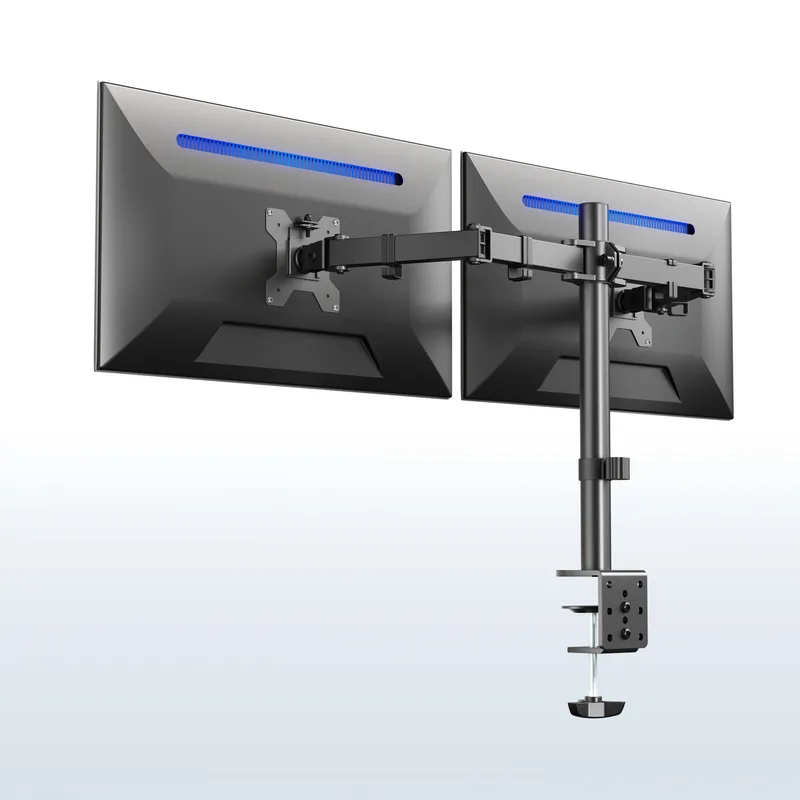
Dual monitor gaming creates a real ergonomic challenge. Most players have one dominant or “primary” monitor they stare at for 90% of play time, and a secondary display for Discord, Twitch chat, or browser tabs.
For gaming-primary dual setups:
- Place your primary monitor directly in front of you, centered on your body
- Position the secondary display to the side, angled roughly 30–45° toward you
- Never put both displays at equal angles on either side — that forces constant head rotation to the center seam
For work/game dual setups (equal use):
- Center both displays so the seam sits directly in front of you
- This works only if you use both screens roughly equally; otherwise it forces a constant off-center head position
The biggest mistake in dual setups: placing both monitors flat, side by side, without any angle. The outer corners end up far out of comfortable viewing range. Angle the secondary display inward. Most monitor stands allow horizontal pivot — use it.
Display Settings That Affect Eye Strain
Getting the physical position right matters. Getting the display settings right matters nearly as much.
Refresh Rate
A real 2021 study found that participants reported 34% less eye discomfort during two-hour gaming sessions on 120Hz+ displays compared to 60Hz displays. The mechanism: smoother motion means fewer involuntary micro-saccades — those tiny rapid eye corrections your visual system makes to track moving objects. Fewer corrections means less strain on the extraocular muscles.
If you’re gaming at 60Hz in 2026, upgrading to 144Hz+ will likely make a bigger comfort difference than any physical positioning change.
Brightness and Contrast
Your monitor brightness should roughly match the ambient lighting in your room. A display that’s dramatically brighter than its surroundings forces the iris to constantly adjust. A rough calibration: if you can clearly see the screen in a lit room but it’s not blinding when you look away, you’re in range.
Avoid gaming in a completely dark room with a bright monitor. The contrast between the glowing screen and the dark surroundings causes pupil dilation cycling that accelerates eye fatigue significantly.
Blue Light and Flicker
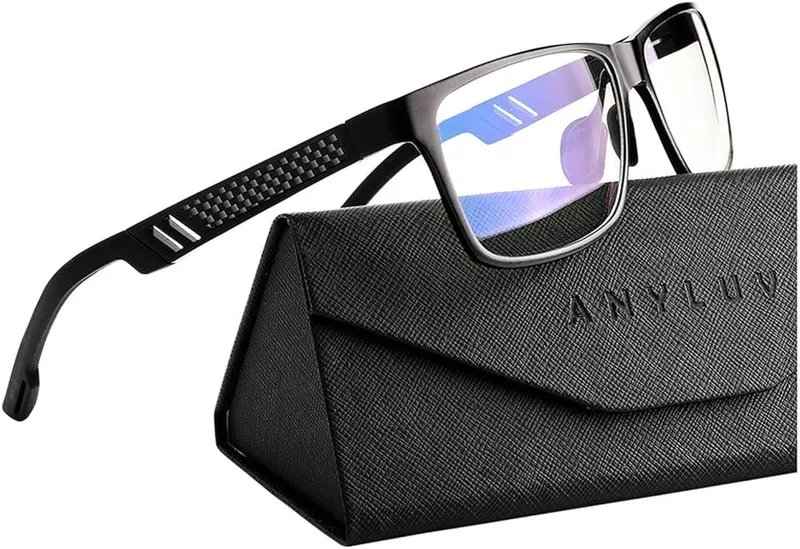
PWM dimming (pulse-width modulation) causes the backlight to rapidly switch on and off to simulate lower brightness. Some people are sensitive to this. If you experience headaches at lower brightness levels specifically, check whether your monitor uses DC dimming (always-on) or PWM dimming at low brightness — specs are usually on the manufacturer’s page. DC dimming panels are generally more comfortable for extended use.
Night mode and blue light filters reduce the cooler blue wavelengths that can suppress melatonin and make it harder to wind down after evening sessions. Whether they meaningfully reduce daytime eye strain is debated, but running a warmer color temperature in the evening has clear sleep benefits.
The 20-20-20 Rule (and Why You’re Probably Not Doing It)
Every 20 minutes, look at something at least 20 feet away for 20 seconds.
This is the most widely cited recommendation for digital eye strain. The logic: sustained near-focus causes the ciliary muscles to maintain a contracted state. Looking at a distant object lets them fully relax.
The problem is that nobody actually does this during an active gaming session. A ranked match, a raid, a boss fight — the game doesn’t pause because your eyes are tired.
A more practical adaptation: use natural break points. When you die and wait to respawn, look away. When you’re in a loading screen, look away. Between queues in competitive play, look away. These micro-breaks add up.
If you play sessions longer than 2–3 hours, set a physical timer for 30-minute breaks. Stand up, move around, focus on something distant for a minute. The gaming sessions where you don’t do this are exactly the ones where you wake up the next morning with a stiff neck.
When a Monitor Arm Actually Helps
Most gaming desks and monitor stands limit your height and depth adjustment range. A fixed stand that comes with a 27” monitor typically adjusts between 3–6 inches of height — nowhere near enough if you’re 6’3” or if your desk is too tall.
A monitor arm solves three problems at once:
- Full height range — mount height becomes independent of desk surface
- True depth adjustment — you can push the monitor back to proper viewing distance without a deeper desk
- Easy repositioning — shift from gaming to work to watching content without manual assembly
For single monitors up to 27”, a standard single-arm like the Ergotron LX handles the job at around $150. For heavier 32”+ panels or ultrawides, you need a heavy-duty arm. We cover the specific picks in our best monitor arms for ultrawide roundup.
Setup Comparison: Common Configurations
| Configuration | Key Challenge | Solution |
|---|---|---|
| 24” at a standard 60cm desk | Usually fine as-is | Adjust stand height, verify eye level |
| 27” ultrawide pushed to 50cm | Too close, eye strain likely | Monitor arm to push back to 65–70cm |
| 32” monitor on included stand | Often too close and too high | Arm or risers + arm to reach 75+ cm |
| Dual 27” monitors flat side-by-side | Outer corners too far | Angle secondary 30–45° inward |
| 49” super ultrawide | Requires 90–110cm depth, very wide | Wall mount or heavy-duty arm, larger desk |
| Standing desk at standing height | Monitor follows seated position | Motorized arm that adjusts with desk |
FAQ
How high should my monitor be for gaming?
The top edge of the monitor should sit at or very slightly below your natural eye level when seated. This places your gaze at roughly a 10–20° downward angle toward the center of the screen — the position that keeps your neck in its natural neutral curve. If the monitor feels too low and you’re hunching forward to read it, raise the monitor (or lower the chair) before adjusting your posture.
Does monitor distance really matter for neck pain?
Monitor distance primarily affects eye strain. Neck pain is more directly caused by monitor height and forward head position. That said, a monitor too far away may cause you to lean in, which creates the same forward-head load as a monitor that’s too high. Get both right: height first, distance second.
Should I tilt my gaming monitor backward?
A slight 10–15° backward tilt is usually correct if your monitor is at the proper height. The goal is to have the screen face roughly perpendicular to your line of sight. Don’t tilt forward — that’s almost always compensating for a monitor that’s too high.
Does refresh rate affect eye strain?
Yes, measurably so. Higher refresh rates (120Hz and above) produce smoother motion that requires fewer involuntary eye corrections. Research has found up to 34% less reported eye discomfort at 120Hz+ compared to 60Hz during extended sessions. If you’re gaming at 60Hz and experiencing eye strain, upgrading your refresh rate will likely help more than any positioning adjustment.
Is it bad to game in a dark room?
Gaming in a completely dark room with a bright monitor creates a high-contrast environment where your pupils constantly dilate and contract between looking at the screen and the surrounding darkness. Over a multi-hour session, this cycling fatigue accelerates eye tiredness. Keep some ambient light in the room — a bias light behind the monitor is a popular and effective option.
How do I set up two monitors ergonomically?
For gaming-primary setups: primary monitor directly in front of you, secondary angled 30–45° to one side. For equal-use dual setups: both monitors centered with the seam in front of you. The key rule in both cases is that your head should be pointed at the display you spend the most time looking at. A 2-hour session with your head turned 20° off-center creates significant neck loading.
The Short Version
Gaming monitor ergonomics comes down to four things:
- Height: top of screen at eye level, 10–20° downward gaze to center
- Distance: arm’s length as a starting rule; farther back for larger panels
- Display settings: 144Hz+ for less eye strain, brightness matched to room light, no PWM dimming if possible
- Breaks: 20-20-20 rule, or natural break points during play — because sustained near-focus fatigues your visual system regardless of how perfect your setup is
A monitor arm solves height and depth constraints that fixed stands can’t. If your desk isn’t deep enough for proper viewing distance, an arm is the most cost-effective ergonomic upgrade you can make to your setup.
For a complete station setup — chair, desk, keyboard placement, and break schedule — the gaming posture guide covers everything together. For gear recommendations, our best monitor arms for ultrawide roundup covers heavy-duty arms for larger panels.
Ready to think about the full gaming battlestation? See our complete ergonomic streaming setup guide for desk, chair, camera, and lighting together.