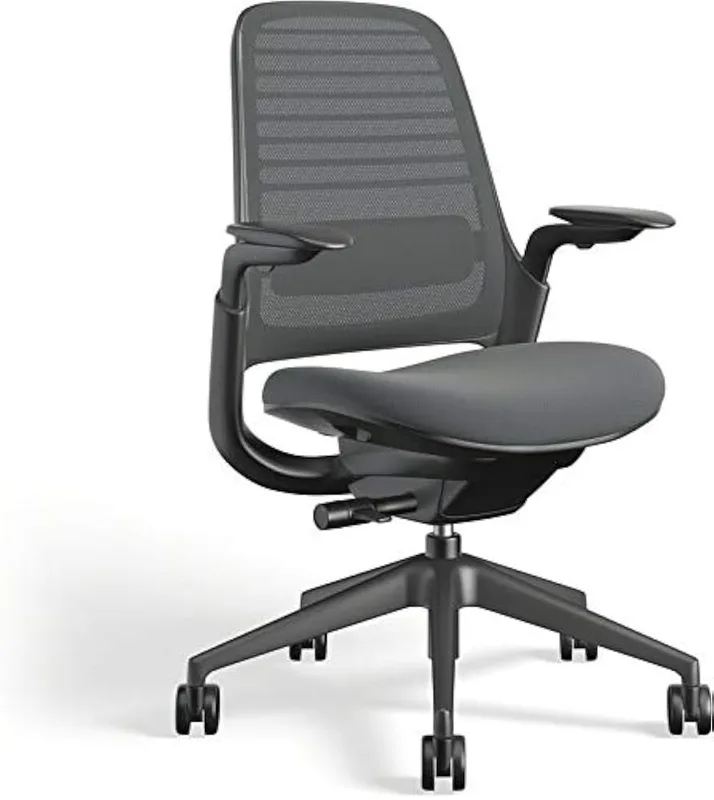
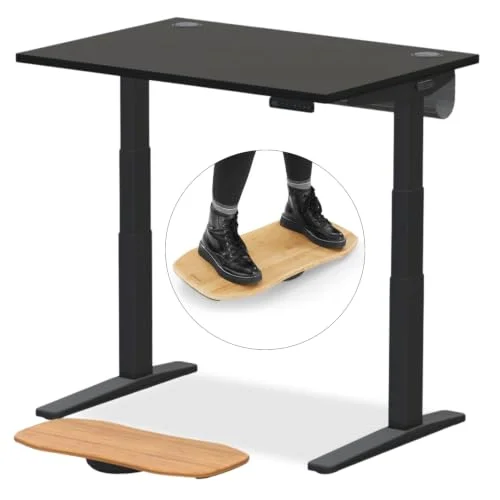
Streaming sessions routinely run six to eight hours. That is longer than most full-time office workers sit in a single stretch — and those workers are developing occupational injuries at scale. The physical toll on streamers is real: neck strain from monitors positioned too low, wrist fatigue from armrests at the wrong height, back pain from chairs that feel fine for the first hour and punish you through hour six. “Streamer neck” is now a documented occupational syndrome, caused by chronic lateral neck rotation from glancing sideways at monitors that were never positioned correctly.
This guide covers every piece of the ergonomic streaming equation: the chair, the monitor arm, the webcam, the lighting, the microphone, and the boom arm that positions it — each at the placement that keeps you comfortable and looking professional on camera.
Quick Picks: Start with the Secretlab Titan Evo for the chair, the Ergotron LX for your monitor, and the Elgato Key Light for lighting. Those three changes do more for a streaming setup than any peripheral upgrade.
Setup Comparison
| Product | Price | Key Role | Rating |
|---|---|---|---|
| Secretlab Titan Evo | $669.00 as of Oct 18, 2026 | Chair and posture foundation | 9.2 |
| Ergotron LX Monitor Arm | $165.99-$199.99 as of Oct 18, 2026 | Monitor height and desk positioning | 9.0 |
| Logitech MX Brio 700 | $154.69-$169.99 as of Oct 18, 2026 | 4K webcam with AI autofocus | 9.0 |
| Elgato Facecam MK.2 | $119.99 as of Oct 18, 2026 | 1080p/60fps mid-range webcam | 8.8 |
| Elgato Key Light | $179.99 as of Oct 18, 2026 | Professional studio LED lighting | 8.8 |
| Rode PSA1+ Boom Arm | $94.49-$112.00 as of Oct 18, 2026 | Silent mic positioning arm | 8.7 |
| Blue Yeti USB Microphone | $76.23-$98.99 as of Oct 18, 2026 | Plug-and-play streaming mic | 8.6 |
| Logitech C920x | $61.44-$67.90 as of Oct 18, 2026 | Budget 1080p webcam | 8.2 |
Secretlab Titan Evo Gaming Chair
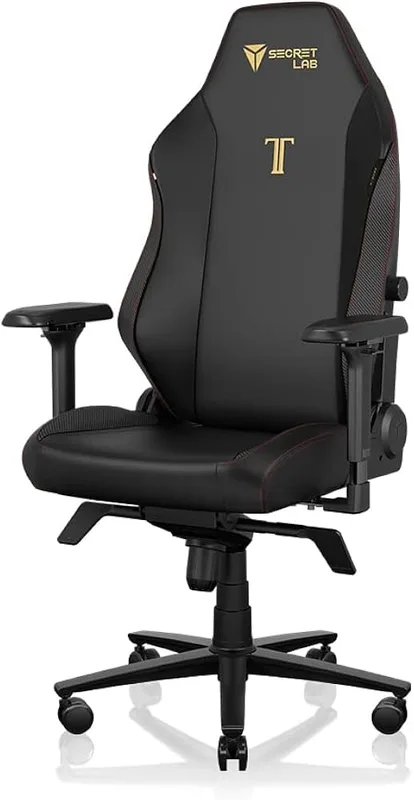
Secretlab Titan Evo Gaming Chair
Pros
- ✓ 4-way magnetic lumbar support adjusts to your exact lower back curve
- ✓ 4D armrests match your desk height precisely — height, width, depth, and angle
- ✓ 165° full recline handles breaks, naps, or couch-gaming mode
- ✓ 395 lb capacity covers a wide range of streamers
Cons
- ✗ Leatherette runs warm — mesh chairs breathe better in hot rooms
- ✗ Foam needs a 2-3 week break-in period before it softens to its full comfort
- ✗ No breathable mesh option at this price point
The Titan Evo is the streaming community’s default chair pick. The 4-way magnetic lumbar support actually adjusts — up, down, in, and out — until it hits your lower back instead of poking into the middle of your spine. Most budget chairs ship with a pillow that sits wherever gravity puts it.
The 4D armrests are the other reason this chair handles long streaming sessions well. During a six-hour stream, your arm position determines whether your shoulders and wrists ache at hour four. The Titan Evo adjusts armrests in four axes — height, width, forward/back, and angle — so they match your exact desk height. That alignment cuts the wrist and elbow strain that accumulates when arms hang in an unnatural position.
The 165° full recline is genuinely useful. Between streams or during loading screens, a full recline takes lumbar load off the spine completely. The 395 lb weight capacity makes this accessible to a wide range of body types.
Who should buy this: Streamers who want one chair that handles eight-hour sessions and looks good on camera without appearing out of place in a professional home office setup.
Who should skip: Streamers in hot rooms — the leatherette runs warm and mesh chairs like the Autonomous ErgoChair Pro breathe significantly better.
See the full Secretlab Titan Evo review for a deep dive on long-term durability, or the Secretlab vs Herman Miller comparison if you are deciding between gaming and office chair styles.
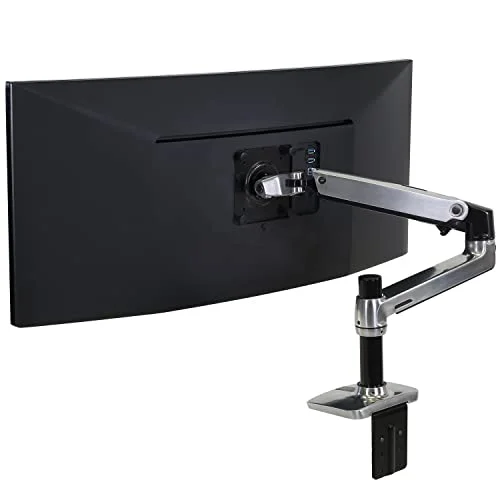
Ergotron LX Desk Monitor Arm
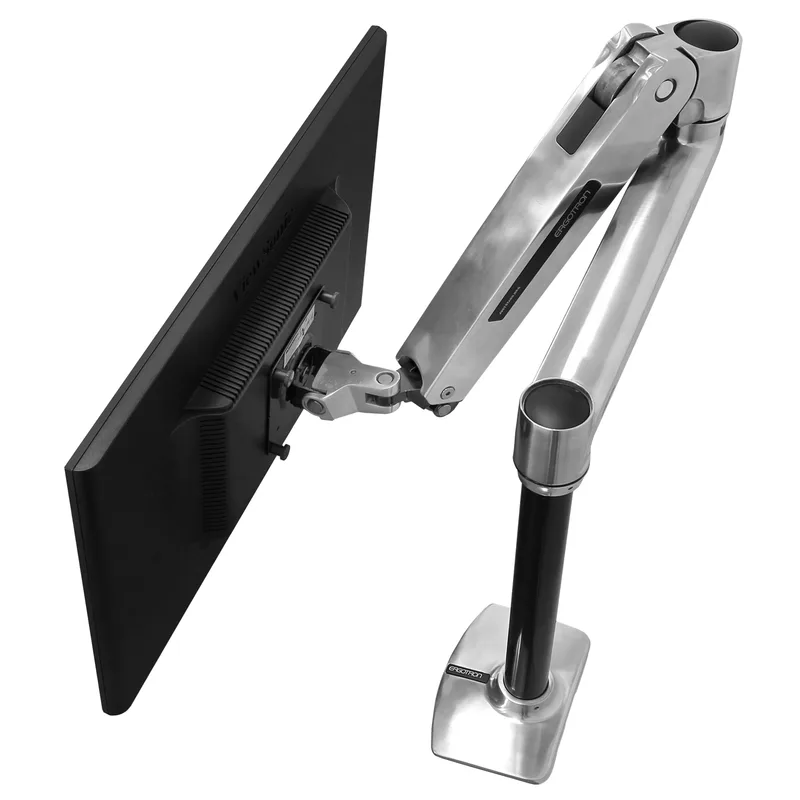
Ergotron LX Desk Monitor Arm
Pros
- ✓ One-hand repositioning with smooth, damped movement
- ✓ Frees the entire desk surface for camera, lighting, and mic gear
- ✓ Positions monitor at exact eye level — the single biggest ergonomic win
- ✓ Integrated cable channels hide display cables from camera view
Cons
- ✗ 25 lb weight limit rules out heavier ultrawide monitors
- ✗ Spring tension adjustment requires a hex wrench during setup
- ✗ Polished aluminum version scratches if the clamp bolt is over-tightened
The biggest ergonomic mistake in most streaming setups is a monitor sitting flat on the desk — several inches too low and angled wrong for both posture and camera alignment.
Mount the monitor at true eye level: top of the screen at roughly eyebrow height when seated. This single adjustment eliminates the forward chin-tuck that causes neck tension in the upper trapezius and cervical spine. It also pulls the monitor off the desk surface entirely, freeing space for your webcam, key light, and microphone arm.
The LX holds position indefinitely after a one-time tension adjustment and moves with one finger when you need to shift the screen. Integrated cable channels route display cables along the arm body so nothing dangles in camera shot.
The LX handles monitors up to 34 inches and 25 lbs, which covers most gaming monitors. Running a heavier ultrawide over 25 lbs? The Ergotron HX is the step up.
Who should buy this: Any streaming setup with a display sitting on the desk surface — which is essentially every setup that has not already bought a monitor arm.
Who should skip: Streamers with a monitor heavier than 25 lbs or wider than 34 inches — the HX handles those.
Logitech MX Brio 700 Webcam
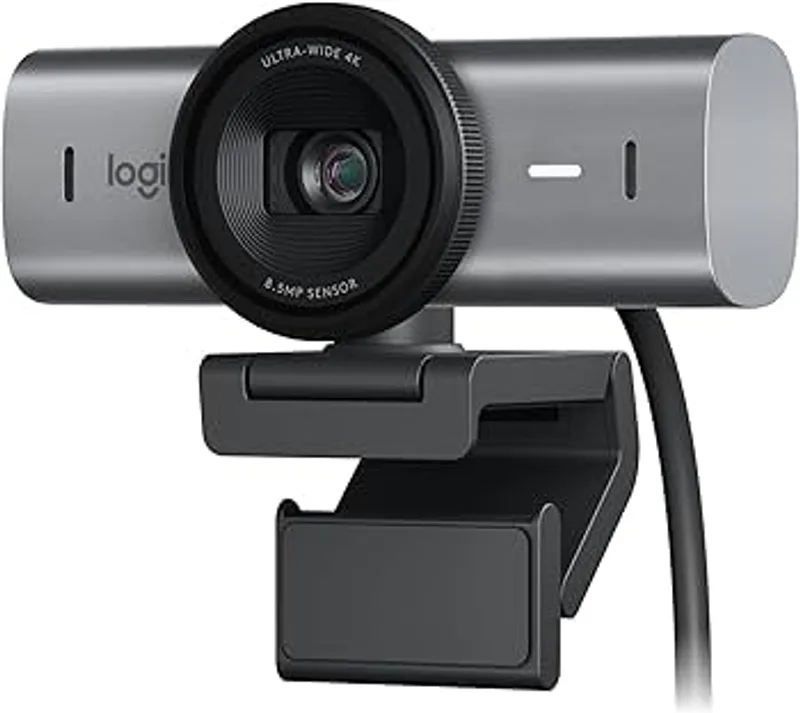
Logitech MX Brio 700 Webcam
Pros
- ✓ Adjustable FOV from 65° to 90° — narrow for clean backgrounds, wide for desk shots
- ✓ AI autofocus tracks your face when you lean back, stand, or reach across the desk
- ✓ Show Mode flips view downward to display keyboard or items on your desk
- ✓ Dual noise-canceling mics serve as reliable audio backup
Cons
- ✗ 4K maxes out at 30fps — not 60fps
- ✗ Diminishing returns at 1080p versus the Facecam MK.2 at lower cost
- ✗ Overkill for streamers already using a capture card with a mirrorless camera
The MX Brio 700 shoots 4K at 30fps or 1080p at 60fps. The AI-powered autofocus tracks your face accurately when you lean back, lean forward, or reach across the desk. The adjustable field of view — 65° to 90° — is more useful than it sounds. Narrow 65° keeps background clutter out of frame; 90° shows your desk setup when you want to display peripherals or a second monitor on camera.
Show Mode flips the camera view downward, useful for displaying a keyboard layout, sketchbook, or product on your desk surface without repositioning the camera on a separate stand.
For most 1080p Twitch or YouTube streams, the Facecam MK.2 below does the job at less cost. The MX Brio justifies its price for streamers who also produce recorded YouTube content, stream in 4K, or want the widest possible FOV flexibility.
Who should buy this: Streamers who want 4K capability or use the same webcam for professional video calls, content production, and live streaming.
Who should skip: Streamers who only stream at 1080p — the Facecam MK.2 gives sharper 60fps output for less.
Elgato Facecam MK.2
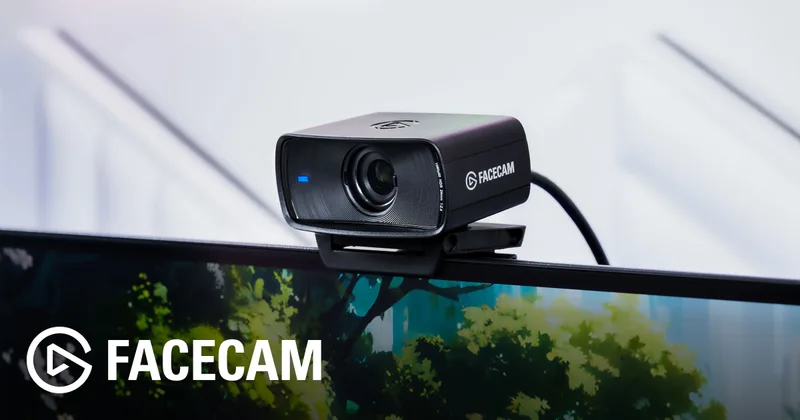
Elgato Facecam MK.2
Pros
- ✓ 1080p/60fps delivers visibly smoother motion than 30fps cameras at the same bitrate
- ✓ Sony STARVIS sensor handles low light far better than the C920x
- ✓ Phase-detection autofocus locks fast and holds during quick movements
- ✓ f/2.0 aperture creates natural depth separation from the background
Cons
- ✗ Fixed 82° FOV with no adjustment — the MX Brio 700 is more flexible
- ✗ No built-in microphone
- ✗ Requires USB-C port or adapter
The Facecam MK.2 sits between the C920x and the MX Brio in price and capability — and for most streamers doing 1080p content, it is the right call. It shoots 1080p at 60fps using a Sony STARVIS sensor with an f/2.0 aperture. That 60fps output is visibly smoother than 30fps cameras, which matters when you move around during gameplay or lean in toward chat.
The f/2.0 aperture creates natural depth separation. Your face stays sharp while the room behind you blurs slightly, making backgrounds look intentional even without a green screen. Phase-detection autofocus locks quickly and holds through movement without the hunting you get from cheaper autofocus systems.
Camera Hub software gives granular control over exposure, white balance, and sharpening — useful when your lighting is not perfectly neutral. There is no built-in mic, but with a Blue Yeti and PSA1+ in the setup, that is not a gap.
Who should buy this: Streamers who want a clear step up from the C920x at 1080p without paying for 4K capability they will not use.
Who should skip: Streamers who need FOV adjustment — the fixed 82° is limiting if your desk layout changes frequently.
Elgato Key Light
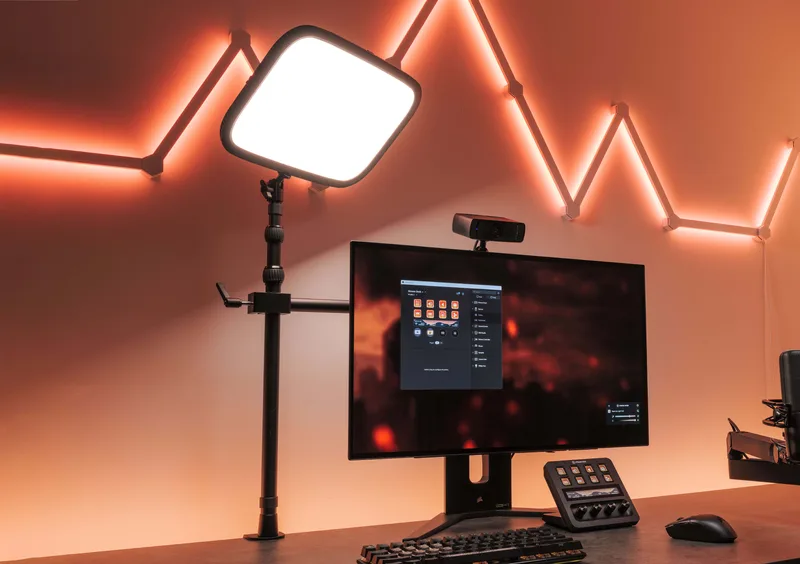
Elgato Key Light
Pros
- ✓ App control from PC, Mac, iOS, Android, or Stream Deck
- ✓ 160 OSRAM LEDs produce flat, even light with no hotspots
- ✓ 2900K-7000K range matches warm incandescent rooms or cool daylight
- ✓ Compact panel sits on the desk without a tripod or light stand
Cons
- ✗ Requires AC power — no battery option for mobile setups
- ✗ Brightness controlled by app only, no physical knob
- ✗ Desk clamp can slip on thin desktops under 1.5 inches
Bad lighting kills stream quality faster than a low-end webcam. A bright, adjustable LED panel fixes the most common streaming lighting problem: flat, directionless ambient light that washes out faces and creates unflattering under-eye shadows.
Place the Key Light at eye level or slightly above, 45° off-axis from your face — front-left or front-right, pointed toward you at a 45° downward angle. This creates dimensional light that defines facial features and reads as professional on camera rather than home-office accidental. A second Key Light on the opposite side fills in shadows and takes the setup to another level entirely.
The 2900K–7000K range lets you match warm incandescent room light or cool daylight without color casts. Control from the Elgato app — or assign a Stream Deck button to toggle brightness during stream without touching software.
160 OSRAM LEDs at 2800 lumens produces even, hotspot-free output that holds up even at wide camera apertures. This is one of the better per-dollar production quality investments in a streaming setup.
Who should buy this: Streamers who want professional lighting control without a complicated multi-light rig or ceiling-mounted fixtures.
Who should skip: Streamers who primarily stream outdoors or in rooms with already-excellent natural light — the Key Light Mini at a lower price point may suffice.
Rode PSA1+ Boom Arm
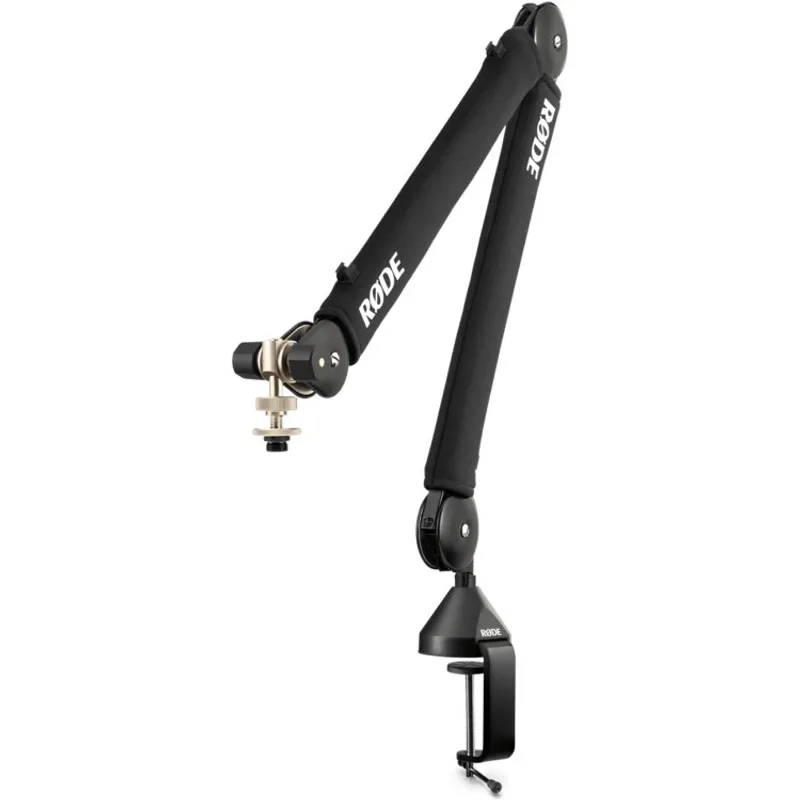
Rode PSA1+ Boom Arm
Pros
- ✓ Spring-damped movement is completely silent — no metal thunk mid-stream
- ✓ 32-inch reach swings the mic close without entering the camera frame
- ✓ Internal cable routing keeps XLR or USB cables hidden from view
- ✓ 360° rotation works with any desk orientation
Cons
- ✗ Heavy arm needs a desk edge at least 1.5 inches thick for a stable clamp
- ✗ Spring tension is factory-set and cannot be tuned
- ✗ Overkill for lightweight USB desktop mics that sit fine on a stand
A microphone on a boom arm positioned 6–8 inches from your mouth captures voice at a dramatically higher signal-to-noise ratio than a desktop mic sitting two feet away. It also keeps the mic body below the camera frame — eliminating the pod of gear blocking faces that is visible on so many entry-level streaming setups.
The PSA1+ reaches 32 inches horizontally and 33 inches vertically — enough to swing from behind the monitor to your mouth in any desk configuration. The spring-damping system makes arm movement completely silent. No metal-on-metal thunk audible mid-stream when you reposition.
Internal cable routing hides XLR or USB cable along the arm body. The clamp attaches to desk edges up to 3.1 inches thick. On thinner desktops, use the included grommet mount for a secure fit.
Pair this with the Blue Yeti below for a complete audio setup under $230 that significantly outperforms any USB mic sitting on a desktop stand.
Who should buy this: Streamers running a condenser or dynamic microphone who want clean camera angles and genuinely silent arm movement.
Who should skip: Streamers using lightweight USB desktop mics — a simpler arm like the Blue Compass handles those at lower cost.
Blue Yeti USB Microphone
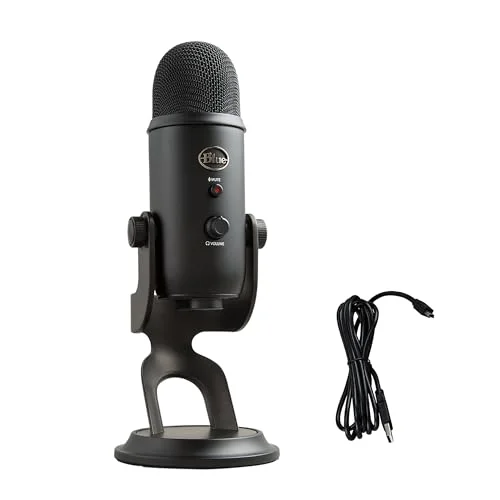
Blue Yeti USB Microphone
Pros
- ✓ Four pickup patterns cover solo streams, interviews, and roundtable recordings
- ✓ Plug-and-play USB — no interface, no drivers, works immediately with OBS
- ✓ Hardware gain knob and mute button for quick control mid-stream
- ✓ Zero-latency headphone output for real-time monitoring
Cons
- ✗ Large footprint on a desktop stand — boom arm mount strongly recommended
- ✗ USB-A connection on older units, not USB-C
- ✗ Cardioid pattern picks up keyboard noise more than a dynamic mic would
The PSA1+ is the arm. The Blue Yeti is the mic that goes on it. Together they form a complete audio setup for under $230 with no audio interface required.
The Yeti is a condenser mic with four switchable pickup patterns: cardioid for solo streams, bidirectional for two-person interviews, stereo for music capture, and omnidirectional for recording a room. Most streamers run cardioid exclusively, but having the option costs nothing extra.
Plug it into USB and it appears immediately in OBS, Streamlabs, or any recording software. The hardware gain knob reduces input level if your room has background noise. The mute button cuts audio instantly without touching software — essential for live streams.
One honest limitation: cardioid condensers pick up keyboard noise. If you type heavily while talking on stream, a dynamic mic handles this better. But for most streamers who pause typing when speaking, the Yeti is the cleaner value at this price.
Who should buy this: Streamers who want plug-and-play USB audio with zero interface setup and hardware controls for adjustments mid-stream.
Who should skip: Heavy typers or streamers in noisy rooms — a dynamic mic like the Shure SM7dB rejects background noise more effectively.
Logitech C920x HD Pro Webcam
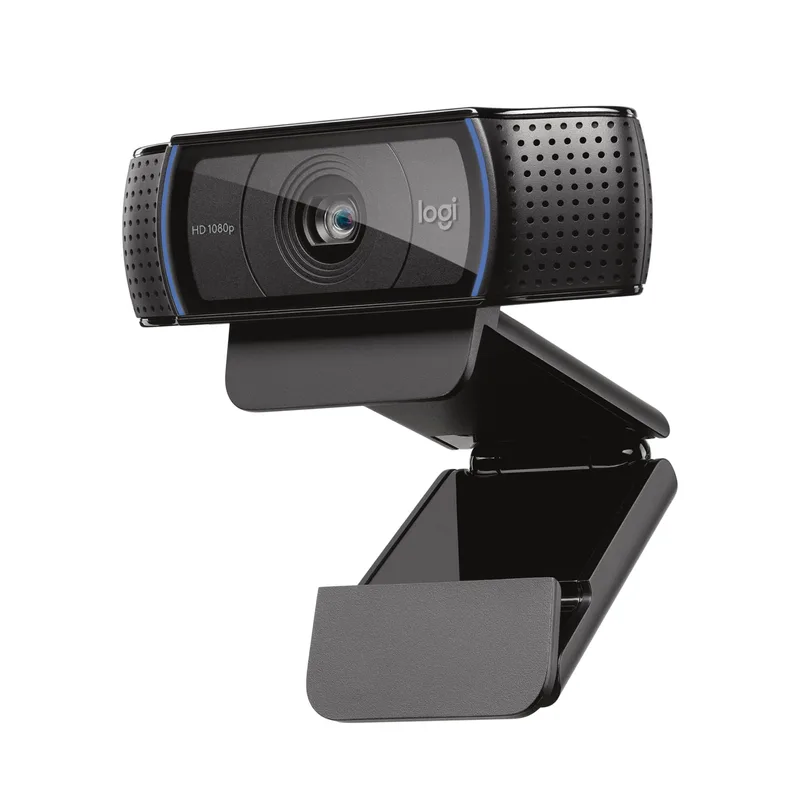
Logitech C920x HD Pro Webcam
Pros
- ✓ 1080p is sufficient quality for Twitch and YouTube live streams
- ✓ Under $70 makes it the most accessible streaming webcam
- ✓ Clip-on mount works directly on a monitor — no arm required
- ✓ Plug-and-play with OBS and Streamlabs, zero configuration
Cons
- ✗ 30fps cap with no 60fps option
- ✗ Noticeably weaker low-light performance than the Facecam MK.2
- ✗ No FOV adjustment — fixed 78° only
Not every streaming setup needs a $150 webcam. If you are just starting out, the C920x delivers 1080p at 30fps, real autofocus, and dual stereo mics in a plug-and-play USB package. It clips directly onto the monitor — no arm required — and works immediately with OBS and Streamlabs.
The C920x has been the standard entry streaming webcam for years because it is reliably good without complexity. Low-light performance falls noticeably short of the Facecam MK.2, but with a Key Light in the setup, that gap mostly closes. The 30fps cap is the real limitation for streamers who move frequently on camera.
Upgrade to the Facecam MK.2 when you want 60fps smoothness and better low-light. The C920x is the right call until you are streaming consistently and know you want more.
Who should buy this: Newer streamers who want a proven, capable webcam without overinvesting before the channel establishes itself.
Who should skip: Anyone streaming in dim conditions or who moves around frequently on camera — the Facecam MK.2 is worth the upgrade.
How to Build Your Streaming Setup by Budget
Starter Setup (~$250)
Logitech C920x ($69.99) + Elgato Key Light ($179.99). These two changes — good lighting and a 1080p camera — improve stream quality more than any other upgrades at this budget. Pair with whatever chair you already own and position your monitor manually at eye level.
Intermediate Setup (~$450)
Add the Ergotron LX ($199.99) to the starter setup. Mount the monitor at true eye level, free up desk space, and eliminate the neck strain that comes from looking down for hours. Under $450 total and you have the three highest-impact pieces in place.
Audio Upgrade (~$680)
Add the Blue Yeti ($99.99) and Rode PSA1+ ($129.00) to the intermediate setup. This eliminates bad audio — the leading reason new viewers leave a stream and do not return. Total spend stays under $700 and every fundamental is covered.
Full Setup (~$1,280)
Add the Secretlab Titan Evo ($549) and upgrade to the Elgato Facecam MK.2 ($149.99) for a complete ergonomic streaming station. At this point your physical setup matches what full-time streamers use. The chair handles posture for eight-hour sessions, the Facecam delivers 1080p/60fps with real depth separation, and everything else is already in place.
For more on gaming posture beyond equipment, see the Gaming Posture Guide. For chair options at different price points, see Best Gaming Chairs Under $200 and Best Gaming Chairs Under $500.
What to Look For in a Streaming Setup
Chair adjustability over aesthetics. A chair that looks good in thumbnails but causes back pain after two hours is a bad trade. Prioritize lumbar adjustability, armrest range, and seat depth over color and logo placement.
Monitor height is non-negotiable. If you take one action from this guide, get your monitor to eye level with a proper arm. Looking down at a screen for six hours loads the cervical spine with 40–60 lbs of additional force — a well-documented mechanical cause of neck and upper back pain.
Key light before webcam upgrade. Lighting affects perceived camera quality more than the camera hardware itself. A $70 webcam with good lighting outperforms a $200 webcam in dim overhead light on stream. Prioritize the Key Light before upgrading from the C920x to the Facecam MK.2.
Mic placement changes audio quality dramatically. Six inches from mouth on a boom arm, slightly off-axis, is dramatically better than two feet on a desktop stand. The PSA1+ plus Blue Yeti combination makes this easy without putting a mic body directly in camera view.
Start with anti-fatigue support if you stream standing. Streamers who use standing desks for part of their sessions should pair the setup with an anti-fatigue mat. Standing on a hard floor for hours creates its own set of lower body fatigue problems. The mat is a $40–$80 accessory that makes long standing sessions significantly more sustainable.
FAQ
How high should my monitor be for streaming?
Position the top edge of the monitor at or slightly below eye level when seated in your normal streaming posture. Looking slightly down is the natural resting position of the eyes. For most people, this puts the monitor significantly higher than flat-desk placement allows — which is why a monitor arm is the single highest-value ergonomic upgrade in a streaming setup.
What is the best camera angle for streaming?
The webcam should sit at or just above eye level, directly in front of your face — not to the side. “Streamer neck” is a documented syndrome caused by chronic lateral neck rotation from glancing sideways at a second monitor. If chat or game is on one display, center the camera on that display or use picture-in-picture so the camera stays in your natural line of sight.
Do I really need a boom arm for my microphone?
Yes, if you are using a condenser or dynamic mic. A boom arm positioned 6–8 inches from your mouth captures voice at a significantly higher signal-to-noise ratio than a desktop mic a few feet away. It also keeps the mic body below camera frame, which looks more professional. The Rode PSA1+ is the single audio investment most streamers are not making but should be.
Blue Yeti or Elgato Facecam MK.2 — which upgrade matters more?
Audio. Bad audio causes viewers to leave faster than bad video. If you are choosing between the Blue Yeti ($99.99) and the Facecam MK.2 ($149.99) for your next upgrade, do the mic first. Once audio is clean, camera quality is the next priority.
Is the Secretlab Titan Evo worth $549 for streaming specifically?
Yes, if you stream more than two hours per session regularly. It solves the two biggest ergonomic problems streamers face: lumbar support that holds position without constant readjustment, and armrests that align precisely with desk height. The 4-way lumbar and 4D armrests are functional features, not marketing. See the Secretlab vs Herman Miller comparison for how it stacks up against premium office chairs.
How should I position my Key Light?
Place it 45° off-axis from your face — front-left or front-right — at eye level or slightly above, angled toward your face at roughly a 45° downward angle. This creates three-dimensional face lighting that reads as natural on camera. A second Key Light on the opposite side fills in shadows for a noticeably cleaner look.
Conclusion
A complete ergonomic streaming setup has five functional layers: the chair (Secretlab Titan Evo), the monitor position (Ergotron LX), the audio (Blue Yeti + Rode PSA1+), the lighting (Elgato Key Light), and the camera (Facecam MK.2 for 1080p, MX Brio 700 for 4K).
Single best first upgrade: Get your monitor to eye level with an Ergotron LX and add an Elgato Key Light. Under $380 combined. Those two changes deliver the most noticeable improvement in both ergonomics and stream production quality.
Audio before video: If you are past the basics, upgrade mic before camera. Viewers tolerate low-res video longer than muffled audio.
Chair last if your back is fine, chair first if it is not. The Titan Evo is the right long-term chair for streaming, but it does not directly affect stream quality for viewers. Fix what hurts your body first.
For gaming chair options at every price point, see the Best Gaming Chairs roundup. For desk choices, see Best Gaming Desks in 2026.