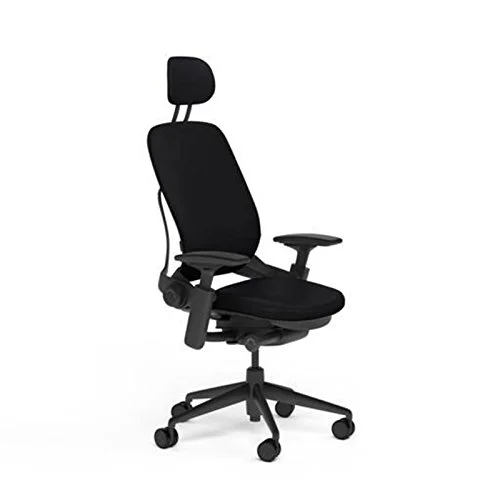
Steelcase ran a storewide sale on its own site in mid-2026, and both of these chairs were in it. That pushed plenty of people back to the same question: Leap or Gesture? Same company, same 12-year warranty, same 400 lb rating. The price gap is real, though, and so is the difference in how each chair wants you to sit.
Quick pick: the Leap V2 is the one I’d buy for someone who types at a fixed desk for most of the day. The Gesture is the better buy if you bounce between a laptop, a tablet and a phone. Everything below is based on spec sheets, manufacturer documentation and owner feedback, researched and compared rather than drawn from time in either chair.
For single-chair detail, see our Steelcase Leap review and Steelcase Gesture review.
Steelcase Leap V2: The Back-Support Specialist
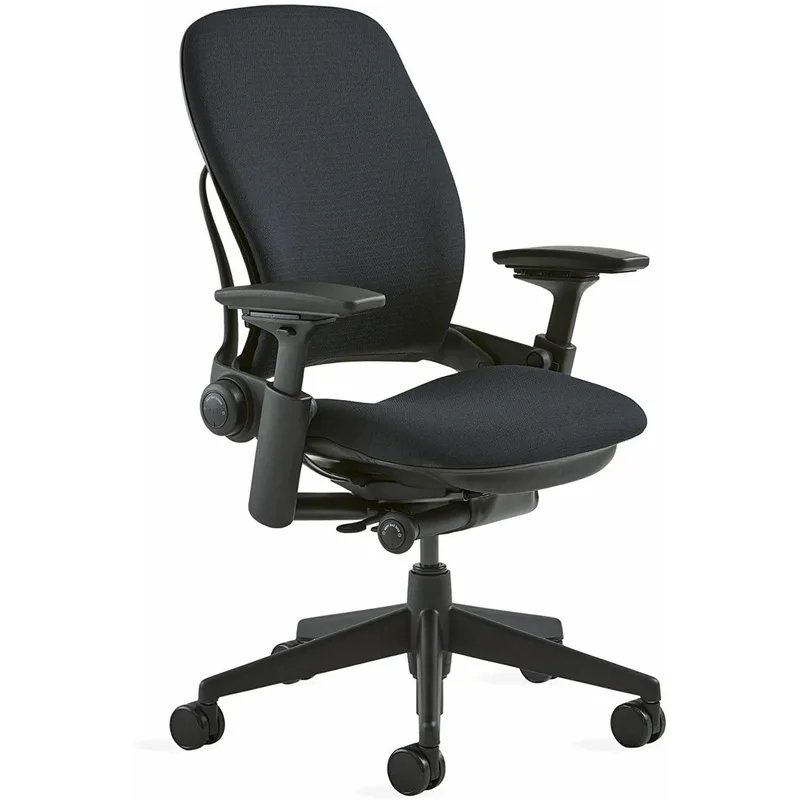
Steelcase Leap V2
Pros
- ✓ Independent lumbar firmness dial gives the finest lower back tuning of the two
- ✓ Natural Glide System slides the seat forward as you recline, so you stay close to the keyboard
- ✓ Five recline positions with a tilt limiter
- ✓ Long track record in offices, with a 12-year warranty
Cons
- ✗ No standard headrest, and it is an add-on if you want one
- ✗ Arms do not rotate 360 degrees, so tablet and multi-device use is less natural
- ✗ Takes several days of adjusting to settle in
The Leap is built around two mechanisms. LiveBack lets the upper and lower back flex independently as you move. The Natural Glide System slides the seat forward when you recline, which keeps you from drifting away from the desk. Most chairs make you choose between reclining and reaching your keyboard. This one doesn’t.
Where it pulls ahead of the Gesture is lumbar control. You get both height and a firmness dial, so you can make the lower back support gentle or assertive. It also offers five recline positions with a tilt limiter. Steelcase’s own materials and most owner reports point the same way: this is the chair for upright, keyboard-focused work.
The compromises are modest. The arms adjust in four directions but don’t swivel freely, and a headrest is an extra. Expect a week of fiddling before it clicks.
Steelcase Gesture: The Multi-Device Chair
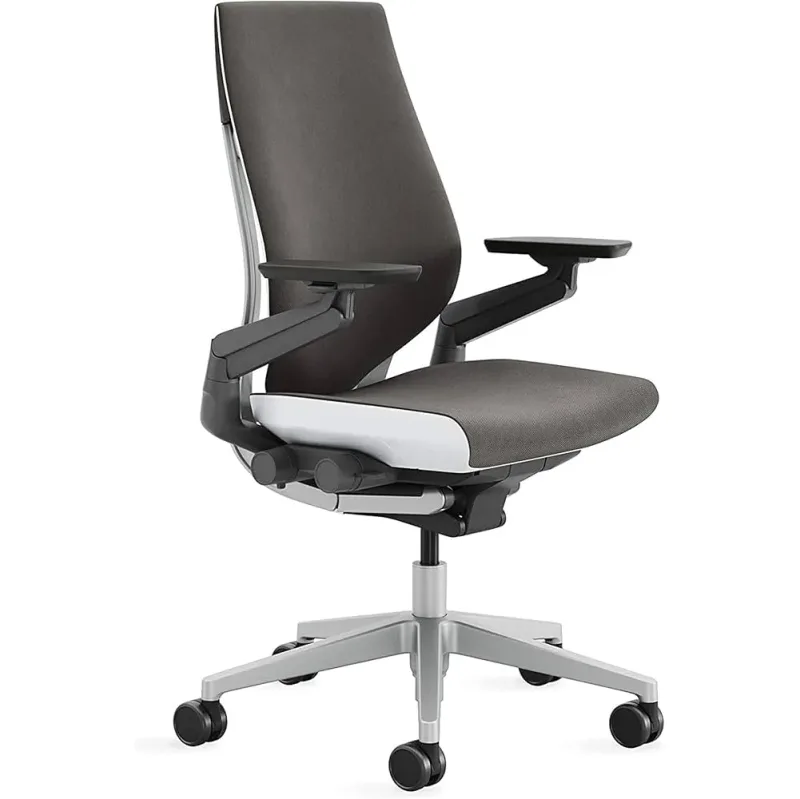
Steelcase Gesture
Pros
- ✓ 360-degree arms follow your arms across keyboard, laptop and tablet
- ✓ Handles sideways, cross-legged and forward-leaning postures well
- ✓ Optional headrest integrates cleanly at order time
- ✓ Same 400 lb capacity and 12-year warranty as the Leap
Cons
- ✗ Costs more than the Leap at a comparable configuration
- ✗ Lumbar support is an optional upgrade, so check your configuration
- ✗ Fabric holds heat over long sessions in warm rooms
Steelcase designed the Gesture around how people actually use technology: curled over a laptop, leaning back with a phone, turned toward a second screen. The signature feature is the 360-degree arm. It rotates and pivots to follow your forearm wherever it goes, and that is the main reason to pay more.
It shares the LiveBack core with the Leap, so the back still flexes with you. What you give up is the Natural Glide seat travel and the Leap’s finer lumbar firmness control. Lumbar on the Gesture is an optional upgrade, so confirm it is included before you order. The optional headrest is a genuine plus for people who recline to read or take calls.
Leap vs Gesture: Head-to-Head
Arms. Gesture wins clearly. If your arms rarely leave a keyboard, the Leap’s 4D arms are plenty. If you use a tablet or hold a phone while working, the 360-degree arms matter every day.
Lower back support. Leap wins. The firmness dial plus lumbar height is the best fine-tuning in this pair. Anyone with a sensitive lower back should start here. This is general ergonomic guidance, not medical advice, so see a professional for persistent pain.
Reclining. Leap wins for working while reclined, thanks to Natural Glide. Gesture wins for lounging postures and head support, given its optional headrest.
Seat fit. Both offer a 3-inch seat depth range and similar seat height spans, so shorter and taller sitters are covered by either.
Price. The Gesture is the more expensive chair at comparable setups, and the Leap’s listed price swings widely depending on configuration. Compare the exact build you want before deciding, using the buttons on the product cards.
Durability and warranty. A tie: 12 years on both.
Which Workday Fits Which Chair
Specs only go so far. Here is how the differences play out across four common setups.
The all-day typist. Writers, developers, analysts and accountants spend most of their day with both hands on a keyboard and eyes on one or two monitors. The arms stay in roughly the same place for hours. In that setup the Gesture’s headline feature sits mostly unused, while the Leap’s lumbar firmness dial and Natural Glide seat work all day. The Leap is the more sensible spend.
The laptop-and-tablet hybrid. If you sketch on a tablet, review documents on a second device or switch between a desktop and a laptop through the day, your arms are constantly changing position. A fixed-feel armrest becomes a place where your elbow fights the chair. The 360-degree arms on the Gesture are built for exactly this, and owner feedback consistently singles them out as the reason to pick it.
The video-call-heavy day. Long stretches of meetings tend to mean leaning back, turning toward a second screen and shifting your weight. The Gesture’s optional headrest and its tolerance for varied postures suit that pattern. The Leap handles a reclined position well, but its strength is staying connected to the desk while you do it.
The shared or hybrid chair. If the chair will be used by more than one person, or you split time between two spaces, adjustment time matters. Neither chair is a grab-and-sit model. Both reward a few minutes of setup, and the Leap in particular needs several days of tweaking before the settings stop feeling off.
Setting Up Either Chair Properly
A premium chair set up badly is a wasted premium. These steps apply to both models.
- Start with seat height. Feet flat on the floor, thighs roughly parallel to the ground. Use a footrest if your desk height forces the chair too high for your legs.
- Set seat depth next. Leave a few fingers of space between the seat edge and the back of your knees. Both chairs offer a 3-inch depth range, so use it.
- Dial in the lumbar. Adjust the support so it meets the curve of your lower back without pushing you forward. On the Leap, this is where the firmness dial earns its keep. On the Gesture, confirm your build includes the lumbar option.
- Match the arms to the desk. Arms should hold your forearms level with the keyboard without lifting your shoulders. On the Gesture, take time to learn how far the arms rotate so they don’t collide with the desk edge.
- Set recline tension last. The chair should follow you back without feeling like it is launching you forward.
Give the chair a full week before judging it. Muscle memory from an old chair takes a few days to fade, and early impressions are often misleading.
Common Mistakes When Choosing Between Them
Buyers tend to trip on the same three things. First, paying extra for 360-degree arms and then using them only at a keyboard. Second, ordering the Gesture without checking whether lumbar support is part of the specific configuration. Third, choosing on looks alone, when the Gesture and Leap share a similar overall silhouette and differ mainly in mechanisms you can’t see in a product photo.
Also keep the seller in mind. Steelcase chairs are sold through the manufacturer, dealers and online retailers, and configurations, fabrics and return terms vary between them. Use the product cards above to see the current listing and compare it with the build you want.
Who Should Skip Both?
If you sit under five hours a day, a premium Steelcase is hard to justify. Our guide on whether expensive office chairs are worth it lays out the math. Prefer a mesh back that stays cool? Look at the Aeron vs Leap comparison. Weighing the Gesture against a rival? See Humanscale Freedom vs Steelcase Gesture or Gesture vs Haworth Fern. For the wider field, start with our best luxury office chairs roundup, and the luxury home office setup guide if you’re building the whole room.
Buying Guide: What Matters Between These Two
- Your device mix. Count how many hours you spend off the keyboard. That decides the arms question.
- Configuration. Both chairs come in many builds. Lumbar, headrest and fabric choices change the price and the fit.
- Climate. Both use upholstered backs, which run warmer than mesh.
- Return policy. Confirm the seller’s return terms before buying, since a chair needs days to evaluate.
- Desk height. Pair either chair with a desk where your elbows sit near 90 degrees.
FAQ
Is the Steelcase Leap or Gesture better for back pain?
The Leap has the edge on lower back tuning because of its lumbar firmness dial and Natural Glide seat. Neither is a medical device. If pain persists, talk to a healthcare professional.
Does the Gesture have LiveBack?
Yes. Steelcase’s 3D LiveBack is in the Gesture. The Leap pairs it with the Natural Glide System and a more detailed lumbar setup.
Which chair has a headrest?
Neither includes one by default. The Gesture’s optional headrest is generally considered the more natural integration.
Can taller or heavier people use these chairs?
Both are rated to 400 lbs and offer a 3-inch seat depth range, which covers a wide range of builds. Check the seat height range against your leg length.
Is the Gesture worth the extra money over the Leap?
Only if the 360-degree arms or headrest solve a problem you actually have. For a keyboard-first workday, the Leap gives you more of what matters for less.
Conclusion
Buy the Leap V2 if you type for hours at a fixed desk and want the best lumbar control and seat travel. Buy the Gesture if your day is a mix of laptop, tablet and phone and you’ll use those flexible arms constantly. Either way you’re getting a chair built to last well beyond its 12-year warranty.