Disclosure: PostureRanked is reader-supported. When you buy through links on our site, we may earn an affiliate commission at no extra cost to you. Learn more
Remote work ergonomics finally went mainstream in 2026. Companies that resisted equipping home offices for years are now offering stipends and wellness budgets after seeing the data on repetitive strain claims and productivity loss. But if your employer’s check hasn’t arrived yet — or if you want to spend it wisely — this guide covers the seven accessories that deliver the most measurable improvement to posture, comfort, and output for remote workers.
These aren’t gadgets. Every item here solves a specific structural problem: wrists angled wrong, screen too low, back unsupported, feet dangling. The complete bundle comes to around $560, but if you’re building incrementally, this guide ranks them in priority order so you can start with the items that move the needle most.
Quick pick: If you only buy one thing today, buy the Ergotron LX monitor arm. Moving your screen to eye level fixes posture faster than any chair upgrade.
How These 7 Accessories Compare
| Accessory | Price | Category | Rating | Best For |
|---|---|---|---|---|
| Ergotron LX Monitor Arm | $196 | Monitor arm | 9.2 | Everyone with a monitor |
| Logitech MX Keys S | $110 | Keyboard | 9.0 | All-day typists |
| Logitech MX Master 3S | $89 | Mouse | 8.8 | Productivity users |
| Rain Design mStand | $79 | Laptop stand | 8.7 | Laptop-first workers |
| ComfiLife Footrest | $29 | Footrest | 8.5 | Shorter users, desks too high |
| Everlasting Comfort Lumbar | $33 | Lumbar support | 8.3 | Anyone with an unsupportive chair |
| KTRIO XL Desk Mat | $13 | Desk mat | 8.0 | Clean desk, better mousing |
1. Ergotron LX Monitor Arm — Editor’s Pick
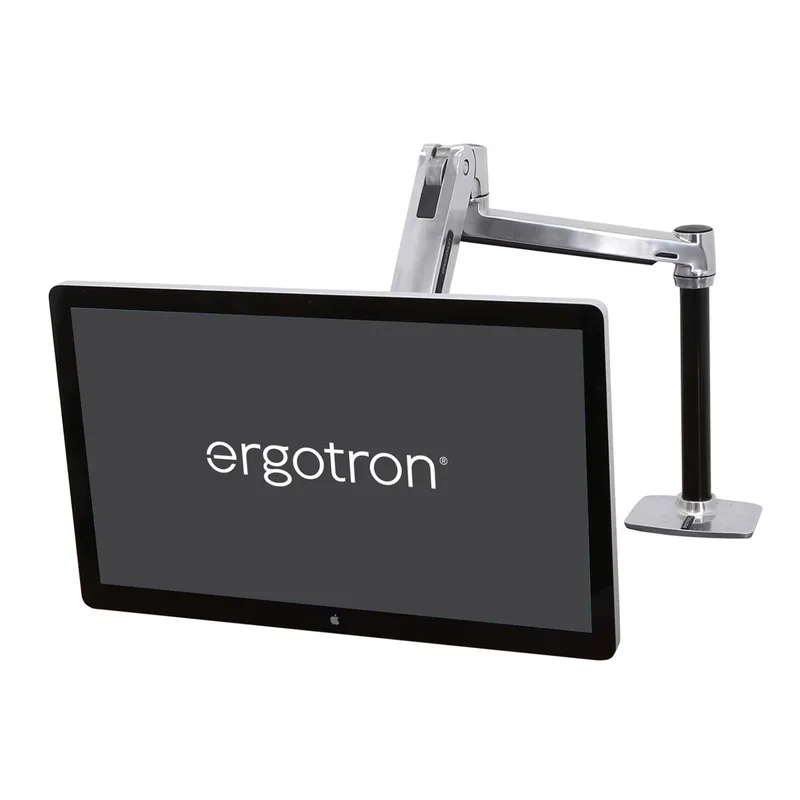
Ergotron LX Monitor Arm
Pros
- ✓ Smooth, effortless height and angle adjustment with one hand
- ✓ Premium aluminum build that actually looks good on a desk
- ✓ Frees up 8–10 inches of desk space underneath the monitor
- ✓ Integrated cable routing channels keep wires out of sight
Cons
- ✗ At $196 it's the priciest item in this guide
- ✗ Initial setup and cable routing takes 20–30 minutes
- ✗ Won't support monitors heavier than 25 lbs
The single biggest ergonomic improvement most remote workers can make is getting their screen to eye level. On a typical desk, a monitor or laptop sits 4–6 inches below where it should be. You compensate by tilting your head down. Over eight hours, that posture loads 40–60 extra pounds of force onto your cervical spine according to spinal load research. The Ergotron LX fixes this directly.
The LX has been the benchmark monitor arm for nearly a decade, and it still earns that status. The spring-loaded arm holds position wherever you set it — no drift, no slow descent — and adjusts with one finger. The integrated cable channels hide your monitor cable so the desk stays clean. It supports monitors up to 34 inches and 25 lbs, which covers almost everything except ultra-heavy curved ultrawide panels.
At $196, it’s the most expensive item in this guide. But if you’re spending $400–$600 on an ergonomic chair, spending $196 to get your screen at the right height makes the chair purchase actually work. Monitor position matters as much as seat position.
For more monitor arm options at different price points, see our complete monitor arm roundup for standing desks.
Best For: Anyone using an external monitor — basically every serious remote worker.
2. Logitech MX Keys S Wireless Keyboard — Best for Typing
Logitech MX Keys S Wireless Keyboard
Pros
- ✓ Spherical key shapes reduce finger strain during long typing sessions
- ✓ Backlighting activates automatically when your hands approach the keys
- ✓ Easy-Switch lets you hop between three devices with a single button
- ✓ Low-profile keys make for a natural wrist angle without a wrist rest
Cons
- ✗ No mechanical switch option — soft-clickers only
- ✗ Full-size layout with numpad is wide; no tenkeyless version
- ✗ Premium price relative to membrane keyboards
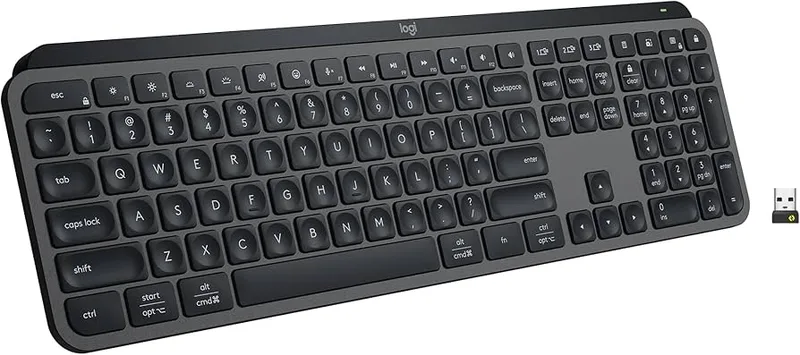
Most office keyboards are designed to be inexpensive, not ergonomic. The MX Keys S goes the other direction: it’s engineered specifically for all-day typing comfort. The spherically dished keys — slightly concave — guide your fingertips to the center of each key and reduce lateral strain from imprecise keystrokes. After a few days, standard flat keyboards feel rough by comparison.
The low-profile scissor switches keep your wrists closer to desk level than full-height mechanical keyboards. That matters for wrist angle. You’re less likely to need a wrist rest if the keyboard itself sits low. The smart backlight is a nice touch for dim home office environments — it detects your hands approaching and illuminates automatically.
Multi-device support via Easy-Switch keys is genuinely useful for workers who jump between a work laptop, personal laptop, and tablet. One keyboard, three devices, dedicated buttons.
The $110 price is real money for a keyboard. The value case: your keyboard is the interface between you and your work. Every hour, your fingers contact it thousands of times. Spending $70 more than a budget option to eliminate daily finger strain is one of the easier ROI calculations in office ergonomics.
Best For: Full-time remote workers who type heavily and want a step up from a standard keyboard without going fully mechanical.
3. Logitech MX Master 3S Wireless Mouse — Best Value
Logitech MX Master 3S Wireless Mouse
Pros
- ✓ Sculpted thumb rest reduces wrist pronation versus flat mice
- ✓ MagSpeed scroll wheel covers long documents faster than any competitor
- ✓ Tracks reliably on glass — works without a mousepad
- ✓ Quiet clicks make it office- and shared-space-friendly
Cons
- ✗ Right-hand-only sculpted shape — no left-hand version
- ✗ 141g feels heavy after long sessions compared to lighter productivity mice
- ✗ Occasionally needs re-pairing after waking from sleep
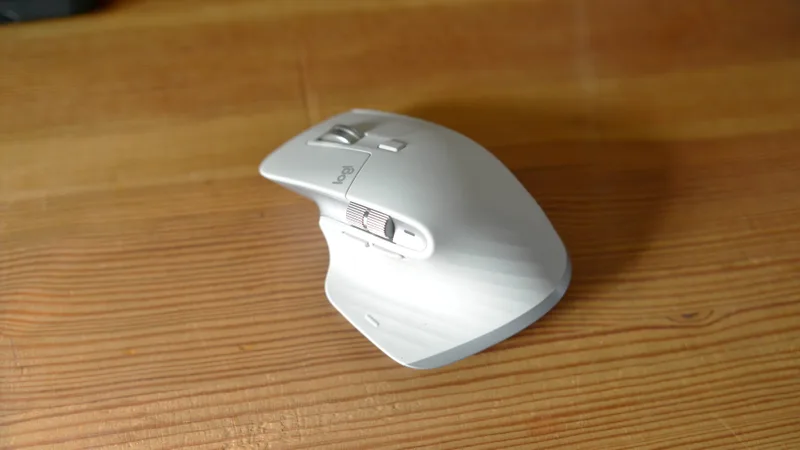
The MX Master 3S is not just a good mouse. It’s the mouse that made ergonomic mice mainstream. The sculpted thumb rest reduces wrist pronation — the inward rotation that causes ulnar deviation and, over time, wrist pain. Compared to a flat, symmetric mouse, the MX Master shape keeps your hand in a more neutral position.
The MagSpeed scroll wheel is faster than any other mouse on the market. It can free-spin through long documents in under a second or click-by-click through spreadsheet rows. That sounds trivial until you spend a day toggling between modes and realize how much time precise scrolling saves.
The 8,000 DPI sensor tracks on glass, which matters if you prefer a clean desk without a mousepad. The quiet clicks — genuinely quieter than standard switches — are a real quality-of-life feature if you’re on video calls or working in shared spaces.
The regular price is $89 and it frequently drops to $79. During Amazon Prime Day in June 2026, it hit its lowest price of the year. If you see it under $85, buy it then.
Best For: Right-handed remote workers who spend significant time navigating documents, spreadsheets, or design tools.
4. Everlasting Comfort Lumbar Support Pillow
Everlasting Comfort Lumbar Support Pillow
Pros
- ✓ Butterfly shape specifically targets the lumbar curve rather than your whole back
- ✓ Memory foam holds its loft after months of use better than cheap foam alternatives
- ✓ Adjustable strap secures to almost any office chair, car seat, or couch
- ✓ Machine washable cover stays clean with minimal effort
Cons
- ✗ Fixed height — cannot adjust where it sits on your back without repositioning the strap
- ✗ Too soft for users who prefer firm lumbar pressure
- ✗ Strap elasticity loosens over time on chairs with tall backs
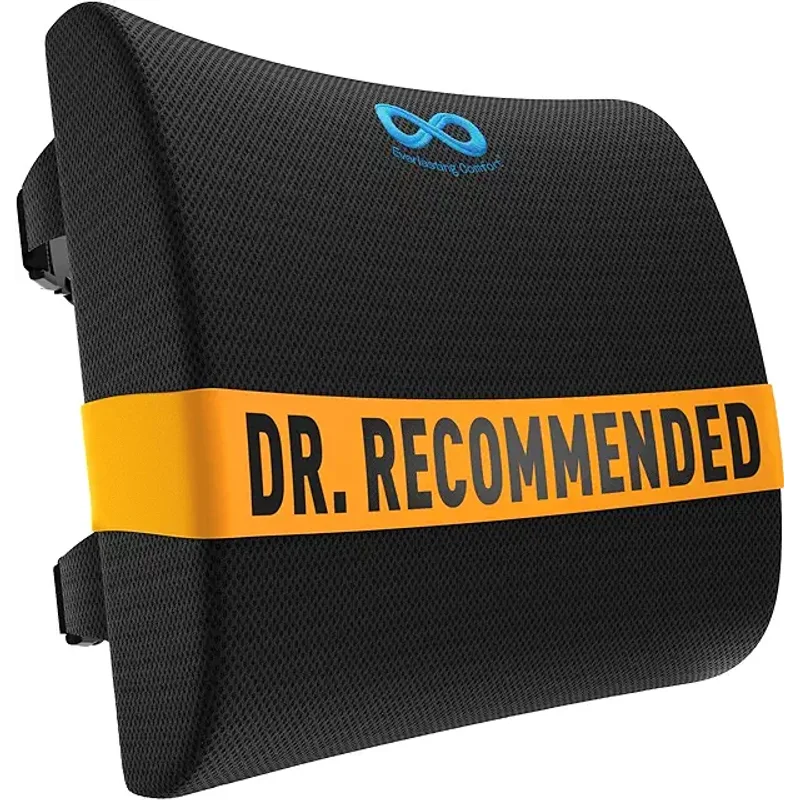
If your chair doesn’t have adjustable lumbar support — or if the lumbar on your chair is in the wrong position — a lumbar pillow is the cheapest way to fix the structural problem. The Everlasting Comfort is the one to buy because it uses real memory foam rather than the hollow polyester fill that most budget lumbar pillows use. It holds its shape.
The butterfly contour design targets the lower back specifically rather than trying to support your whole back. That focused contact on the lumbar curve is more effective than a square pad that contacts your whole spine. The adjustable strap fits almost any chair back, and the velvet cover comes off for machine washing.
It’s $33. For most people with an unsupportive chair, this $33 purchase eliminates lower back discomfort faster than any other intervention. Combine it with a standing desk or a proper ergonomic chair for compounding benefits — see our guide to back pain and ergonomic chairs for more.
Best For: Anyone whose chair lacks built-in lumbar support, or whose lumbar position can’t be adjusted to the right height.
5. ComfiLife Ergonomic Footrest — Best Budget
ComfiLife Ergonomic Footrest
Pros
- ✓ Memory foam significantly more comfortable than hard plastic footrests
- ✓ Two height positions adapt to different desk and chair height combos
- ✓ Non-slip rubber base stays planted on hardwood, carpet, or tile
- ✓ Machine washable cover is a rare, genuinely useful feature at this price
Cons
- ✗ No rocking motion for active foot movement like higher-end options
- ✗ Memory foam compresses over time with heavy daily use
- ✗ Only two height positions — fine-tuning is limited
This one is overlooked. Most remote workers focus on chair height relative to their desk, but forget that chair height also determines whether your feet are actually planted. If your chair is set at the right height for your desk but your feet dangle, you’re shifting your weight onto your thighs and cutting off circulation. A footrest eliminates that.
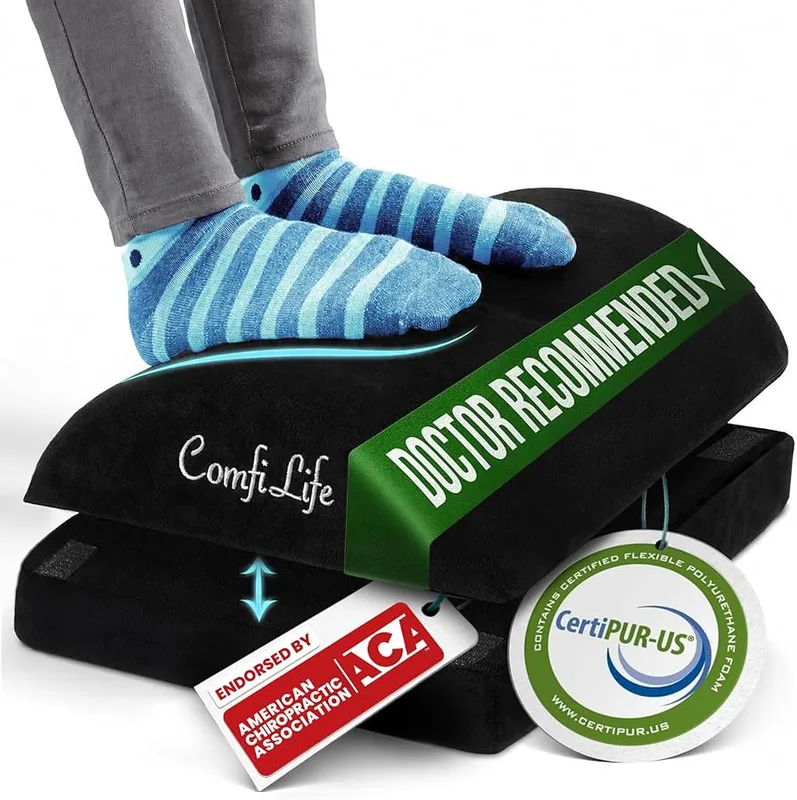
The ComfiLife solves the problem with memory foam rather than the hard angled plastic most footrests use. Memory foam adjusts to the pressure of your feet instead of creating pressure points. The two height positions — low and high — handle most desk/chair combinations. The top surface has a massage texture that some users find helpful for circulation during long sessions.
At $29, it’s the cheapest genuine quality improvement in this guide. If your chair feels slightly too high, or if you notice numbness in your thighs after a few hours of sitting, a footrest will fix it in ten minutes.
Best For: Shorter users, anyone whose chair must be set high to reach their desk, and people who experience leg discomfort or numbness from long sitting sessions.
6. Rain Design mStand Laptop Stand
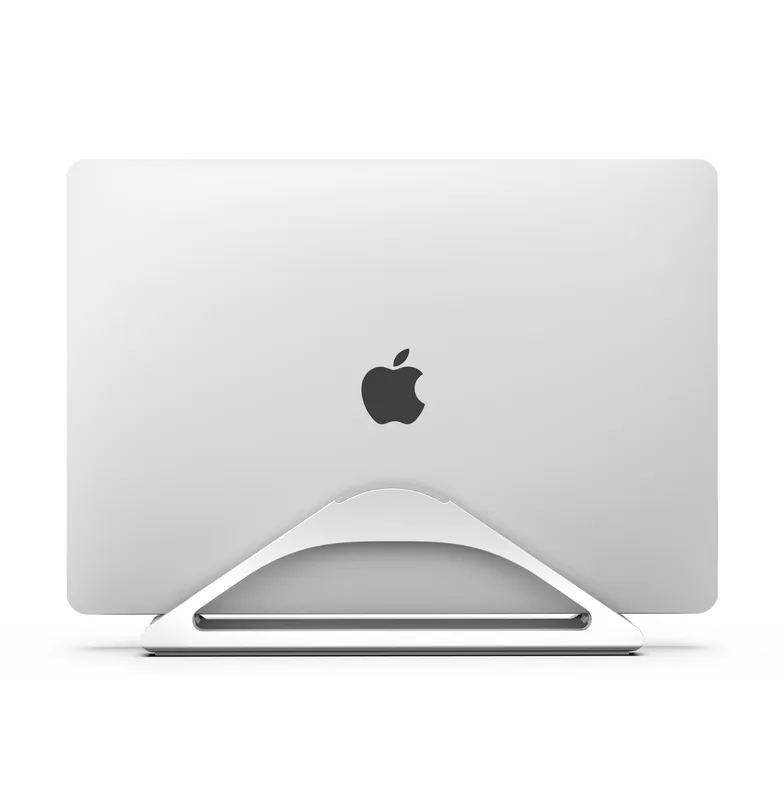
Rain Design mStand Laptop Stand
Pros
- ✓ Raises your laptop screen close to eye level — one of the biggest posture improvements you can make
- ✓ Single-piece aluminum construction is rock solid with zero flex or wobble
- ✓ Built-in cable routing channel keeps your power cable routed cleanly
- ✓ Slim profile does not dominate your desk
Cons
- ✗ Fixed height only — no vertical adjustment
- ✗ Requires an external keyboard once the laptop is elevated
- ✗ Premium price for a non-adjustable stand
If you work primarily from a laptop without an external monitor, this is your equivalent of the Ergotron LX. The mStand raises your laptop screen approximately 6 inches — enough to get most 13 to 15-inch laptops to approximate eye level when you’re seated.
The single-piece cast aluminum construction is genuinely impressive for a laptop stand. There’s no wobble, no flex, no rattling. It matches MacBook and aluminum laptop aesthetics better than any plastic stand. The built-in cable routing channel routes your power adapter cleanly to the back.
The obvious catch: once your screen is elevated, you need an external keyboard and mouse. That’s why the mStand pairs naturally with the MX Keys S and MX Master 3S — you’re building a proper workstation from a laptop. The mStand is the foundation of that setup.
Best For: Laptop-first remote workers who want to replicate a proper desktop workstation experience without a full docking station.
7. KTRIO XL Extended Desk Mat
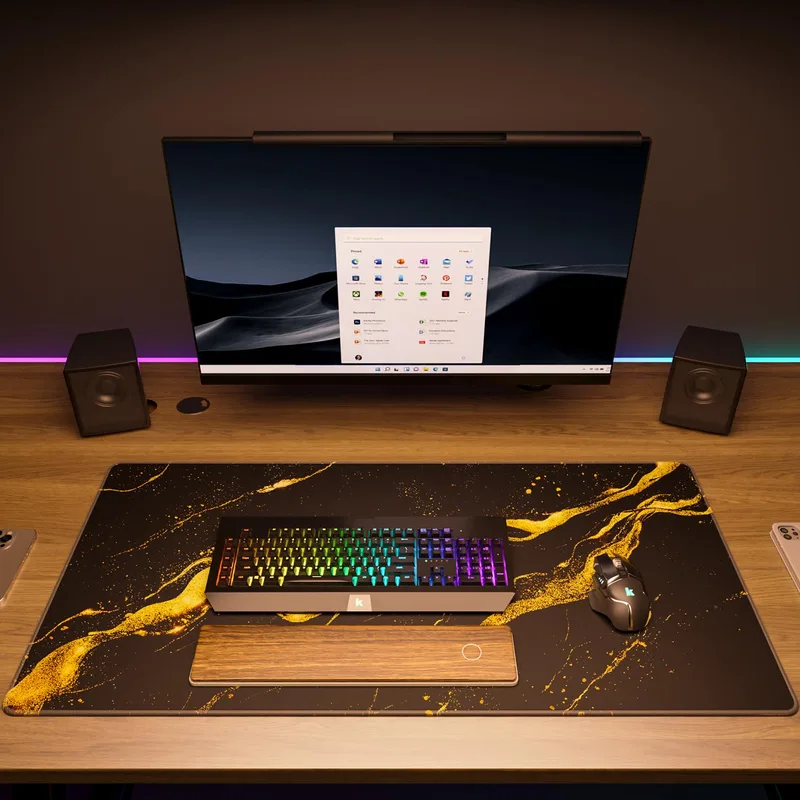
KTRIO XL Extended Desk Mat
Pros
- ✓ Covers keyboard and mouse in one continuous surface — makes the whole desk feel cleaner
- ✓ Non-slip rubber base holds firm even on glass desks
- ✓ Stitched edges prevent fraying after months of daily use
- ✓ At $13, the best value-per-dollar upgrade in this entire guide
Cons
- ✗ No integrated wrist rest — flat surface only
- ✗ Cloth surface picks up dust and lint between uses
- ✗ 11.8" depth may feel narrow on larger or L-shaped desks
The desk mat is last on this list not because it’s least important, but because it’s the easiest decision. At $13, there’s almost no reason not to have one.
An extended desk mat does two things simultaneously. First, it gives your mouse a consistent, smooth tracking surface across the full area where your arm moves — vastly better than mousing directly on wood or a hard desk surface. Second, it defines a clean workspace visually. A 31.5” x 11.8” mat covers your keyboard, mouse, and the space between them, making the desk feel unified and intentional rather than cluttered.
The KTRIO uses micro-weave cloth on top and non-slip rubber underneath. The stitched edges prevent fraying even after months of daily use. Water-resistant coating means spilled coffee is a wipe-away problem rather than a replacement purchase.
For those who want a desk mat with a wireless charging surface built in, see our wireless charging desk mat roundup for options that combine both into one product.
Best For: Anyone who wants a cleaner desk surface and better mouse tracking with minimal spend.
Buying Guide: Building Your Ergonomic Setup in Stages
Stage 1: The Posture Foundation ($30–$50)
Start with the lumbar pillow and footrest. These two items cost under $65 combined and address the most common causes of daily discomfort: unsupported lower back and poor foot position. If you work from an existing chair without lumbar support, these two solve 60–70% of the structural problems.
Stage 2: The Input Devices ($100–$210)
Add the keyboard and mouse next. Together they run $199 at list price, but the MX Master 3S regularly drops to $79 on sale. This stage addresses wrist angle, finger strain, and mousing posture. If you already have a decent mouse, the keyboard alone is the higher-impact purchase.
Stage 3: The Screen Position ($79–$275)
This is the highest-impact ergonomic move you can make. If you use a laptop, buy the mStand ($79). If you use an external monitor, buy the Ergotron LX ($196). Getting your screen to eye level eliminates the forward head posture that causes neck and shoulder pain. Don’t skip this stage.
Stage 4: The Desk Surface ($13)
Add the KTRIO desk mat last. It’s the lowest priority of the group because it doesn’t fix a structural problem — it improves comfort and desk cleanliness. But at $13 it’s worth adding whenever.
What to Look for When Buying Ergonomic Accessories
Monitor arms: Check your monitor’s VESA pattern (usually printed on the back or in the manual). Most monitors use 100x100mm, which is compatible with the Ergotron LX. Confirm your monitor’s weight falls under 25 lbs.
Keyboards: Low-profile designs work better for most people without a dedicated wrist rest. Mechanical keyboards are louder but offer more tactile feedback; scissor switches are quieter and lower profile.
Mice: Vertical mice and sculpted ergonomic mice both reduce pronation, but they require an adjustment period of 1–2 weeks. If you’ve never used an ergonomic mouse before, the MX Master 3S is the gentler transition.
Lumbar supports: Firmness preference is personal. Order from Amazon so you can return if the firmness is wrong for you.
Footrests: Measure the distance from your seat to the floor with your thighs parallel to the ground. If that distance is less than your lower leg length, you need a footrest.
FAQ
How much should I spend on a complete ergonomic accessories bundle?
The seven accessories in this guide total approximately $560 at list price, though the MX Master 3S regularly goes on sale. A realistic budget for a complete ergonomic setup — keyboard, mouse, monitor arm, footrest, lumbar support, laptop stand, and desk mat — is $500–$600. If you need to prioritize, the lumbar pillow, footrest, and desk mat together cost under $75 and address most acute discomfort.
Do I need both a monitor arm and a laptop stand?
No. Choose based on your primary setup. If you work from an external monitor, the Ergotron LX is the priority. If you work primarily from a laptop, the mStand is the right purchase. If you use both, many workers pair the mStand for their laptop (positioned to the side) and the Ergotron LX for their primary external monitor.
Is a lumbar pillow a substitute for an ergonomic chair?
Not a substitute, but a meaningful improvement to a non-ergonomic chair. A lumbar pillow fixes one specific problem — lack of lower back support — but won’t address seat depth, armrest height, or seat pan tilt. If your chair is hurting you in multiple ways, a pillow is a bridge while you save for a proper ergonomic chair. See our best ergonomic desk chairs guide for chair options at various price points.
What’s the most overlooked ergonomic accessory?
Consistently: the footrest. Monitor position and keyboard ergonomics get all the attention, but dangling feet cause upper leg circulation problems that worsen throughout the day. If your feet aren’t planted on a flat surface with your thighs roughly parallel to the ground, a footrest will noticeably reduce afternoon fatigue.
Can I claim ergonomic accessories as a home office tax deduction?
In the US, remote workers employed by a company generally cannot deduct home office expenses on federal taxes as of 2026 under current tax law. Self-employed workers and freelancers can typically deduct ergonomic accessories used exclusively for work. Consult a tax professional for your specific situation.
Do I need a wrist rest with the Logitech MX Keys S?
The MX Keys S’s low-profile scissor switches keep your wrists relatively neutral without a dedicated wrist rest. Most users don’t need one. However, if you prefer your hands to hover rather than contact the desk at all, adding a thin foam wrist rest may improve comfort. The KTRIO desk mat provides a soft surface but is not tall enough to count as a proper wrist rest.
Final Recommendations by Use Case
For the laptop-first remote worker: mStand + MX Keys S + MX Master 3S + KTRIO desk mat. Around $302. This turns any laptop into a proper workstation.
For the monitor-first remote worker: Ergotron LX + MX Keys S + MX Master 3S + Everlasting Comfort lumbar. Around $439. Fixes screen position and input device ergonomics simultaneously.
For the budget-conscious remote worker: Everlasting Comfort lumbar + ComfiLife footrest + KTRIO desk mat. Under $75. Addresses the three most common daily discomforts without touching the higher-ticket items.
For building a complete ergonomic workstation from scratch: Start with the lumbar pillow and footrest, add the desk mat, upgrade your mouse, then keyboard, then screen position. That order minimizes spend while maximizing discomfort reduction at each stage.
The best ergonomic setup is the one you actually build. Start somewhere.