Disclosure: PostureRanked is reader-supported. When you buy through links on our site, we may earn an affiliate commission at no additional cost to you. Our recommendations are based on independent research and testing.
| Product | Price | Rating |
|---|---|---|
| Jarvis Monitor Arm by Fully | — | 9.2 |
| BenQ ScreenBar Halo | — | 9.4 |
| 3M Adjustable Keyboard Tray | — | 8.6 |
| Anker PowerStrip with USB | — | 9.0 |
| Corsair MM300 Extended | — | 8.8 |
| Belkin 3-in-1 Wireless Charger | — | 8.6 |
PostureRanked is reader-supported. When you buy through links on our site, we may earn an affiliate commission at no additional cost to you.
Your kitchen table setup worked fine for a week. Then the neck pain started. Then the tangled cables started falling behind the desk. Then you realized your face looks like a cave dweller on every video call.
Sound familiar? The right desk accessories fix all of this — not the trendy ones, the ones that solve actual problems. We tested dozens of products across seven categories to find what genuinely improves a remote work setup versus what just looks cool on Instagram.
Short on time? Get the Jarvis Monitor Arm for posture and the BenQ ScreenBar Halo for lighting. Those two changes alone will transform your workspace.
Monitor Arms: Fix Your Neck First
Poor monitor positioning is the silent killer of home office productivity. Research from Cornell shows proper monitor height reduces neck pain by 67%. A good monitor arm pays for itself in avoided chiropractor visits. Our dedicated monitor arm buying guide covers every budget from $30 to $550.
Jarvis Monitor Arm by Fully
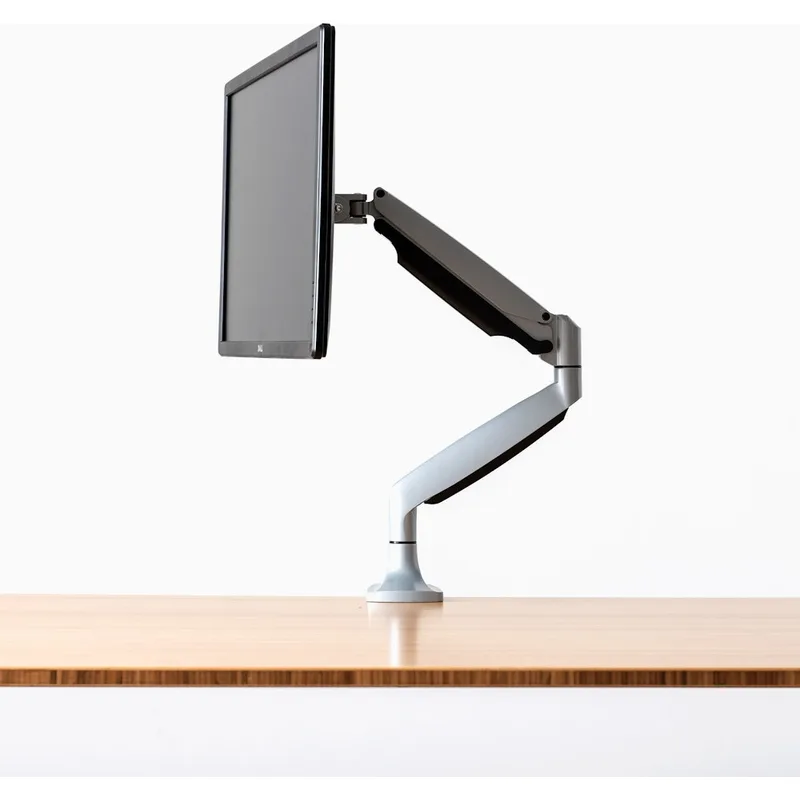
Price: ~$109 | Weight Capacity: 19 lbs | VESA: 75x75, 100x100mm
The Jarvis is the monitor arm I recommend to everyone who asks. The gas-spring mechanism lets you reposition your screen with one finger — push it up, pull it down, swing it to the side. It stays exactly where you leave it.
Full 360° rotation with ±90° tilt means you can flip between horizontal and vertical orientation for coding or document review. The integrated cable channel runs wires through the arm itself, so you don’t end up with cables dangling behind your monitor.
Fully backs it with a 15-year warranty, which tells you something about how long they expect it to last.
Who should buy this: Anyone spending 4+ hours daily at a monitor. The ergonomic improvement is immediate and noticeable.
Who should skip this: If your monitor weighs over 19 lbs (some 32”+ panels do), you’ll need a heavy-duty arm instead.
VIVO Dual Monitor Desk Mount (Budget Pick)
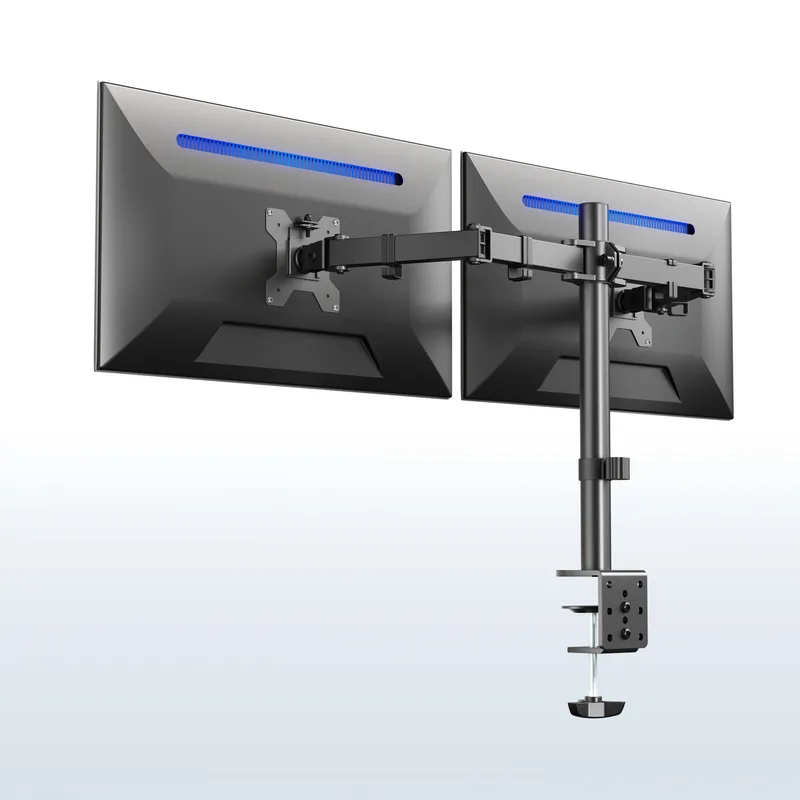
Price: ~$50 | Weight Capacity: 22 lbs per arm
The VIVO V002 handles two monitors up to 27 inches for the price of a nice lunch. It lacks the Jarvis’s smooth, effortless adjustment — you’re loosening and tightening Allen bolts to change position — but once set, it holds rock steady.
The C-clamp fits desks up to 4 inches thick, and setup takes about 20 minutes with the included tools. For anyone testing whether a monitor arm actually helps (it does), start here.
Keyboard Trays: Protect Your Wrists
OSHA guidelines recommend 90° elbow angles while typing. Most desks are too high for this. A keyboard tray drops your hands to the right height without replacing your desk.
They pair especially well with standing desks, letting you maintain proper wrist alignment whether sitting or standing. See our full keyboard tray roundup for standing desks for detailed comparisons across every price tier.
3M Adjustable Keyboard Tray
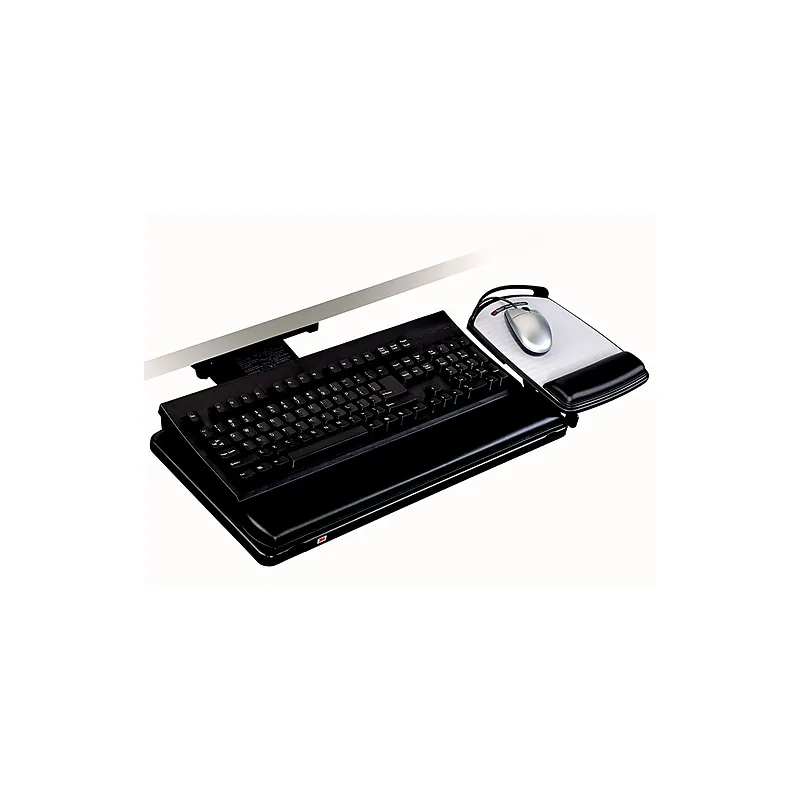
Price: ~$90–$130 | Track Length: 21.5”
The 3M focuses on ergonomic fundamentals and nails every one. The 4.5-inch height adjustment accommodates users from 5’2” to 6’4”. The ±15° tilt lets you find a neutral wrist angle. The ambidextrous mouse platform swivels 360° and mounts on either side.
Installation requires drilling into the underside of your desk — not ideal for renters, but the result feels permanent and solid. No wobble, no flex, no complaints after years of daily use.
Who should buy this: Remote workers with wrist pain or anyone whose desk height can’t accommodate proper typing posture.
Who should skip this: Renters who can’t drill into furniture. Look for clamp-mount options instead.
Lighting: Look Professional on Camera
The difference between good and bad desk lighting shows up on every video call. The Illuminating Engineering Society recommends 500 lux for computer work, but most home offices barely hit 200. Our full desk lamp and eye strain guide covers every option from budget LED lamps to the BenQ ScreenBar lineup — including a detailed BenQ ScreenBar review if you want to go deep on that specific model.
BenQ ScreenBar Halo
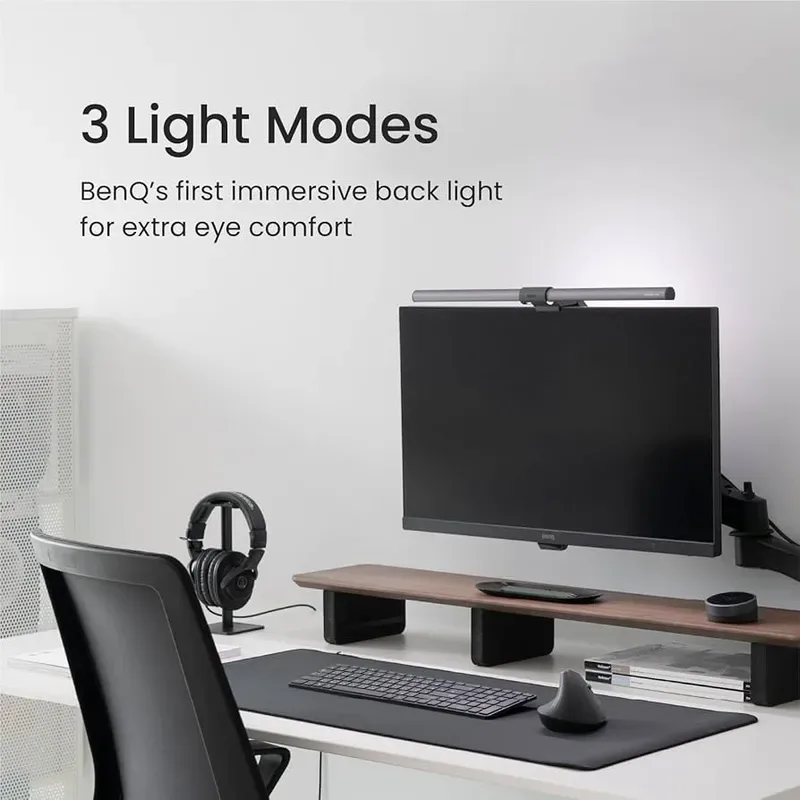
Price: ~$179 | Brightness: Up to 500 lux | Color Range: 2700K–6500K
The ScreenBar Halo solves a problem most desk lamps create: it lights your workspace without putting any glare on your screen. The asymmetric optical design throws light downward onto your desk and backward for ambient fill, keeping your monitor completely glare-free.
The wireless dial controller sits on your desk and lets you adjust brightness and color temperature without reaching for the light. Set it to 6500K daylight for focused morning work, then dial it down to warm 2700K for evening sessions.
It clips directly to the top of your monitor. Zero desk footprint. That alone makes it worth considering if you’re working on a small desk.
Who should buy this: Anyone on video calls regularly, or anyone experiencing eye strain from poor lighting.
Who should skip this: If you already have good ambient lighting and rarely do video calls, a $30 desk lamp works fine.
Philips Hue Go (Versatile Alternative)
Price: ~$80 | Battery: 3 hours portable
The Hue Go brings smart home lighting to your desk. Sixteen million colors, app control, voice assistant integration. The 3-hour battery means you can move it around without cables.
Best for users who want dynamic lighting that shifts throughout the day — energizing blue-white for mornings, warm amber for evenings.
Cable Management: Tame the Chaos
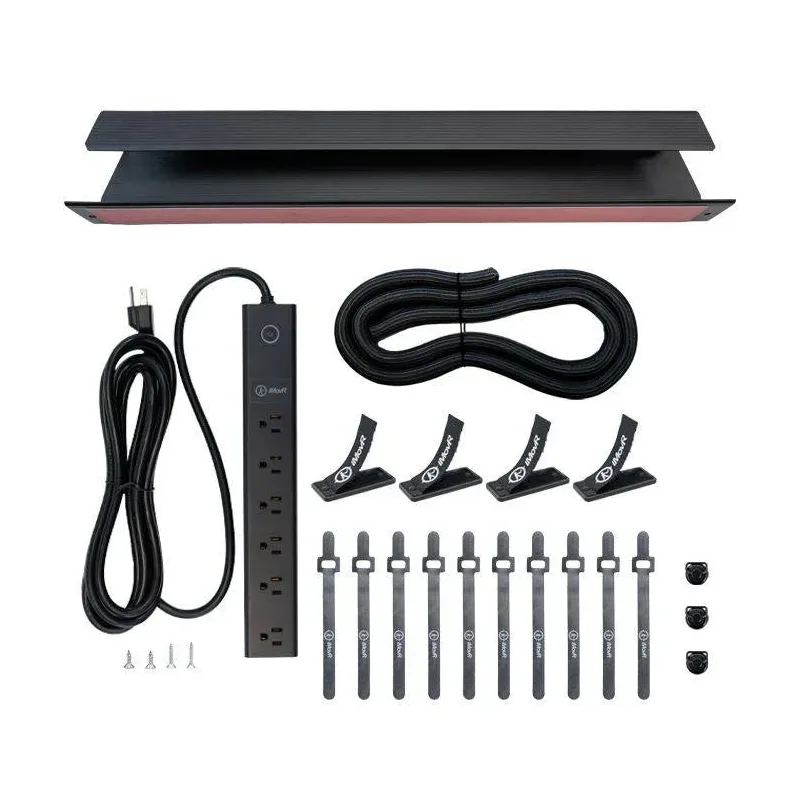
Tangled cables look terrible on camera, create tripping hazards, and make you feel like you’re working in a server closet. Fixing this takes 30 minutes and under $50. For standing desks specifically — where cables need slack to accommodate height changes — see our full cable management solutions guide — or SetupRanked’s cable management guide for remote work desks for broader options.
J Channel Cable Spine by Fully
Price: ~$45
This 60-inch flexible polymer channel swallows up to 20 cables. It bends to follow your desk contours, adheres without drilling, and works equally well mounted horizontally or vertically.
Standing desk users love this one. The flexible spine accommodates height changes without pulling cables tight or letting them sag.
IKEA SIGNUM (Budget Pick)
Price: ~$15
The SIGNUM is a simple under-desk mesh tray that holds your power strip and cable excess. Clamp mounting, no tools, 10 minutes to install. It won’t win any design awards, but it gets cables off the floor for the price of a sandwich.
Desk Pads: Surface Protection That Works
A good desk pad protects your surface, improves mouse tracking, and makes your desk look intentional rather than accidental.
Orbitkey Desk Mat Large
Price: ~$121 | Size: 35.3” x 16.7”
The Orbitkey justifies its premium price with thoughtful details. The vegan leather top is water-repellent and wipes clean. A document hideaway pocket underneath stores papers flat. The magnetic cable holder keeps your charging cable from sliding off the desk.
Made from recycled PET bottles, which is a nice bonus if sustainability matters to you.
Corsair MM300 Extended
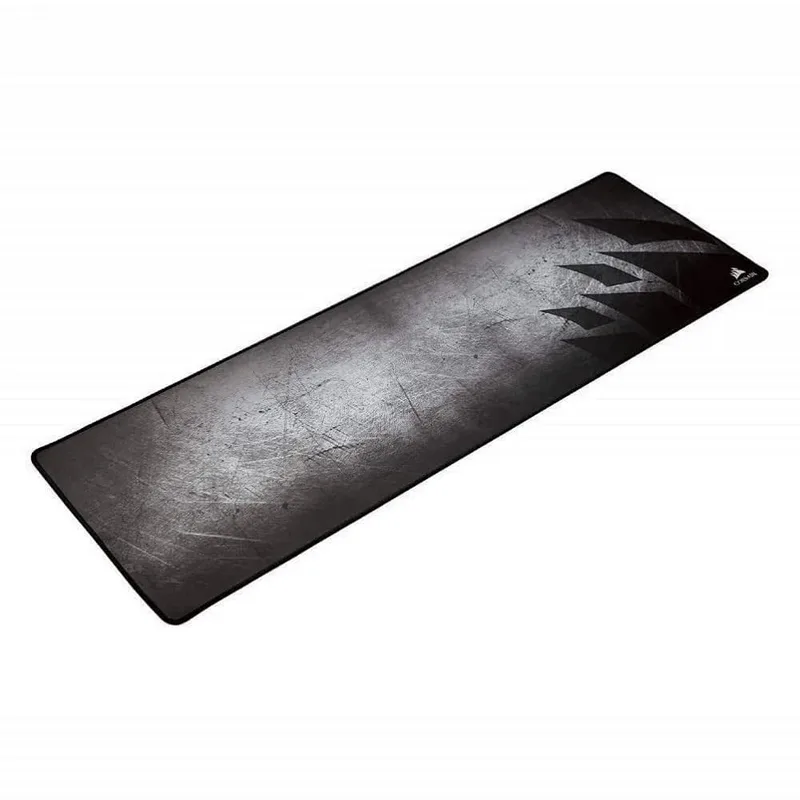
Price: ~$20 | Size: 36.6” x 11.8”
The MM300 gives you a massive surface for keyboard and mouse at a price that’s almost impulse-buy territory. Anti-fray stitched edges hold up to daily use. The rubber base doesn’t slide.
Originally designed for gaming, but the precision cloth surface works equally well for general office use. If you want the MM300’s coverage but need spill protection, the MM300 PRO adds a waterproof layer for about $35.
Anti-Fatigue Mats: Stand Longer Without Pain
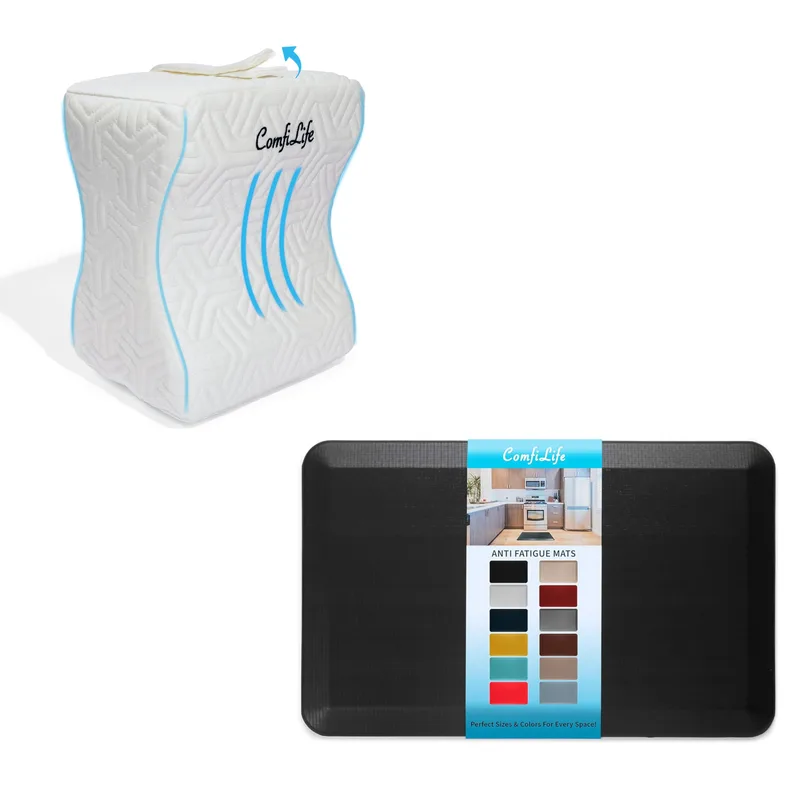
If you’re using a standing desk, an anti-fatigue mat is non-negotiable. Standing on a hard floor for hours wrecks your feet and lower back. Check our full anti-fatigue mat guide for deeper comparisons.
UPLIFT Active Anti-Fatigue Mat E7
Price: ~$129 | Size: 28.2” x 27.8”
The E7 goes beyond basic cushioning. Built-in massage mounds, a power wedge for calf stretches, and textured zones encourage micro-movements throughout the day. This matters — static standing isn’t much better than static sitting.
100% polyurethane construction with no PVC or phthalates. UPLIFT gives it a 15-year warranty.
Budget Alternative: Basic Foam Mat
Price: ~$25
A ¾-inch foam mat with beveled edges gets the job done for occasional standing sessions. No fancy features, but it keeps your feet from hating you. Start here if you’re still figuring out your sit-stand ratio.
Power & Charging: Keep Everything Running
Modern desks need modern power. Between monitors, laptops, phones, desk lights, and whatever else you’ve accumulated, outlets run out fast.
Anker PowerStrip with USB
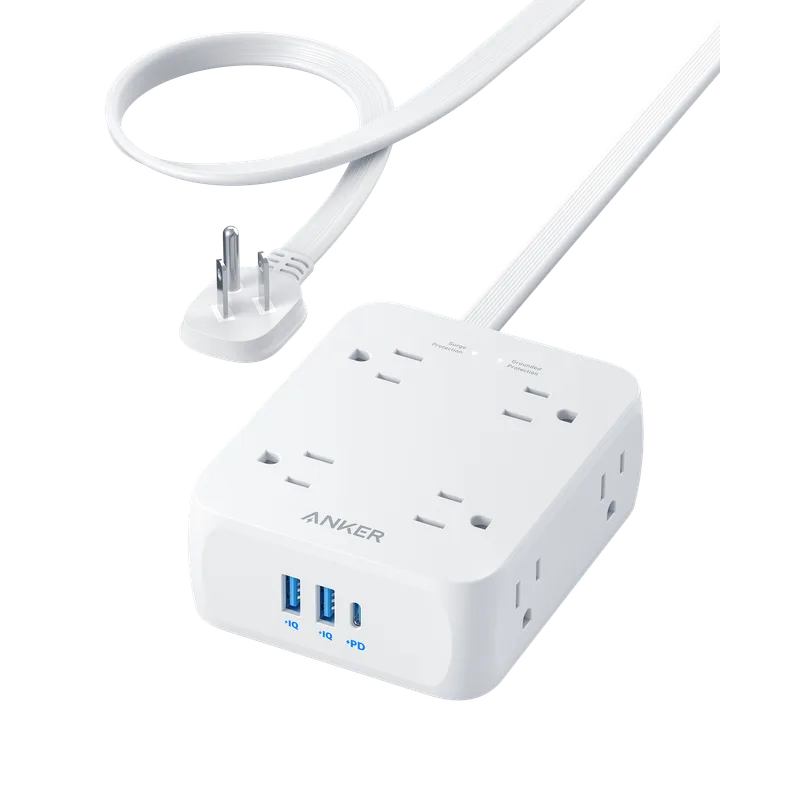
Price: ~$30 | Outlets: 12 AC + 3 USB | Surge Protection: 4000 joules
Twelve AC outlets and three USB ports in one strip. The PowerIQ technology detects your device and delivers optimal charging speed. The 4000-joule surge rating is well above average — important if you’re plugging in expensive equipment.
The flat plug and 6-foot cord give you mounting flexibility. Most users run it through a cable tray under the desk, keeping everything accessible but invisible.
Who should buy this: Anyone with more than 4 devices at their desk. So… everyone.
Belkin 3-in-1 Wireless Charger

Price: ~$120 | Charging: iPhone 15W, Watch fast-charge, AirPods 5W
For Apple users, this replaces three separate cables with one clean charging station. MagSafe alignment means your iPhone snaps into place every time — no fumbling, no misalignment, no waking up to a dead phone because the cable shifted overnight. For a side-by-side comparison of wireless chargers across brands, see SetupRanked’s wireless charger guide.
The minimalist design fits Apple’s aesthetic. MFi certified, so no compatibility worries.
Who should buy this: Apple ecosystem users with iPhone, Watch, and AirPods.
Who should skip this: Android users, or anyone who doesn’t own at least two Apple devices.
Comparison Table
| Product | Price | Best For | Rating |
|---|---|---|---|
| Jarvis Monitor Arm | ~$109 | Overall monitor positioning | 4.6/5 |
| VIVO V002 Dual Mount | ~$50 | Budget dual monitor setup | 4.3/5 |
| 3M Keyboard Tray | ~$100 | Wrist ergonomics | 4.3/5 |
| BenQ ScreenBar Halo | ~$179 | Desk lighting / video calls | 4.7/5 |
| Corsair MM300 Extended | ~$20 | Budget desk pad | 4.4/5 |
| Orbitkey Desk Mat | ~$121 | Premium desk pad | 4.5/5 |
| Anker PowerStrip | ~$30 | Power management | 4.5/5 |
| Belkin 3-in-1 Charger | ~$120 | Apple charging station | 4.3/5 |
| UPLIFT E7 Mat | ~$129 | Active standing support | 4.4/5 |
| IKEA SIGNUM | ~$15 | Budget cable management | 4.0/5 |
Buying Guide: What to Look For
Start with ergonomics
If your budget is limited, spend it on a monitor arm and a keyboard tray first. These two accessories have the biggest impact on posture and comfort. Everything else is a nice-to-have by comparison.
Match your desk type
Standing desk users need flexible cable management (rigid channels won’t accommodate height changes) and anti-fatigue mats. Fixed desk users can get away with simpler cable solutions and should invest more in seating accessories.
Check your desk thickness
Monitor arms and keyboard trays use clamps rated for specific thicknesses. Measure your desk edge before ordering. Most clamps max out at 2–4 inches.
Don’t overspend on cable management
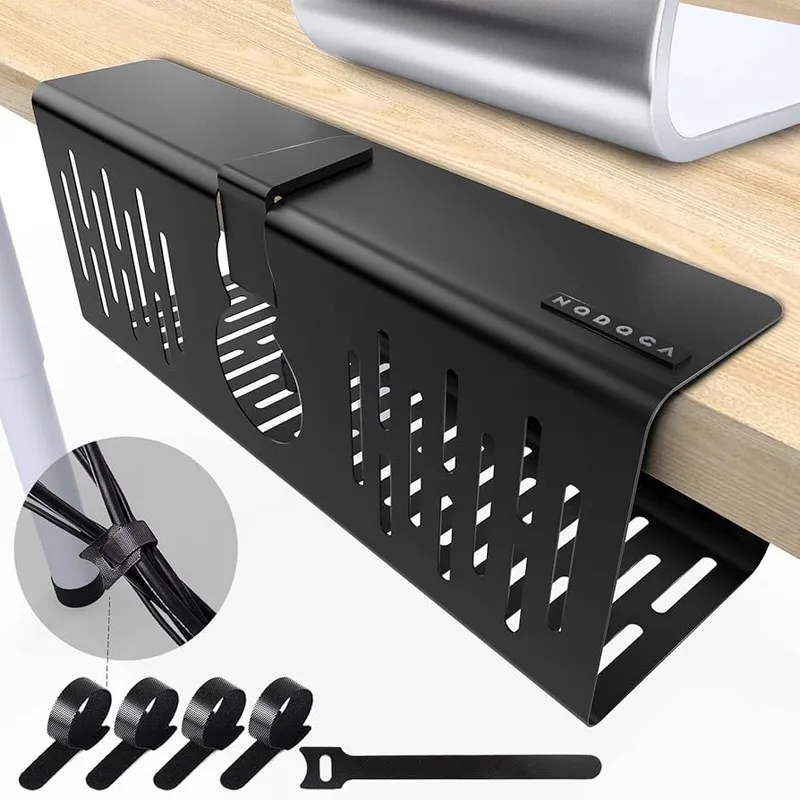
The IKEA SIGNUM handles 90% of cable management needs for $15. Save the premium budget for accessories that directly affect your body — monitor arms, keyboard trays, and lighting.
Consider your video call frequency
If you’re on camera daily, prioritize the BenQ ScreenBar Halo. Good lighting makes more difference to your on-screen appearance than any webcam upgrade.
Frequently Asked Questions
Do I need a monitor arm if I only have one monitor?
Yes. A single monitor arm improves ergonomics just as much as a dual setup — arguably more, since you can position it exactly where your eyes naturally rest. The freed desk space is a bonus.
What’s the single best accessory for video calls?
Lighting. The BenQ ScreenBar Halo consistently delivers the most noticeable improvement to on-camera appearance. It’s more impactful than upgrading your webcam.
How much should I budget for a complete desk accessory setup?
A solid budget setup runs $150–$300: monitor arm, cable tray, desk pad, and a basic lamp. Premium setups hit $500–$1,000 with the BenQ ScreenBar, Jarvis arm, quality keyboard tray, and wireless charging. Start with ergonomics and add from there.
Are expensive cable management solutions worth the premium?
Rarely. The IKEA SIGNUM handles most setups for $15. Upgrade to the J Channel Spine only if you have a standing desk or complex multi-monitor routing that needs a flexible solution.
Which accessories deliver the best return on investment?
Monitor arms and proper lighting. Both deliver immediate, noticeable improvements to comfort and productivity. A $109 monitor arm that eliminates neck pain pays for itself inside a month.
Do I need an anti-fatigue mat with a standing desk?
If you stand for more than an hour at a stretch, yes. Hard floors cause foot and lower back fatigue that builds over weeks. An anti-fatigue mat costs $25–$130 and prevents real problems. See our standing desk setup guide for the full picture.
The Bottom Line
For most remote workers, the highest-impact accessories are the Jarvis Monitor Arm and the BenQ ScreenBar Halo. Those two alone fix the most common home office complaints: neck pain and bad lighting.
On a tighter budget, the VIVO V002 dual mount and an IKEA SIGNUM cable tray get you 80% of the benefit for under $65 total. Add a Corsair MM300 desk pad for another $20 and your workspace looks and feels intentional.
Build your setup around what hurts first. Neck pain? Monitor arm. Wrist issues? Keyboard tray. Looking rough on video calls? Lighting. Then layer in the organizational and aesthetic pieces as your budget allows. For the full picture on creating a healthy, productive workspace, read our complete ergonomic workstation setup guide.
If you’re also choosing a desk or chair, our best standing desks roundup and best ergonomic desk chairs under $500 are the right starting points.
Related Reviews
Deep dives on every accessory category covered above:
- Best Monitor Arms for Standing Desks — gas spring vs. manual, $30 to $550
- Best Keyboard Trays for Standing Desks — Humanscale Float, UPLIFT, budget KT options
- Best Cable Management Solutions — under-desk trays, cable spines, raceways
- Best Desk Lamps for Eye Strain — BenQ ScreenBar lineup vs. traditional lamps
- BenQ ScreenBar Review — detailed single-product breakdown
- Best Ergonomic Keyboards for Programmers — split, Alice, and contoured layouts
- Best Ergonomic Mouse for Large Hands — full-size mice for productivity and gaming
- Best Ergonomic Trackballs — Logitech, Kensington, and Elecom options
- Best Wrist Rests for Mechanical Keyboards — foam, wood, gel, and sliding options
- Best Footrests for Standing Desks — rocking and adjustable platforms
- Best Lumbar Support Pillows — transform any office chair
- Best Laptop Stands for Standing Desks — portable and desktop picks
- Best Standing Desk Mats — terrain mats, flat mats, balance boards
- Best Anti-Fatigue Mats for Standing Desks — Topo, CumulusPRO, and budget options
- Best Under-Desk Treadmills — walking pads for active standing
- Best Posture Correctors — straps, smart devices, and seated supports