If you’re working on a laptop, the ergonomics are almost certainly wrong. The screen sits too low. The keyboard is too close to the monitor. Your neck angles forward, your shoulders round in, and after a few hours, you know about it.
In 2026, with hybrid work the norm for most desk-based professionals, the market for ergonomic laptop accessories has matured — and prices have gotten more competitive. The Logitech MX Master 3S, long considered the benchmark ergonomic mouse for laptop workers, hit a record-low $79.99 on Amazon in May 2026. Stands, hubs, and keyboards have followed the same trajectory.
The fix itself is simple: raise the screen to eye level with a stand, move the keyboard and mouse away from the laptop so your elbows can open up, and use a USB-C hub to tie everything together with power and peripherals. That’s the full formula — and you can execute it for under $200.
Quick picks:
- Best laptop stand overall: Nulaxy C3 — $24
- Best travel stand: Lamicall Foldable — $30
- Best ergonomic keyboard: Logitech ERGO K860 — $130
- Best compact keyboard: Logitech MX Keys Mini — $100
- Best ergonomic mouse: Logitech MX Master 3S — $80
- Best USB-C hub: Anker 7-in-1 — $26
Nulaxy C3 Laptop Stand — Best Overall
Nulaxy C3 Laptop Stand
Pros
- ✓ Solid all-aluminum build that feels nothing like the price
- ✓ 7-inch elevation hits the ergonomic sweet spot for most desk heights
- ✓ Detachable design packs flat into a bag or drawer
- ✓ Anti-slip silicone pads grip the desk and the laptop
Cons
- ✗ Fixed height — no angle or elevation adjustment
- ✗ Not ideal for very small notebooks under 12 inches
- ✗ No integrated cable routing or passthrough
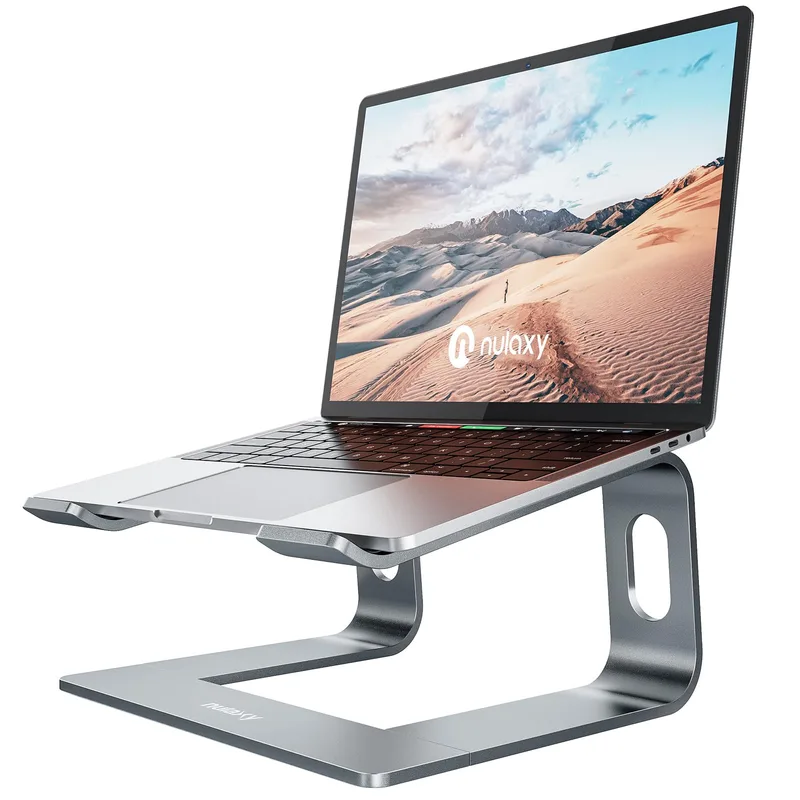
At $24, the Nulaxy C3 is the laptop stand most people should buy first. It’s a fixed-height aluminum riser that elevates your screen roughly 7 inches — close enough to eye level that most users at standard desk heights stop craning their necks.
The build is solid in a way that feels unreasonable for the price. Five-millimeter aluminum alloy, silicone pads on every contact point, and a detachable bar that lets it fold flat into a laptop bag. It supports up to 22 lbs, which covers every consumer laptop including 16-inch MacBook Pros and larger gaming notebooks.
The trade-off is flexibility: the C3 is fixed at its single height. If you switch between multiple setups or prefer adjustability, the Lamicall below makes more sense. But for a permanent home desk, fixed is actually the smarter choice — there are no moving parts to loosen over time.
Best for: Remote workers with a fixed home setup who want the most stand for the least money.
Lamicall Foldable Laptop Stand — Best for Travel
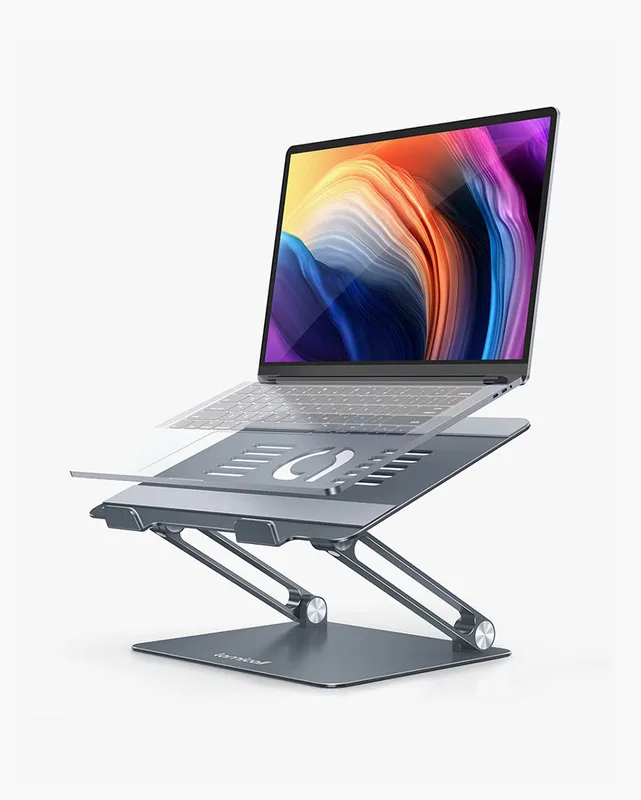
Lamicall Foldable Laptop Stand
Pros
- ✓ Adjustable angle works on desks, tables, and coffee shop counters
- ✓ Folds down to a slim profile — genuinely bag-friendly
- ✓ Supports laptops up to 17.3 inches
- ✓ Solid build for the price
Cons
- ✗ Less rigid at shallow angles compared to fixed-height stands
- ✗ Rubber grips can pick up dust and lint over time
- ✗ Adjustment mechanism requires two hands to reposition
The Lamicall Foldable Stand at $30 covers the scenario the Nulaxy doesn’t: working from different locations. It folds down to a slim, bag-friendly profile and supports multiple height positions, which matters when you’re sitting at a low coffee table one day and a high standing desk the next.
The aluminum build is good — not quite as rigid as the Nulaxy under load, but solid enough for daily use. It handles laptops up to 17.3 inches with no wobble issues at middle height settings. Where it gets a little loose is at extreme shallow angles, which most users won’t hit.
The adjustment mechanism requires two hands to reposition mid-session, which is a minor inconvenience at a desk but genuinely annoying if you’re trying to quick-shift at a conference room table. For stationary use, the Nulaxy is still the better value. For anyone who carries their office with them, the Lamicall earns its place in the bag.
Best for: Hybrid workers, frequent travelers, and anyone who works from multiple locations.
Logitech ERGO K860 — Best for Wrist Health
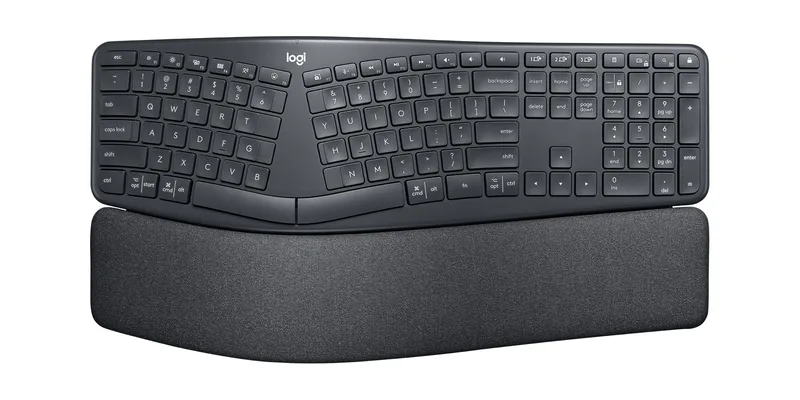
Logitech ERGO K860
Pros
- ✓ Split wave layout relieves ulnar deviation — the main cause of wrist pain from standard keyboards
- ✓ Built-in wrist rest means one less accessory to buy or misplace
- ✓ Connects to up to three devices via Easy-Switch — ideal for laptop + desktop combos
- ✓ Stain-resistant fabric on the wrist rest holds up to daily use
Cons
- ✗ Full-size footprint is wide — needs a spacious desk
- ✗ Adjustment period of one to two weeks is real for first-time split keyboard users
- ✗ At $130, it's among the pricier keyboards in this guide
Most laptop keyboards force your wrists into ulnar deviation — bent outward at the wrist joint — because the keys are packed into a narrow rectangle optimized for the laptop’s footprint, not your body. The Logitech ERGO K860 at $130 fixes this with a split wave layout that angles the key clusters outward, letting your wrists stay straight.
What makes the K860 stand out from competing split keyboards is the built-in wrist rest. It’s cushioned, covered in stain-resistant fabric, and wide enough that your palms actually land on it naturally during typing. Most users who switch from a flat keyboard report noticeable wrist relief within the first week — though there is a real learning curve of one to two weeks as your muscle memory adjusts.
The keyboard connects via Bluetooth or the Unifying USB receiver and can Easy-Switch between three devices. A pair of AAA batteries lasts up to two years, which means you’ll essentially never think about charging it. At $130, it’s a serious purchase — but for anyone dealing with wrist pain from extended typing, it’s often the single highest-impact upgrade in this entire guide.
See also: How to Prevent Wrist Pain from Typing and Best Ergonomic Keyboards for Programmers.
Best for: Power typists, writers, programmers, and anyone with existing wrist pain or RSI concerns.
Logitech MX Keys Mini — Best Compact Keyboard
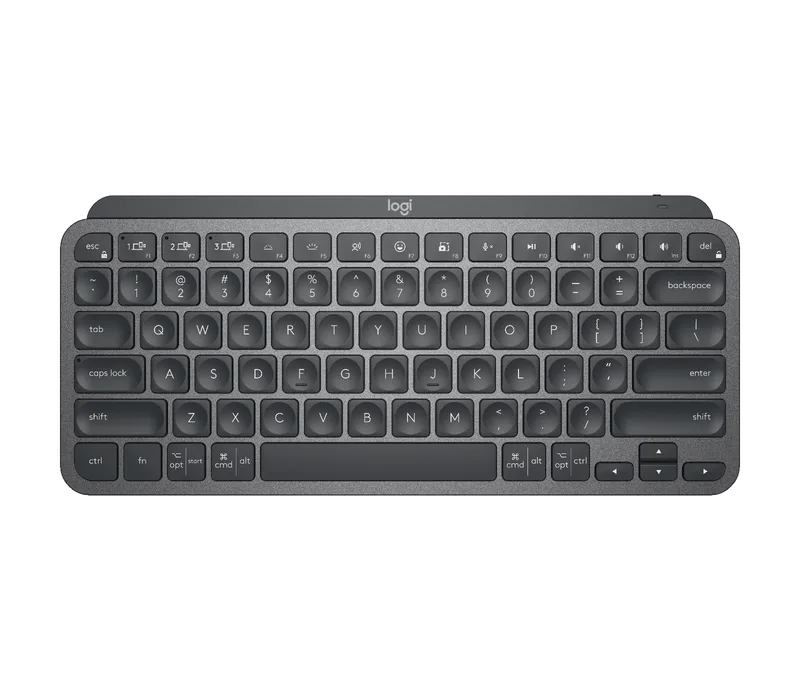
Logitech MX Keys Mini
Pros
- ✓ Compact footprint keeps your mouse closer and your shoulders narrower
- ✓ Spherical key caps match finger curvature for a more natural keystroke
- ✓ Multi-device Easy-Switch pairs with laptop, phone, and tablet simultaneously
- ✓ USB-C charging — no batteries to replace
Cons
- ✗ No numpad — non-starter for heavy spreadsheet or accounting work
- ✗ No wrist rest included at this price
- ✗ Premium cost for a tenkeyless layout that competes with cheaper options
Not everyone needs or wants the full split layout. If you want an external keyboard that’s better than typing on your laptop — but doesn’t take over your desk — the Logitech MX Keys Mini at $100 is the right call.
The tenkeyless layout keeps the mouse closer to your body, which reduces shoulder extension and strain. The spherical key caps are designed to match the natural curve of your fingertips, and the backlighting is genuinely smart — it dims when you step away and brightens as you return, so you never need to manually toggle it.
Like the K860, it Easy-Switches between three Bluetooth devices. But unlike the K860, it charges via USB-C rather than AAA batteries — up to 10 days with backlighting on, or five months if you turn it off. For a mostly desk-bound keyboard that doubles as a mobile writing surface, the MX Keys Mini hits a strong balance of form and function.
Best for: Writers, professionals who need a clean minimal setup, and multi-device users who want to switch between laptop and tablet easily.
Logitech MX Master 3S — Best Ergonomic Mouse
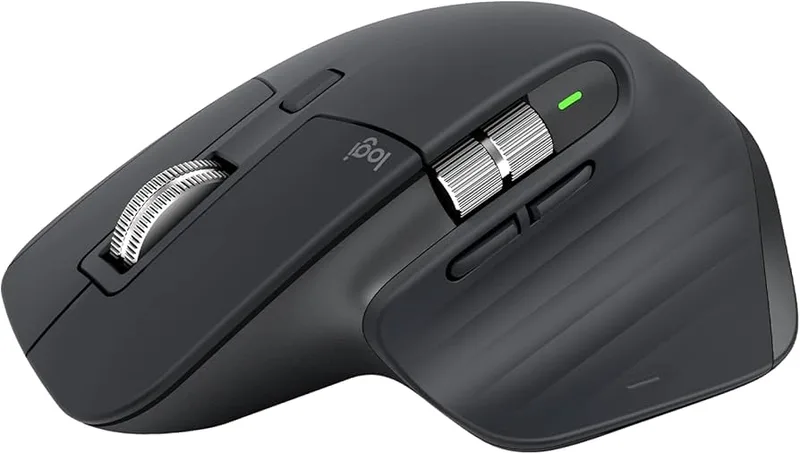
Logitech MX Master 3S
Pros
- ✓ Sculpted ergonomic shape supports the full hand — wrist stays neutral naturally
- ✓ MagSpeed scroll wheel switches between precise line-by-line and free-spinning momentum scrolling
- ✓ Tracks reliably on any surface, including glass and most textured materials
- ✓ Quiet click switches are meaningfully quieter than standard mice
Cons
- ✗ Right-hand-only sculpt — no left-handed version in this line
- ✗ Larger footprint makes it less ideal for travel
- ✗ USB-C charging cable not always included — check the specific listing
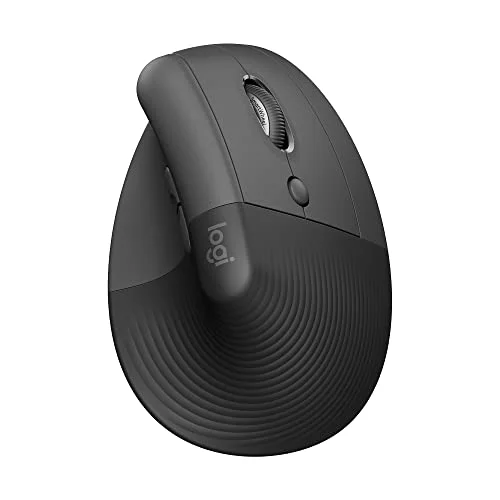
The Logitech MX Master 3S at $80 is the ergonomic mouse most productiviy-focused laptop workers should buy. The sculpted shape keeps your hand in a natural handshake position — wrist stays neutral, thumb rests comfortably on the textured grip — and the 70-day battery means you charge it roughly monthly.
The standout feature is the MagSpeed scroll wheel. It switches between precise line-by-line scrolling and frictionless momentum spinning, and the transition is immediate and satisfying in a way that’s hard to explain until you’ve used it. For anyone who scrolls through long documents, code files, or spreadsheets, it legitimately changes how you interact with the screen.
The MX Master 3S has been selling at $79.99–$80 on Amazon through mid-2026 — down significantly from its original MSRP. It’s a straightforward recommendation at this price.
See also: Best Ergonomic Mouse for Large Hands for hand-size-specific guidance.
Best for: Power users, writers, and anyone who spends long hours navigating documents or code.
Anker 7-in-1 USB-C Hub — Best Value
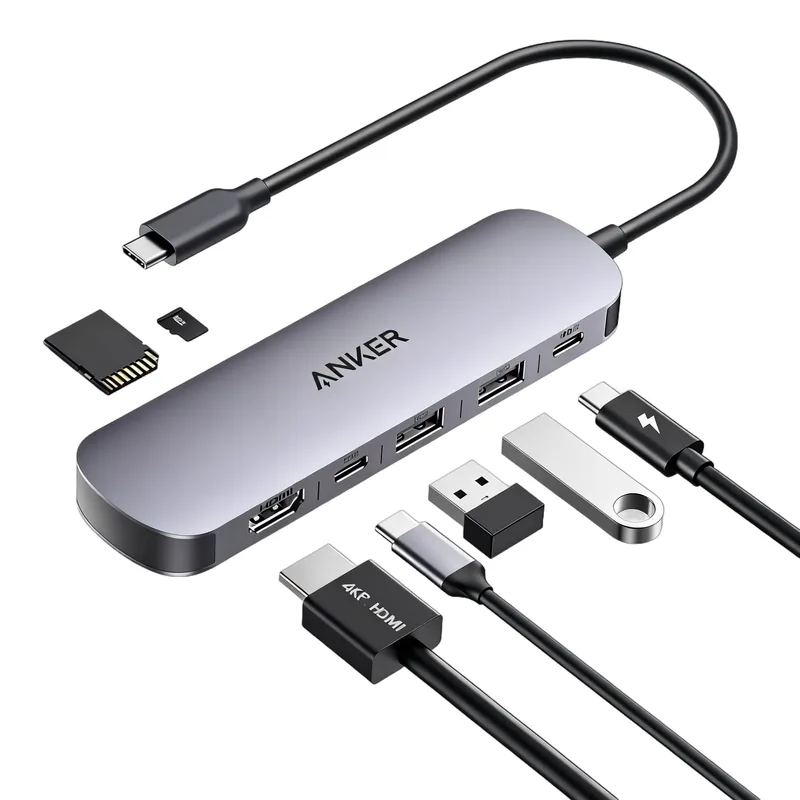
Anker 7-in-1 USB-C Hub
Pros
- ✓ Turns a single USB-C port into a full workstation — keyboard, mouse, monitor, and card reader
- ✓ 85W power delivery charges most laptops while all ports are in use
- ✓ 4K HDMI output works cleanly with external monitors
- ✓ SD and microSD slots handle camera dumps and storage cards
Cons
- ✗ No Ethernet port — need a separate adapter for wired internet
- ✗ Can run warm during heavy multi-device use
- ✗ 85W PD may not fully power high-wattage laptops like 16-inch MacBook Pros
Raise your laptop with a stand, add an external keyboard and mouse — and you immediately lose access to your laptop’s built-in ports. The Anker 7-in-1 USB-C Hub at $26 solves this.
It plugs into a single USB-C port and splits it into a 4K HDMI output, two USB-A 3.0 data ports, a USB-C data port, an SD slot, and a microSD slot — while passing up to 85W of power back to your laptop for charging. In practice: your keyboard, mouse, external monitor, and laptop charger all connect through one small adapter.
The 85W power delivery covers most modern laptops. MacBook Air users are fully covered; 16-inch MacBook Pro and other high-wattage machines may see slower charging speeds under full load. The hub runs warm with everything connected, but hasn’t been reported to throttle under normal use. At $26, it’s genuinely hard to fault.
Best for: Anyone who elevates their laptop to eye level and needs to reconnect peripherals without a cable management nightmare.
Comparison Table
| Product | Price | Best For | Key Feature | Rating |
|---|---|---|---|---|
| Nulaxy C3 Laptop Stand | $17.99 as of Oct 18, 2026 | Fixed home setup | 7” elevation, 5mm aluminum | 9.0 |
| Lamicall Foldable Stand | $29.99 as of Oct 18, 2026 | Travel & multi-location | Foldable, multi-angle | 8.5 |
| Logitech ERGO K860 | $76.79-$119.99 as of Oct 18, 2026 | Wrist health & RSI prevention | Split wave + built-in wrist rest | 9.2 |
| Logitech MX Keys Mini | $81.16-$99.99 as of Oct 18, 2026 | Clean compact setup | Compact + 3-device Bluetooth | 8.7 |
| Logitech MX Master 3S | $199.81 as of Oct 18, 2026 | Power users & long sessions | MagSpeed scroll, 70-day battery | 9.3 |
| Anker 7-in-1 USB-C Hub | $17.99-$39.99 as of Oct 18, 2026 | Reconnecting peripherals | 4K HDMI + 85W PD in one plug | 8.6 |
Buying Guide: What to Prioritize
Start with the stand
The laptop stand is the first and most impactful purchase. Without it, your screen sits at desk level, which forces your neck to drop roughly 30–40 degrees below a neutral position — the root cause of most laptop-related neck and shoulder pain. A $24 stand fixes this immediately. Everything else is secondary.
Add an external keyboard and mouse — any external keyboard and mouse
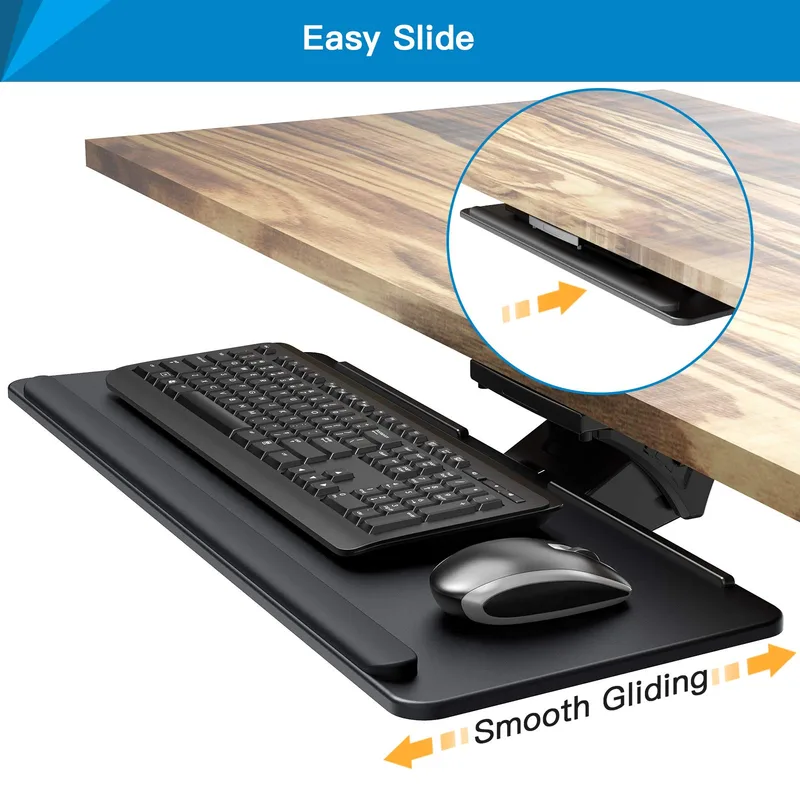
The specific keyboard matters less than the act of separating it from the screen. Once your laptop is on a stand, you need external input devices — otherwise your hands are forced up to chest height to reach the elevated keyboard, which is worse than before. Budget options work. The ERGO K860 and MX Keys Mini are strong choices, but even an inexpensive basic keyboard improves the ergonomics immediately.
The hub is optional but practical
If your laptop has only one or two USB-C ports — common on modern thin-and-light models — the Anker hub makes the whole setup workable without cable chaos. It’s not a health accessory, but it makes the ergonomic accessories actually usable together.
Budget breakdown
| Setup level | Products | Total |
|---|---|---|
| Minimum viable | Nulaxy C3 + any wireless keyboard + any wireless mouse | ~$80–120 |
| Recommended | Nulaxy C3 + MX Keys Mini + MX Master 3S + Anker hub | ~$236 |
| Full ergonomic | Nulaxy C3 + ERGO K860 + MX Master 3S + Anker hub | ~$286 |
See also: The Complete Ergonomic Workspace Setup Guide and The Best Desk Accessories for Remote Work.
Frequently Asked Questions
Do I really need a laptop stand if I already have a good chair?
Yes. A good ergonomic chair aligns your lower back and hips correctly, but it doesn’t fix the screen height problem — that’s determined by the desk and the laptop position, not the chair. Even the best ergonomic chair won’t prevent neck strain if your screen is 12 inches below eye level. The stand and chair work together: the chair positions your body, the stand positions the screen.
Can I use a laptop stand on a sit-stand desk?
Absolutely. A fixed-height stand like the Nulaxy C3 works on any desk. For sit-stand users who frequently shift between sitting and standing, the Lamicall Foldable is worth considering since it lets you fine-tune screen height at each position. See the Ergonomic Dual Monitor Setup Guide for more on screen positioning.
What if my laptop only has USB-C ports?
This is increasingly common. The Anker 7-in-1 hub is designed exactly for this scenario — it plugs into one USB-C port and gives you HDMI, USB-A ports, card readers, and pass-through charging in return. If your laptop has two USB-C ports, you can use one for the hub and keep the other free.
Is the Logitech ERGO K860 worth the adjustment period?
For most people, yes. The two-week adjustment period is real — your typing speed will drop noticeably in the first few days. But the ergonomic benefits compound over time. Users who switch report fewer wrist complaints and often faster overall typing once they’ve fully adapted. If you type more than four hours per day, it’s worth the transition cost.
Does an ergonomic mouse actually help, or is it marketing?
A vertical or sculpted ergonomic mouse like the MX Master 3S does reduce wrist pronation compared to a flat standard mouse. This is well-supported by occupational therapy research on wrist neutral positions. Whether it completely eliminates wrist pain depends on the individual and the full setup — mouse alone won’t fix it if your keyboard, monitor height, and desk setup are still misaligned.
What’s the minimum I should spend to see a real ergonomic improvement?
The stand is non-negotiable — and at $24, it’s the highest return-on-investment item in this list. Pair it with any wireless keyboard and any wireless mouse, and you’ll have a genuinely ergonomic setup. The upgrades to the K860, MX Master 3S, and hub improve the experience incrementally — they’re not the foundation, the stand is.
Conclusion
If there’s one thing to take away: raise the screen first. The Nulaxy C3 at $24 is the best place to start — it fixes the root cause of laptop neck strain before anything else. Once your screen is at eye level, add an external keyboard and mouse to keep your hands at a comfortable position below the screen.
For most people, that’s the Logitech MX Keys Mini for the keyboard — compact, multi-device, and well-built. For the mouse, the Logitech MX Master 3S is the best-in-class option at $80.
If wrist pain is already an issue, prioritize the Logitech ERGO K860 over the MX Keys Mini — the split wave layout addresses wrist strain more directly than any other keyboard in this guide.
And if your laptop has only USB-C ports, the Anker 7-in-1 hub at $26 ties the whole setup together cleanly.
For a full desk setup guide that goes beyond just laptop accessories, see The Complete Ergonomic Workspace Setup Guide.