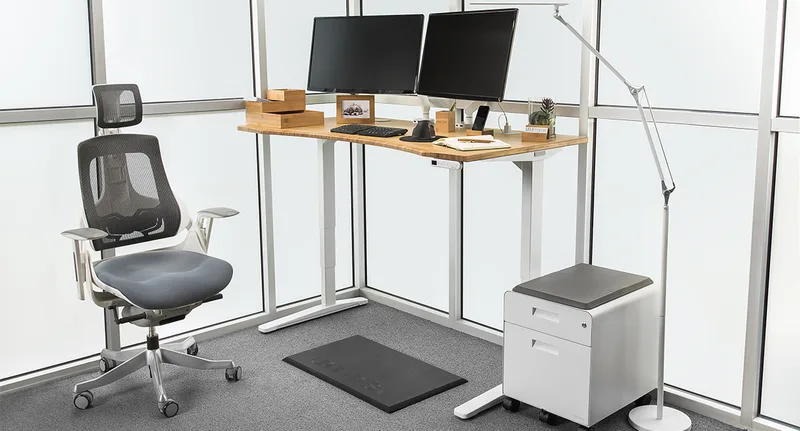
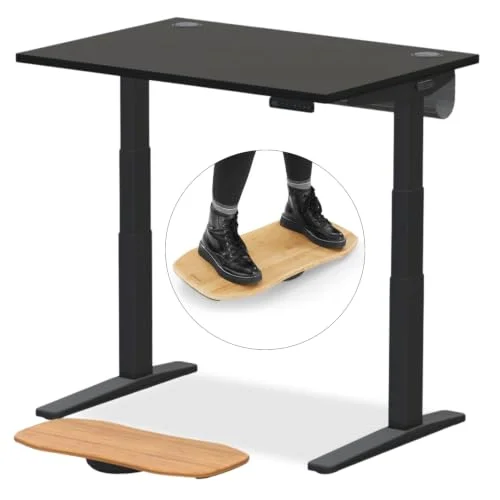
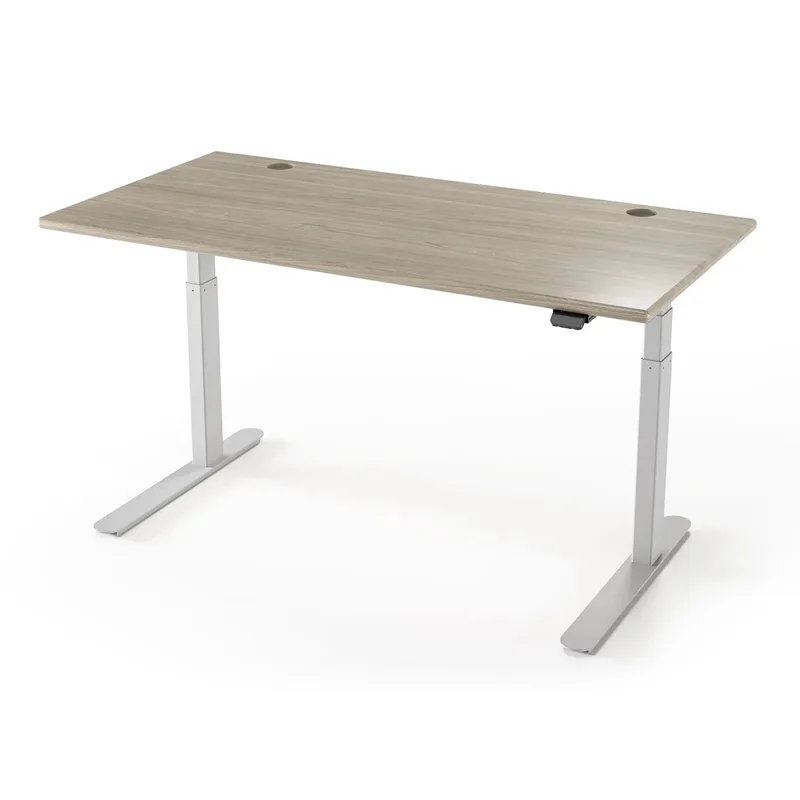
You bought a standing desk. You set it up. You stood for two hours, your feet hurt, your monitor was too low, and you went back to sitting. Sound familiar?
That’s the reality for most people. Standing desks work — studies show up to 54% reduction in back pain and measurable productivity gains — but only if your entire setup is dialed in. The desk itself is maybe 40% of the equation. The mat, the monitor height, the keyboard angle, and how you transition between sitting and standing make up the rest.
Short on time? The FlexiSpot E7 paired with a Topo mat and an Ergotron LX arm is the setup we recommend to most people. Read on for why — and for budget alternatives.
FlexiSpot E7: The Desk That Handles Everything
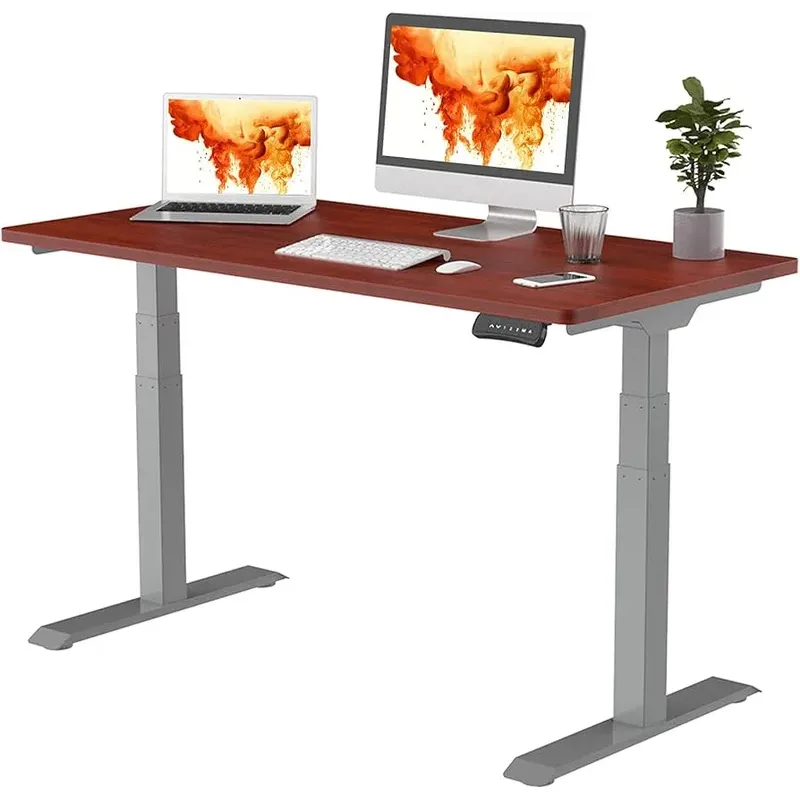
FlexiSpot E7
Pros
- ✓ 440-lb capacity handles any setup
- ✓ Wide height range suits users 5'0" to 6'6"
- ✓ Programmable memory presets
- ✓ Rock-solid stability even at max height
Cons
- ✗ Desktop sold separately on some configs
- ✗ Frame is heavy — plan for two-person assembly
- ✗ Basic keypad feels cheap on budget tier
The FlexiSpot E7 earns our Editor’s Pick for one simple reason: it doesn’t compromise. A 440-lb weight capacity means you can pile on dual monitors, a full PC tower, books, a printer — whatever your workflow demands — and the desk won’t flinch.
Height range spans 25” to 50.6”, which covers users from about 5’0” to 6’6” comfortably. The dual motors move at 1.5 inches per second, quiet enough that you won’t disrupt a Zoom call while adjusting — good to keep in mind if your webcam is positioned on the desk or monitor. Memory presets let you save your perfect sitting and standing heights so you’re not fiddling with buttons every transition.
Build quality is genuinely impressive. The steel frame feels industrial, and wobble is minimal even at standing height — a problem that plagues cheaper desks. Assembly takes about 45 minutes with two people (the frame is heavy, don’t try it solo).
The catch? FlexiSpot sells frame and desktop separately on some configurations, which can be confusing. And the basic keypad on the entry-level version feels like an afterthought. Upgrade to the Pro keypad if budget allows.
Who should buy this: Anyone who wants a desk that’ll handle a loaded workstation without wobble issues. Particularly good for tall users and heavy multi-monitor setups.
Who should skip this: If you’re running a simple laptop setup, you’re paying for capacity you don’t need. Look at the Uplift V2 instead.
For a deeper look at this desk and its Pro variant, check our detailed best standing desks of 2026 roundup and our FlexiSpot E7 Pro review.
Uplift V2: Best Value for Most Home Offices
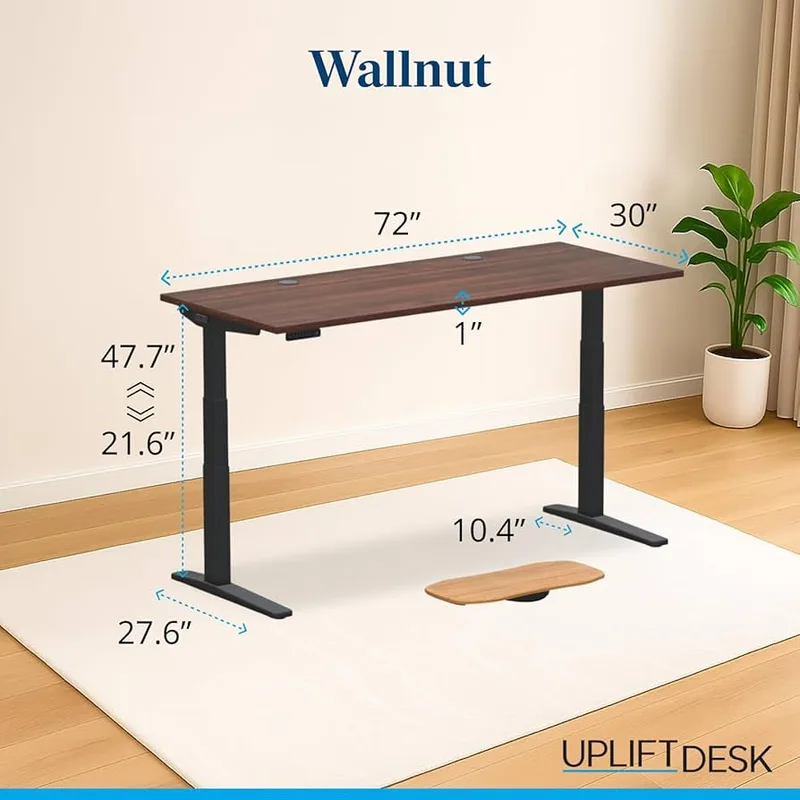
UPLIFT V3
Pros
- ✓ Widest desktop size selection on the market
- ✓ Advanced keypad with memory and one-touch
- ✓ Anti-collision technology included
- ✓ Strong warranty and US-based support
Cons
- ✗ 355-lb capacity is lower than FlexiSpot E7
- ✗ Premium top options get pricey fast
- ✗ Wobble noticeable above 45" height
The Uplift V2 does something smart: it gives you the widest range of desktop options in the industry. You pick from laminates, solid woods, bamboo, even reclaimed fir — in sizes from 42” to 80” wide. That flexibility means you can match your existing office aesthetic without compromise.
Specs are strong. The 355-lb capacity handles any reasonable home office setup. Height adjusts from 25.5” to 51.1” at 1.57 inches per second — actually slightly faster than the FlexiSpot. The advanced keypad includes memory presets and one-touch height adjustment, and anti-collision tech prevents the desk from crushing whatever’s underneath it.
Where the V2 falls short of the FlexiSpot is raw stability at maximum height. Above about 45”, you’ll notice some wobble during typing — not dealbreaking, but noticeable if you’re sensitive to it. The 355-lb capacity is also lower, though honestly, most setups don’t come close to that limit.
Uplift’s customer support is US-based and genuinely helpful, which matters when you’re troubleshooting a desk that weighs 100+ pounds.
Who should buy this: Home office workers who care about desktop aesthetics and want a good desk without paying FlexiSpot premium prices. The value-to-quality ratio here is hard to beat.
Who should skip this: If you’re 6’2”+ and plan to stand frequently, the wobble at max height may frustrate you. Go FlexiSpot E7 or E7 Pro.
Curious how these two stack up head-to-head? Our FlexiSpot vs UPLIFT comparison breaks down the value equation, and our budget standing desk setup guide shows how to build a complete ergonomic workspace for under $1,000.
Topo by Ergodriven: The Mat That Makes You Move
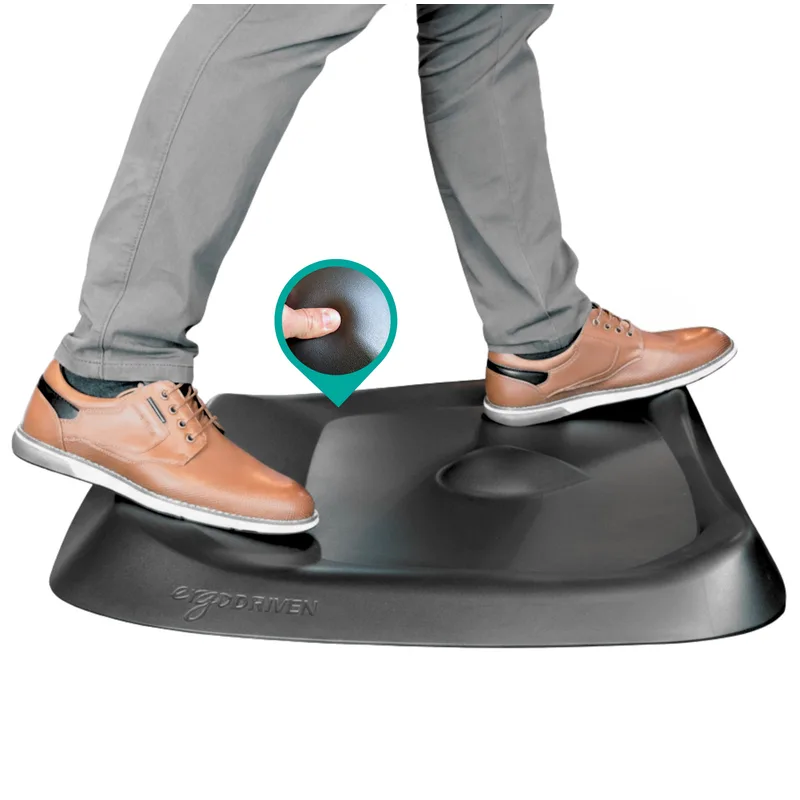
Topo by Ergodriven
Pros
- ✓ Terrain design encourages micro-movements
- ✓ Reduces leg fatigue better than flat mats
- ✓ Durable — lasts 2-3 years of daily use
- ✓ Multiple color options
Cons
- ✗ Takes a few days to get used to the ridges
- ✗ Slightly smaller footprint than some competitors
- ✗ Higher price than basic flat mats
Flat anti-fatigue mats help. The Topo is different — its calculated terrain of peaks, ridges, and valleys forces your feet to make constant micro-adjustments. That subtle shifting prevents the blood pooling and joint stiffness that happen when you stand still on any surface, even a cushioned one.
The result: you can stand 30-60 minutes longer before fatigue sets in compared to a flat mat. That’s not marketing — it’s the consistent finding from thousands of verified user reviews.
At 26” x 36”, it gives you enough room to shift your stance without stepping off the edge. The 3/4” polyurethane foam is dense enough to last 2-3 years of daily use without compressing. It does take a few days to stop noticing the ridges under your feet, but once your brain adapts, you won’t want to go back to flat.
Who should buy this: Standing desk users who find themselves sitting back down after 20-30 minutes because their feet or legs get tired. The terrain design genuinely extends comfortable standing time.
Who should skip this: If you already stand comfortably for 45+ minutes on a flat mat, the Topo solves a problem you don’t have. Save the money.
We cover more mat options in our anti-fatigue mat buyer’s guide.
CumulusPRO Commercial Couture: Pure Cushion, No Gimmicks
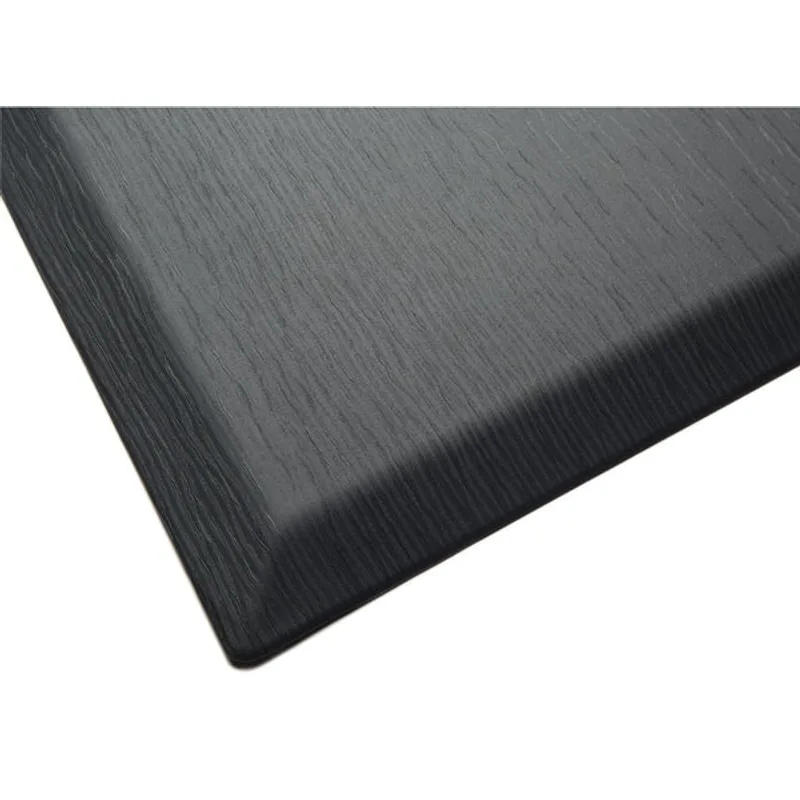
CumulusPRO Commercial Couture
Pros
- ✓ Medical-grade foam with excellent cushioning
- ✓ Flat surface works with any standing style
- ✓ Easy to clean and maintain
- ✓ Affordable for the quality
Cons
- ✗ No terrain features — purely flat
- ✗ Edges can curl over time
- ✗ Slightly smaller than Topo
Not everyone wants terrain under their feet. The CumulusPRO takes the opposite approach: a perfectly flat surface made from medical-grade polyurethane foam that simply provides outstanding cushioning.
The 3/4” thickness hits the sweet spot — thick enough to absorb impact, thin enough that you don’t feel like you’re standing on a waterbed. The medical-grade material means the foam bounces back rather than compressing permanently, which is where cheaper mats fail within months.
At 24” x 36”, it’s slightly smaller than the Topo. The flat surface is easier to shift your feet on freely — no terrain to navigate, just consistent cushion everywhere. Some users prefer this simplicity, especially if they’re wearing shoes while standing.
One honest downside: the edges can start curling upward after 12-18 months of heavy use. It’s not a safety hazard, but it looks worn.
Who should buy this: People who want reliable cushioning without the learning curve of a terrain mat. Good for users who stand in shoes.
Who should skip this: If foot fatigue is your main issue, the Topo’s active terrain approach will help more than flat cushioning alone.
Ergotron LX: The Monitor Arm That Ruins All Others
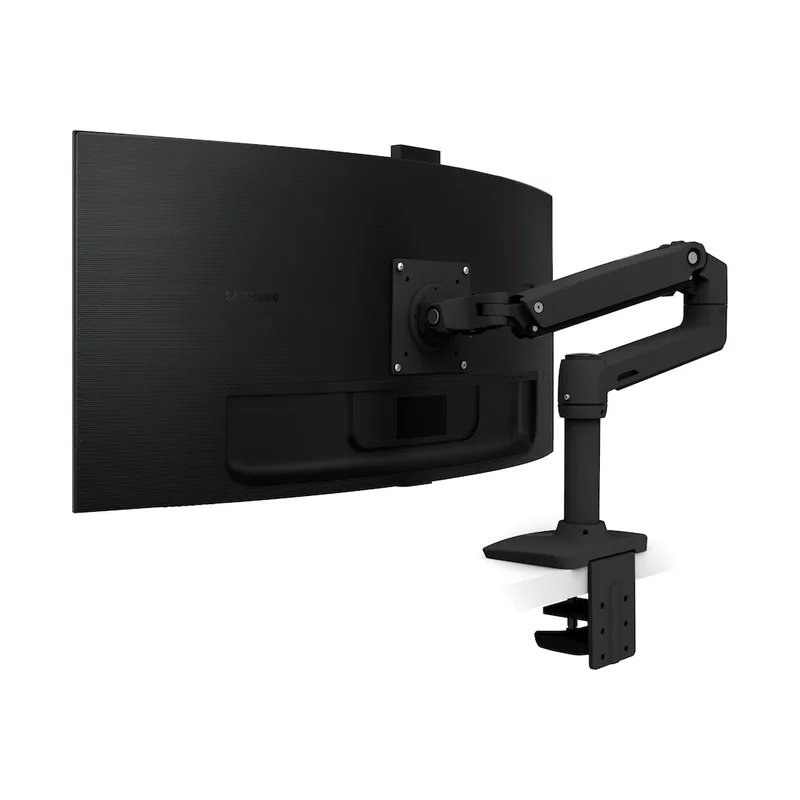
Ergotron LX
Pros
- ✓ Buttery smooth adjustments with no tools
- ✓ 25.7" reach handles deep desks easily
- ✓ Constant Force spring holds position perfectly
- ✓ Built to last — backed by 10-year warranty
Cons
- ✗ 25-lb limit excludes some ultrawide monitors
- ✗ Desk clamp requires 10mm+ thick surface
- ✗ Premium price compared to budget arms
Once you mount your monitor on an Ergotron LX, every other arm feels broken. The patented Constant Force spring technology means the arm holds your monitor exactly where you put it — no drift, no sag, no re-tightening screws every few weeks.
The 25.7” extension handles deep desks easily, and 13” of vertical lift means transitioning between sitting and standing doesn’t require repositioning. You push the monitor up, it stays. Push it down, it stays. Tilt, rotate, swivel — all smooth, all one-handed, all without tools.
It supports monitors up to 34” and 25 lbs, which covers most displays. The desk clamp needs at least a 10mm-thick surface, so check your desktop before ordering. Setup takes about 15 minutes and the included cable management keeps things clean.
The 10-year warranty tells you how confident Ergotron is in this product. They should be — I’ve seen LX arms in offices that are 7+ years old and still working perfectly.
Who should buy this: Anyone using a standing desk with an external monitor. Seriously — a monitor arm is the single biggest ergonomic upgrade you can make to a standing desk setup.
Who should skip this: If your monitor exceeds 25 lbs (some 38”+ ultrawides), you’ll need the Ergotron HX instead. Also overkill if you’re using a laptop only.
Comparison Table
| Feature | FlexiSpot E7 | Uplift V2 | Topo by Ergodriven | CumulusPRO | Ergotron LX |
|---|---|---|---|---|---|
| Category | Standing Desk | Standing Desk | Anti-Fatigue Mat | Anti-Fatigue Mat | Monitor Arm |
| Rating | 4.7/5 | 4.6/5 | 4.5/5 | 4.4/5 | 4.8/5 |
| Badge | Editor’s Pick | Best Value | Best Active Mat | Best Comfort Mat | Best Monitor Arm |
| Weight Capacity | 440 lbs | 355 lbs | — | — | 25 lbs |
| Height/Extension | 25”–50.6” | 25.5”–51.1” | — | — | 25.7” reach |
| Key Spec | Dual motor, < 50 dB | 1.57”/sec, anti-collision | Calculated terrain | Medical-grade foam | 360° rotation |
| Best For | Heavy setups, tall users | Home office value | Extending stand time | Simple cushioning | Sit-stand transitions |
Getting Your Heights Right: The Ergonomic Foundation
Owning great equipment means nothing if it’s set up wrong. Here’s how to dial in each piece.
Desk height: Stand relaxed with arms at your sides. Bend your elbows to 90 degrees. That’s your desk height. Rough guide:
- 5’0”: ~37”
- 5’6”: ~42”
- 6’0”: ~46”
- 6’4”: ~49”
Monitor height: Top of the screen at or slightly below eye level, 20-26” from your eyes (about arm’s length). If you’re using the Ergotron LX, set this once and the arm maintains it perfectly between sitting and standing.
Keyboard position: Same height as your elbows with wrists straight. A slight negative tilt (front of keyboard higher than back) reduces wrist strain. Keep your mouse at the same level and close to the keyboard — reaching sideways causes shoulder problems over time.
Transition Strategy: How to Actually Stick With Standing
The number one reason people abandon standing desks isn’t discomfort — it’s going too hard too fast.
Weeks 1-2: Stand for 15-30 minutes per hour. Sit the rest. No exceptions, even if you feel fine. Your feet, legs, and lower back need time to adapt.
Weeks 3-4: Push to 30-45 minutes per hour. Start taking phone calls and doing email while standing — low-focus tasks are easier to do on your feet.
Month 2+: Aim for a 50/50 split. Some people settle at 60/40 sitting/standing, others go 40/60. Find what works for your body. The goal isn’t maximum standing — it’s maximum movement between positions.
Set a timer. Seriously. Your phone, a desktop app, whatever. Without reminders, you’ll sit for three hours without noticing.
Buying Guide: What to Look For
Standing desk essentials:
- Height range: Must cover your sitting AND standing heights. Measure before buying.
- Weight capacity: Add up your monitor(s), computer, accessories, and add 20% buffer.
- Motor quality: Dual motors are quieter and more reliable than single. Expect 1.5”/sec minimum.
- Stability: This is the hardest spec to evaluate online. Read reviews specifically about wobble at standing height.
- Warranty: Good desks offer 5-15 year warranties. If it’s under 3 years, pass.
Anti-fatigue mat essentials:
- Thickness: 3/4” is the standard. Thinner mats compress too fast, thicker feels unstable.
- Material: Polyurethane beats PVC and rubber for long-term resilience.
- Size: At least 24” x 36” — you need room to shift your weight.
Monitor arm essentials:
- Weight rating: Check your monitor’s actual weight, not the screen size.
- Extension depth: Match to your desk depth plus some breathing room.
- VESA compatibility: Most monitors are 100x100mm. Check before buying.
How Much Should You Spend?
- Budget setup ($400-$700): Desktop converter + basic flat mat + no arm. Gets you standing, but with compromises.
- Mid-range setup ($800-$1,200): Electric desk (Uplift V2) + quality mat (CumulusPRO) + budget monitor arm. The sweet spot for most people.
- Premium setup ($1,500-$2,500): FlexiSpot E7 + Topo mat + Ergotron LX + keyboard tray. The “do it right the first time” option.
What About Common Mistakes?
Five things that derail new standing desk users:
- Monitor too low → neck pain within a week. Raise it to eye level with an arm or riser.
- Desk too high → shoulder tension. Re-measure at true elbow height.
- Standing too long too soon → fatigue and quitting. Follow the transition schedule above.
- No mat → foot pain by day three. Budget at least $40 for a decent one.
- Cheap monitor arm → the arm drifts, you re-adjust constantly, you give up and remove it. Spend the money on the Ergotron LX.
FAQ
How long does it take to adjust to a standing desk?
Most people find their rhythm within 2-4 weeks using the gradual transition approach. The first week is the hardest — your feet and lower back will be noticeably tired by afternoon. By week three, standing feels natural for 30-45 minute blocks. If you’re still uncomfortable after a month with proper setup, something in your ergonomics is off.
Do I really need an anti-fatigue mat?
Yes. Standing on a hard surface — even carpet over concrete — causes measurable fatigue within 20 minutes. A quality mat extends comfortable standing time by 30-60 minutes per session. The $50-$100 investment pays for itself in the first week when you actually keep standing instead of giving up.
Can I use a standing desk if I have back problems?
Usually yes, but check with your doctor first if you have an active injury. For most people with general lower back stiffness from sitting, a standing desk provides significant relief. The key is alternating positions — standing all day is almost as bad as sitting all day. Movement is what helps, not the position itself.
Is a monitor arm worth it or can I just use a laptop stand?
If you’re using an external monitor at a standing desk, a monitor arm is essential. When you switch between sitting and standing, your eye level changes by 10-15 inches. Without an arm, you’d need to manually reposition your monitor twice every transition. The Ergotron LX lets you push it up or down in one second. For laptop-only setups, a good laptop stand works fine.
How much space do I need for a standing desk setup?
Plan for the desk footprint plus 36” of clear floor space behind and beside the desk. You need room to shift your weight, step back slightly, and place your anti-fatigue mat. A 48” x 30” desk in a space that’s at least 6’ x 5’ works for most setups. Corner placements can save space if needed.
What’s better: a full standing desk or a desk converter?
Full standing desks win in every category except price and commitment. They’re more stable, offer more workspace, and transition faster. Desk converters make sense if you’re renting (can’t modify furniture), testing whether standing works for you, or on a tight budget. Our standing desk vs. desk converter guide covers this in detail.
The Bottom Line
Here’s the straight answer: the FlexiSpot E7 is the best standing desk for most people who want a setup that lasts. Pair it with the Topo mat for maximum standing comfort and the Ergotron LX to keep your monitor ergonomically positioned.
On a budget? The UPLIFT V3 with a CumulusPRO mat gets you 90% of the experience for less money. The desktop options alone make it worth considering even if budget isn’t tight.
For a shared desk where multiple people sit and stand: FlexiSpot E7 plus Ergotron LX. The memory presets and wide height range handle different users without fuss.
Start with the desk and mat — those two pieces make the biggest immediate difference. Add the monitor arm within a month once you’ve dialed in your standing habit. And follow the transition schedule. Gradual adaptation is boring advice, but it’s the difference between a standing desk you use every day and one that stays at sitting height collecting dust.
For more standing desk recommendations, explore our 2026 standing desk rankings and budget setup guide. And read the ergonomic workstation setup guide for the complete picture of how your desk, chair, and accessories work together.