When ASUS unveiled the ROG Falcata at COMPUTEX 2026 — a split ergonomic gaming keyboard with Hall effect switches — it was a clear signal: the gaming peripheral industry is finally taking wrist health seriously. The problem? The Falcata will almost certainly land well above $150. For gamers dealing with wrist fatigue and RSI risk right now, that doesn’t help.
The good news is you don’t need to spend $150 or more to get genuine ergonomic benefits at your desk. The best ergonomic gaming keyboards under $100 deliver real improvements: reduced wrist pronation, better finger angles, and less strain during three-hour gaming sessions. They just ask you to make a few tradeoffs compared to flagship models.
If you want one quick answer: the Keychron K15 Max at $98.99 is the pick. It’s the only mechanical, backlit ergonomic keyboard in this price range, with an Alice layout that genuinely angles your hands more comfortably. For pure budget value, the Logitech Wave Keys at $54.99 is the most accessible ergonomic keyboard that actually works. More details below.
Keychron K15 Max — Best Overall
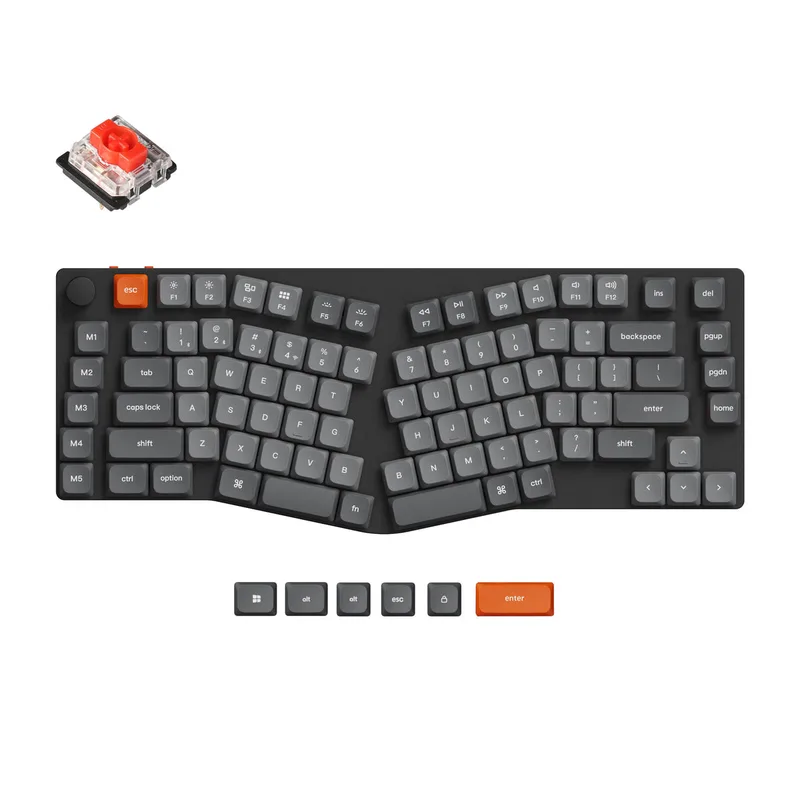
Keychron K15 Max
Pros
- ✓ Alice layout angles the keys toward your shoulders, reducing ulnar deviation during long sessions
- ✓ QMK/VIA support means you can remap gaming layers without third-party driver bloat
- ✓ Triple-mode wireless covers 2.4GHz for gaming, Bluetooth for tablets, USB-C for wired
- ✓ Low-profile Gateron switches reduce finger travel for faster inputs
Cons
- ✗ Learning curve on the Alice layout — expect a 5-7 day adjustment period
- ✗ Not a true split — the halves are angled but connected in one body
- ✗ Base model without hot-swap cannot change switches later
The Keychron K15 Max is the answer to a question many gamers have been asking: why is every good ergonomic mechanical keyboard over $150? Keychron’s Alice layout design fits the bill at $98.99 — right at the ceiling of this budget tier but worth every dollar if mechanical switches matter to you.
The Alice layout is the key differentiator here. Instead of rows running straight across, the keys split into two wings angled roughly 10-15 degrees outward. Your hands rest at a more natural shoulder-width angle rather than pinching inward toward the centerline of a flat keyboard. According to ergonomic research on keyboard angle and ulnar deviation, this positioning meaningfully reduces the sideways bend at the wrist that causes cumulative strain over time.
The K15 Max runs QMK/VIA firmware, which means you can create gaming-specific key layers, remap any key, and set macros without relying on bloatware. The triple-mode wireless (2.4GHz, Bluetooth 5.1, USB-C) gives you flexibility: 2.4GHz for sub-1ms gaming latency, Bluetooth for switching to a phone or tablet, wired USB-C for when the battery runs low mid-session. The 4000mAh battery is good for approximately 200 hours of wireless use.
Low-profile Gateron G Pro switches are available in linear, tactile, and clicky variants. For gaming, the linear option is most popular — shorter travel and smooth actuation means faster inputs on WASD and ability key presses. For typing-heavy gaming genres (MMOs, strategy games), the tactile variant gives you feedback without noise.
Best For: Gamers who want mechanical switches and genuine ergonomic benefit in a single package under $100.
Logitech Wave Keys — Best Value
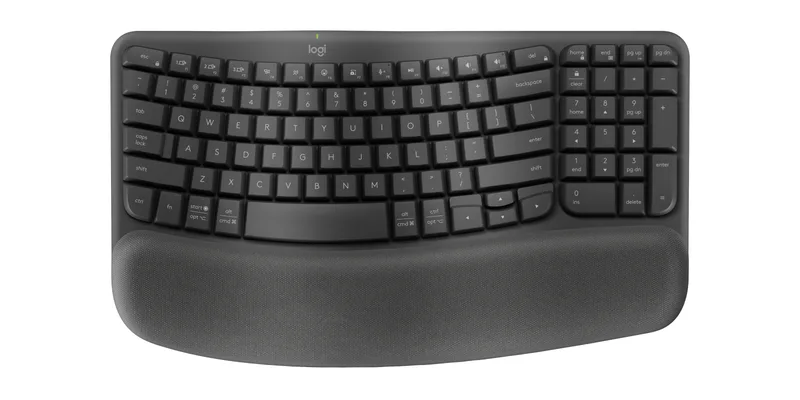
Logitech Wave Keys
Pros
- ✓ Wave layout keeps hands in a more natural arc than any flat keyboard
- ✓ Three-year battery life on two AAA batteries — almost zero maintenance
- ✓ Sub-$55 price is the most accessible ergonomic option that actually delivers comfort
- ✓ Quiet membrane switches are a courtesy to anyone else in the room
Cons
- ✗ Wave layout is not a true split — wrists are still somewhat pronated
- ✗ No backlighting makes it tough to use in dark gaming rooms
- ✗ Membrane feel will not satisfy gamers who prefer mechanical feedback
The Logitech Wave Keys is the ergonomic keyboard you buy when your wrists have started complaining but your budget hasn’t caught up to your ambitions. At $54.99, it’s the most affordable option here that delivers real, noticeable ergonomic improvement.
The Wave design uses a curved key row that follows the natural arc of your fingertips rather than forcing them to reach in a straight line. It’s not as dramatic a change as a true split layout, but it reduces the subtle reaching and finger extension that adds up over hours of gaming or typing. The cushioned integrated palm rest keeps your wrists off hard desk surfaces.
Wireless performance is strong for a membrane keyboard at this price. The Logi Bolt USB receiver provides a stable 2.4GHz connection suitable for gaming; Bluetooth 5.1 lets you switch to a second device via the Easy-Switch button. Battery life is exceptional at up to three years on just two AAA batteries — you’ll likely forget you ever need to replace them.
The main gaming limitation is the absence of backlighting. If you play in a dark room, you’re navigating by memory. There’s also no mechanical feedback, so the satisfaction of a decisive keypress isn’t here. But for casual gaming, strategy games, or anyone who plays primarily during daylight hours, the Wave Keys is a legitimate ergonomic upgrade over any standard flat keyboard.
Best For: Budget-conscious gamers who want real ergonomic benefit and multi-device wireless without sacrificing too much.
Microsoft Sculpt Ergonomic Keyboard — Best Classic Split
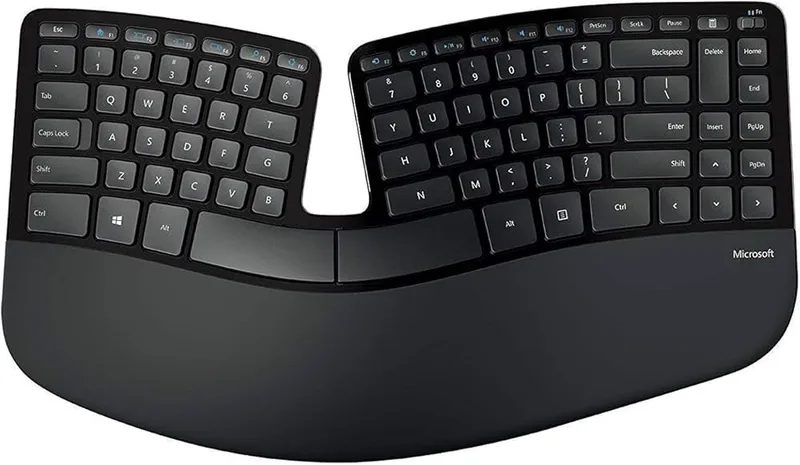
Microsoft Sculpt Ergonomic Keyboard
Pros
- ✓ Domed split layout is one of the most wrist-friendly designs at any price point
- ✓ Detachable numpad keeps your mouse arm closer to center — genuinely reduces shoulder strain
- ✓ Proven design with a decade of real-world user validation in office and home setups
- ✓ 2.4GHz dongle setup is plug-and-play with no Bluetooth pairing headaches
Cons
- ✗ No backlighting at all — a real limitation for gaming in dim environments
- ✗ No programmable macro support or gaming-specific features
- ✗ Single device connection only — no multi-device switching
The Microsoft Sculpt has been a go-to ergonomic recommendation for nearly a decade, and the reason is simple: no other keyboard under $100 puts your wrists in a more neutral position. The domed split design raises the center of the keyboard so your wrists naturally uncurl rather than flattening against a hard surface.
What makes the Sculpt distinctive for wrist health is the combination of the split layout (two key clusters separated by a gap at center) and the domed shape (the center of each half is elevated). Both of these together address two different strain vectors: the lateral wrist bend from reaching across a flat keyboard, and the downward wrist curl from pronating your forearms flat on a desk. Based on owner reports over years of use, many people find the Sculpt resolves wrist fatigue that standard ergonomic keyboards don’t.
The separate number pad is an underappreciated ergonomic feature. Move it to the left of your keyboard (or off to the side entirely), and your mouse hand stays much closer to the keyboard. That shorter reach reduces shoulder abduction over the course of a workday or a gaming session. For gamers who use the numpad occasionally (MMO abilities, sim controls), this flexibility is a genuine quality-of-life improvement.
The Sculpt’s main limitation as a gaming keyboard is the total absence of backlighting and gaming-specific features. No macro support, no N-key rollover, and a 2.4GHz dongle that only pairs with one device. For casual gaming in well-lit spaces, it’s excellent. For competitive gaming in dark rooms, look elsewhere.
Best For: Office workers who also game casually — especially anyone with existing wrist or forearm strain from extended computer use.
Perixx PERIBOARD-512B — Best Budget Split
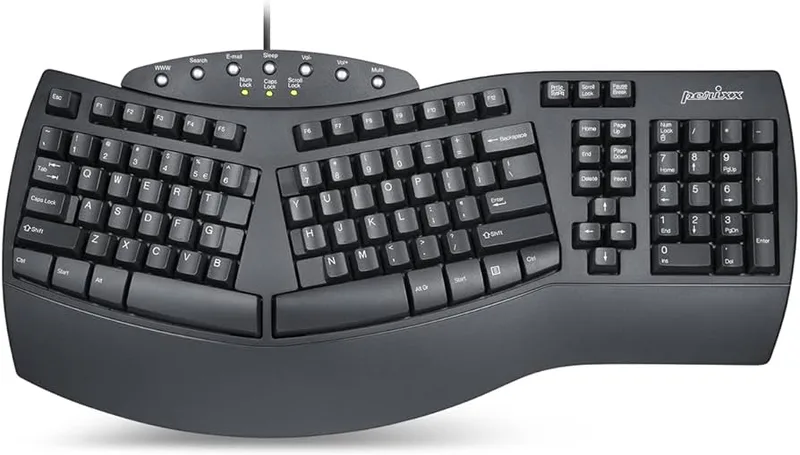
Perixx PERIBOARD-512B
Pros
- ✓ Full-size split with numpad is rare under $40 — lots of desk coverage
- ✓ Integrated wrist rest reduces fatigue during marathon typing or casual gaming
- ✓ Wired USB connection with no lag and no battery to charge
- ✓ Multimedia hotkeys add useful shortcuts without requiring software
Cons
- ✗ No backlighting — not usable in dark gaming setups
- ✗ Oversized 19-inch footprint limits compatibility with compact desks
- ✗ Budget membrane switches have noticeable key wobble
The Perixx PERIBOARD-512B is the cheapest real ergonomic split keyboard you’ll find on Amazon. At $39.99, it’s the bottom of the price ladder for a full-size split layout that includes an integrated wrist rest, and it delivers solid value for what it is.
The full-size split means you get a separate left and right key cluster (connected in the middle) with a full number pad on the right. The total width is nearly 19 inches — about the size of a standard full-size keyboard, but with the hands positioned more naturally. No, it’s not a true independent split where you can separate the halves entirely, but the key layout still puts your wrists in a noticeably better position than a standard keyboard.
The wired USB connection is a plus for gaming applications where wireless latency matters. Setup is plug-and-play. Multimedia hotkeys for volume, playback, and app shortcuts work without any driver installation.
Gaming shortcomings are real here. No backlighting means you’re working in daylight only. No anti-ghosting means that pressing multiple keys at once (sprinting, jumping, and attacking simultaneously) may result in missed inputs. For competitive gaming this would be a problem. For strategy games, RPGs, or casual play where you’re rarely pressing four keys at once, it’s manageable.
Best For: Budget buyers who want the actual ergonomic benefits of a split keyboard layout and don’t care about gaming-specific features like RGB or anti-ghosting.
Arteck Ergonomic Wired Backlit Keyboard — Best for Dark Setups
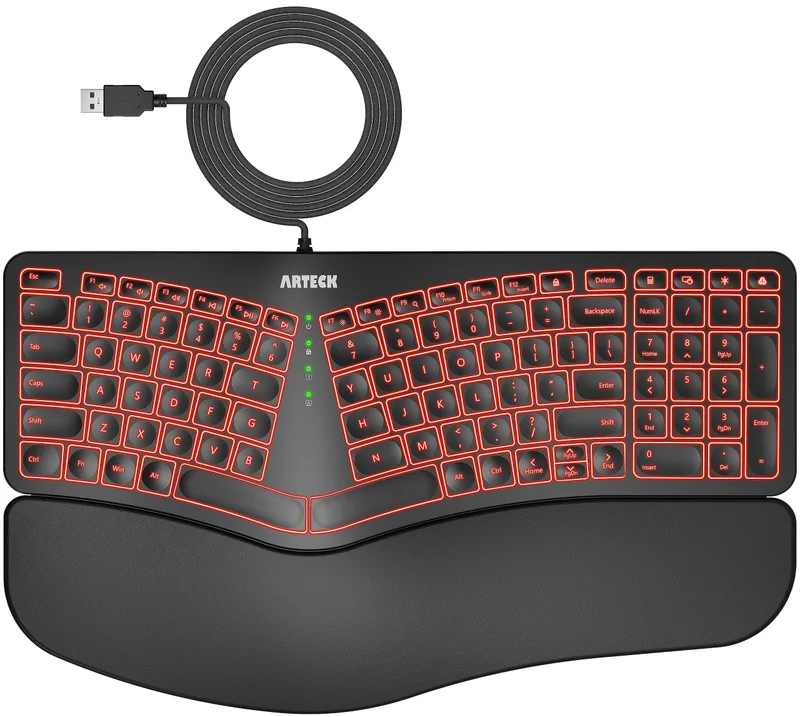
Arteck Ergonomic Wired Backlit Keyboard
Pros
- ✓ Only backlit ergonomic split keyboard under $40 — fills a clear gap in the market
- ✓ 7-color LED makes it usable in dark gaming rooms where other budget picks fail
- ✓ Six-foot cable is long enough for any desk setup or under-desk routing
- ✓ Cushioned wrist rest included — more value than buying a pad separately
Cons
- ✗ Build quality is noticeably cheaper than every other pick here
- ✗ No N-key rollover — ghosting occurs under heavy simultaneous key inputs
- ✗ Wired only with no wireless option
The Arteck ergonomic backlit keyboard earns its spot here for one reason: it’s the only split ergonomic keyboard with LED backlighting under $40. If you need any keyboard lighting to play in a dark room and can only spend $35, this is the only viable option in the ergonomic space.
The 7-color LED with three brightness levels won’t win awards, but it lights up the keys enough to navigate in a dark room. Colors cycle through presets — there’s no per-key programming or software control. The split ergonomic layout positions your hands at a more natural angle with an integrated cushioned palm rest that’s better quality than you’d expect at this price.
The build quality is genuinely budget-tier, and that’s worth saying plainly. The key wobble and plastic chassis don’t compare to any other keyboard in this roundup. Without N-key rollover, you’ll encounter ghosting if you’re pressing more than a few keys at once — fine for casual gaming, a problem for fast-paced action games.
The six-foot cable is a practical plus. Most budget keyboards ship with three or four foot cables that limit desk flexibility. The extra length matters if you run your cable through a cable management tray or around monitor stands.
Best For: Gamers who need LED backlighting and ergonomic key positioning under $40, and are willing to accept budget build quality in exchange.
Comparison Table
| Keyboard | Price | Layout | Wireless | Backlit | Mechanical | Best For |
|---|---|---|---|---|---|---|
| Keychron K15 Max | Unavailable | Alice (75%) | Yes (2.4G/BT) | RGB | Yes | Gaming + ergonomics |
| Logitech Wave Keys | $42.17-$69.99 as of Oct 18, 2026 | Wave curved | Yes (BT + Bolt) | No | No | Budget wireless comfort |
| Microsoft Sculpt | Unavailable | Split domed | Yes (2.4G) | No | No | Wrist health, casual gaming |
| Perixx PERIBOARD-512B | $38.98-$49.99 as of Oct 18, 2026 | Full-size split | No (wired) | No | No | Cheapest split ergonomic |
| Arteck Backlit Ergonomic | $47.99-$59.99 as of Oct 18, 2026 | Split | No (wired) | 7-color LED | No | Backlit on a tight budget |
Buying Guide: What to Look for in a Budget Ergonomic Gaming Keyboard
Layout Type Matters More Than Price
Split keyboards physically separate the two key clusters, letting each hand sit at shoulder width. Alice/ergonomic-angle keyboards angle the keys outward without fully separating them. Wave keyboards curve the key rows to follow your fingertips. All three reduce wrist strain compared to a flat keyboard — but true splits reduce the most, and they tend to cost more even at the budget level.
Under $100, you’re mostly choosing between Alice layout (Keychron K15 Max) and split-body designs (Sculpt, Perixx, Arteck). Both deliver real benefit. If you’re new to ergonomic keyboards, a split layout is easier to adapt to than a full DIY split setup.
Mechanical vs. Membrane for Gaming
Mechanical switches give you tactile feedback, defined actuation points, and longer lifespan (50+ million keystrokes vs. 10 million for most membranes). For gaming, they also allow for faster, more intentional keypresses. The Keychron K15 Max is the only mechanical keyboard on this list.
Membrane keyboards dominate the ergonomic space under $100 because membrane technology is cheaper and quieter. If you primarily play strategy games, MMOs, or slower-paced genres, membrane is completely fine. For fast-action games where precise, rapid inputs matter, mechanical is worth saving up for.
Backlighting and Dark Room Gaming
Three of the five picks here have no backlighting at all. The Keychron K15 Max has full RGB. The Arteck has static 7-color LED. If you game in a dark room, this narrows your choices quickly: Keychron K15 Max if you have $99 to spend, Arteck if you need to stay under $40.
Wireless vs. Wired for Gaming
2.4GHz wireless (Keychron K15 Max, Logitech Wave Keys via Bolt, Sculpt) is fast enough for competitive gaming — latency is effectively the same as wired. Bluetooth has marginally higher latency and is better suited for productivity than competitive play. Wired keyboards (Perixx, Arteck) eliminate all wireless concerns at the cost of cable management.
What About Tented Keyboards?
Tenting — raising the inner edge of each keyboard half so your thumbs are higher than your pinkies — is the gold standard for forearm pronation relief. Unfortunately, no keyboard under $100 offers reliable tenting. The Kinesis Freestyle Edge RGB, which supports up to 15° of tenting, starts around $170. If forearm pronation is your primary complaint, tenting may be worth the extra investment; see our full best ergonomic gaming keyboards roundup for those options.
FAQ
Are ergonomic keyboards actually better for gaming?
For long gaming sessions, yes. A keyboard that puts your wrists in a more neutral position reduces cumulative strain over hours of play. The improvement is most noticeable in genres that require extended keyboard use — MMOs, strategy games, simulation titles. For short competitive sessions, the layout difference matters less than switch feel and response time.
Can I game competitively on a membrane ergonomic keyboard?
It depends on the game. For strategy games, RPGs, MOBAs, and most FPS titles at non-professional levels, membrane is fine. If you’re competing seriously in fast-paced FPS or fighting games where precise, rapid inputs are critical, a mechanical switch will serve you better. The Keychron K15 Max is the mechanical pick in this roundup.
How long does it take to adjust to an Alice or split layout?
Most users report 3-7 days of adjustment for an Alice layout (like the Keychron K15 Max) and 1-2 weeks for a full split. Typing speed will temporarily drop. For gaming controls specifically (WASD, ability keys), the adjustment is usually faster since you use fewer keys and have more time to adapt. Stick with it — the ergonomic payoff is real. For context on why proper positioning matters, check our gaming hand and wrist injury prevention guide.
Should I pair an ergonomic keyboard with a wrist rest?
If your keyboard doesn’t include one, yes. The goal isn’t to rest your wrists while typing — active typing keeps wrists slightly elevated. The wrist rest is for moments when your hands are paused (reading, waiting in a loading screen). A wrist rest at the right height prevents you from bending the wrist back while at rest. Our picks for best wrist rests for mechanical keyboards are worth reviewing if you go with the Keychron K15 Max.
Are ergonomic keyboards worth it for casual gamers?
If you spend two or more hours a day at a keyboard — gaming included — yes. The price premium over a standard keyboard in this category is modest ($35-99 vs. $20-70 for flat alternatives). The benefit compounds over months and years. Even preventing one week of wrist pain or one doctor visit pays for an ergonomic keyboard many times over. For a broader look at gaming posture, see our gaming posture guide.
What ergonomic keyboard do most budget-conscious gamers end up choosing?
Based on user reviews and community discussions, the Logitech Wave Keys and Microsoft Sculpt are the most common “first ergonomic keyboard” purchases. Both are widely available, affordable, and represent a real improvement over flat keyboards without any learning curve. The Keychron K15 Max is the pick for users who already know they want mechanical switches.
Conclusion
Under $100, you can get genuine ergonomic improvement — you just need to match the right pick to your needs.
For the most complete package: The Keychron K15 Max at $98.99 is the only mechanical, backlit ergonomic keyboard at this price. The Alice layout delivers real wrist benefit, QMK/VIA makes it programmable, and triple-mode wireless covers every use case. This is the one I’d spend my money on.
For pure value: The Logitech Wave Keys at $54.99 gives you the most ergonomic improvement per dollar. Three-year battery life and solid wireless make it easy to recommend without hesitation.
For classic split ergonomics: The Microsoft Sculpt at $79.99 remains one of the best wrist-neutral keyboards ever made. If you primarily game during the day and don’t need RGB, it’s hard to argue against it.
For tight budgets with backlighting: The Arteck backlit ergonomic at $34.99 is the only lit ergonomic option under $40.
Cheapest split that works: The Perixx PERIBOARD-512B at $39.99 for anyone who needs a full-size split on the smallest possible budget.
If your gaming setup needs a chair upgrade to match, check out our roundup of best gaming chairs for ergonomic comfort. A proper chair and keyboard combination is the most effective ergonomic upgrade most gamers can make.