Disclosure: PostureRanked is reader-supported. When you buy through links on our site, we may earn an affiliate commission at no additional cost to you. Our recommendations are based on independent research.
| Product | Price | Rating |
|---|---|---|
| Insta360 Link 2 Pro | $249 | 9.3 |
| Elgato Facecam MK.2 | $149 | 8.8 |
| Logitech Brio 500 | $129 | 8.7 |
| Anker PowerConf C300 | $100 | 8.4 |
| Dell UltraSharp Webcam WB7022 | $200 | 8.5 |
| Razer Kiyo Pro Ultra | $299.99 | 8.6 |
| Logitech C920S Pro HD | $70 | 8.0 |
Disclosure: PostureRanked is reader-supported. When you buy through links on our site, we may earn an affiliate commission at no extra cost to you. Learn more
The webcam you’re using right now probably isn’t doing you any favors. Between the Insta360 Link 2 Pro arriving in early 2026 — with its motorized AI tracking and cinema-grade 1/1.3-inch sensor — and the continued refinement of options from Elgato, Logitech, and Dell, the gap between a decent webcam and a great one has never been more obvious.
On Zoom calls all day, streaming on the side, or just tired of looking washed out in every meeting — there’s a webcam here for you. Here’s the quick answer: the Insta360 Link 2 Pro ($249) is the best overall webcam for home office use in 2026. For pure value, the Logitech Brio 500 ($129) is hard to beat. On a tighter budget, the Logitech C920S ($70) still gets the job done.
Insta360 Link 2 Pro — Best Overall
Insta360 Link 2 Pro
Pros
- ✓ Best-in-class AI tracking keeps you centered automatically
- ✓ Large 1/1.3-inch sensor delivers exceptional low-light performance
- ✓ 4K resolution with HDR produces sharp, vibrant video
- ✓ Whisper-quiet motorized PTZ movement
Cons
- ✗ Priciest 1080p-comparable experience at $249
- ✗ Software is required to unlock full tracking features
- ✗ Larger footprint than clip-on webcams
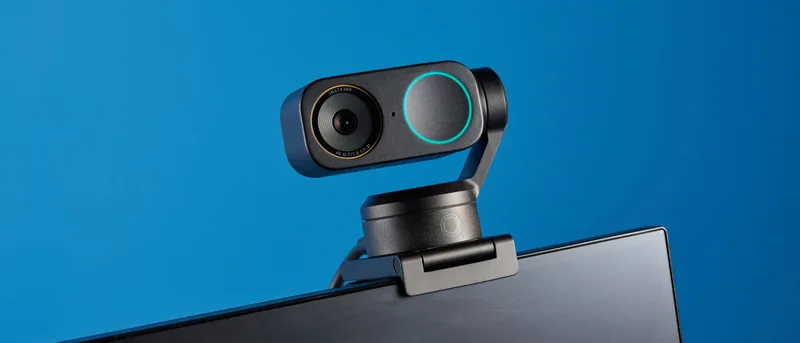
The Insta360 Link 2 Pro is the webcam making the most noise in 2026, and it earns that attention. Insta360 released this camera in early 2026 with a headline feature that actually lives up to the hype: motorized pan, tilt, and zoom that follows you around the room using AI subject tracking. Not software-simulated zoom cropping — real physical motors moving a real camera.
The sensor is a 1/1.3-inch chip, which is closer to a phone camera than a traditional webcam. That means dramatically better performance in dim light or challenging backlighting situations. It shoots 4K at 30fps or 1080p at 60fps, and the HDR mode handles windows and lamps behind you without blowing out your face.
The PTZ tracking is genuinely useful for anyone who paces during calls or presents at a whiteboard. Directional noise-canceling mics pick up your voice from the direction you’re facing — a subtle but impressive feature when you’re walking around. At $249, it’s the most capable webcam here short of the Razer Kiyo Pro Ultra’s raw sensor advantage — and the only one that physically adapts to how you move through a workspace.
Best for: Home office professionals who want the sharpest, most adaptive camera money can buy without going DSLR
Elgato Facecam MK.2 — Best for Streaming
Elgato Facecam MK.2
Pros
- ✓ Sony STARVIS sensor produces the sharpest 1080p image in this price range
- ✓ Uncompressed 1080p/60fps video with HDR
- ✓ Camera Hub software gives granular control over exposure, white balance, and zoom
- ✓ Low-latency output ideal for live streaming
Cons
- ✗ No built-in microphone — requires separate mic
- ✗ USB-A only (no USB-C cable included)
- ✗ Camera Hub software adds complexity for casual users
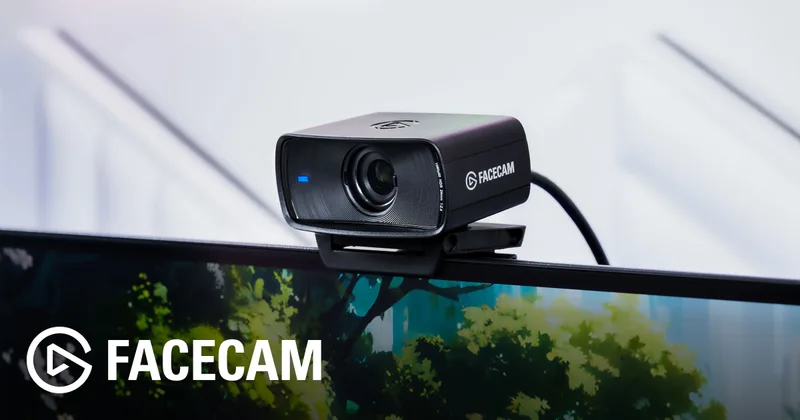
The Elgato Facecam MK.2 is what serious streamers and video creators reach for when they want exceptional 1080p without the cost of a 4K camera. Its Sony STARVIS sensor captures uncompressed 1080p at 60fps, which is what actually matters for a sharp, smooth livestream — not a 4K signal that Zoom immediately compresses anyway.
The Camera Hub software gives you control that most webcams don’t offer: manual exposure, precise white balance, digital zoom position, and saved scene presets. At $149, you’re paying a premium for that image quality and control. The tradeoff is no built-in microphone, which means you’ll need a dedicated mic — but anyone serious about their audio already has one.
The build quality is solid, and the stable clip mount works on both monitors and tripods. This is the webcam I’d recommend to anyone doing YouTube, Twitch, or regular video production from their home office.
Best for: Streamers and content creators who want maximum image quality at 1080p and don’t need a built-in mic
Logitech Brio 500 — Best Value
Logitech Brio 500
Pros
- ✓ RightLight 4 handles harsh backlighting better than any competitor at this price
- ✓ Auto-framing works reliably without the user adjusting anything
- ✓ USB-C connection with a privacy cover built in
- ✓ Show Mode flips the image for over-desk product demos
Cons
- ✗ Limited to 1080p at 30fps — no 60fps mode
- ✗ Auto-framing can feel aggressive during presentations
- ✗ Microphone quality is average for the price
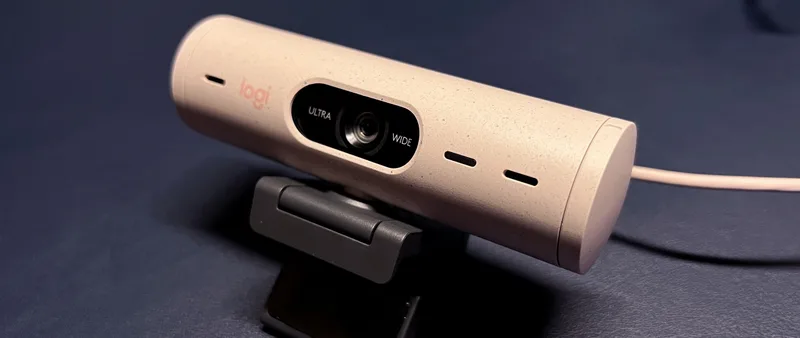
The Logitech Brio 500 at $129 is the webcam most home office workers should actually buy. It won’t give you 4K or 60fps, but what it does — 1080p with Logitech’s RightLight 4 auto light correction — it does exceptionally well.
RightLight 4 is a genuine differentiator. Where competing 1080p webcams struggle with bright windows behind you or dim evening lighting, the Brio 500’s AI-based correction brightens the entire frame intelligently without blowing out highlights. Auto-framing keeps you centered when you shift in your chair, and Show Mode flips the camera for overhead product demos — a handy feature for remote professionals presenting physical materials.
USB-C connectivity, a built-in privacy cover, and dual noise-reduction microphones round it out. It looks professional, clips securely to any monitor, and requires zero software to get a great image. That last point counts for a lot.
Best for: Remote workers and hybrid employees who want a reliable, polished 1080p image with smart light correction
Anker PowerConf C300 — Best Mid-Range
Anker PowerConf C300
Pros
- ✓ 60fps at 1080p makes motion smooth on video calls
- ✓ Adjustable FoV lets you switch from tight portrait to wide desk view
- ✓ Zoom Certified for guaranteed compatibility
- ✓ AI autofocus snaps to faces quickly
Cons
- ✗ AI framing is slower to react than the Insta360's motorized PTZ
- ✗ Software features are limited compared to Elgato Camera Hub
- ✗ Build quality feels slightly plasticky for the price
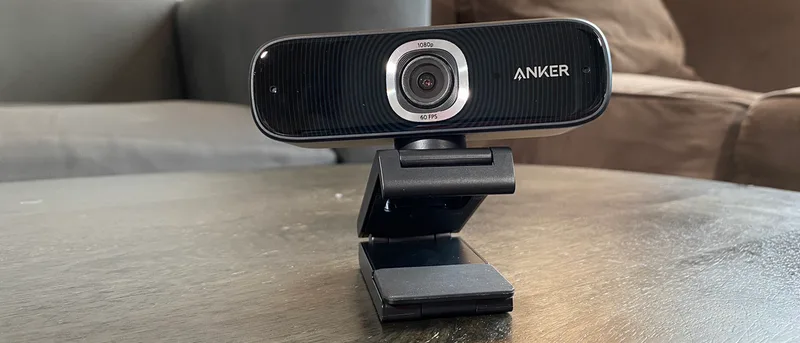
The Anker PowerConf C300 sits in the sweet spot between budget and premium. At $100, you get 1080p at 60fps — a step up from the 30fps C920S — along with AI autofocus, adjustable field of view (65°, 78°, or 90°), and noise-canceling microphones. It’s Zoom Certified, which matters if your organization requires guaranteed compatibility.
The adjustable FoV is the standout feature. Switching from 78° to 65° tightens your framing for a clean portrait-style call; switching to 90° widens the shot to show your desk setup or co-present with a colleague. Most webcams force you to choose one angle and stick with it.
AI-powered autofocus tracks your face quickly and accurately. Low-light correction works well in dim rooms. This is a strong option for users who want more than the C920S but don’t need the premium positioning of the Brio 500 or Elgato.
Best for: Video call-heavy professionals who want 60fps and adjustable framing without spending over $100
Dell UltraSharp Webcam WB7022 — Best for Business
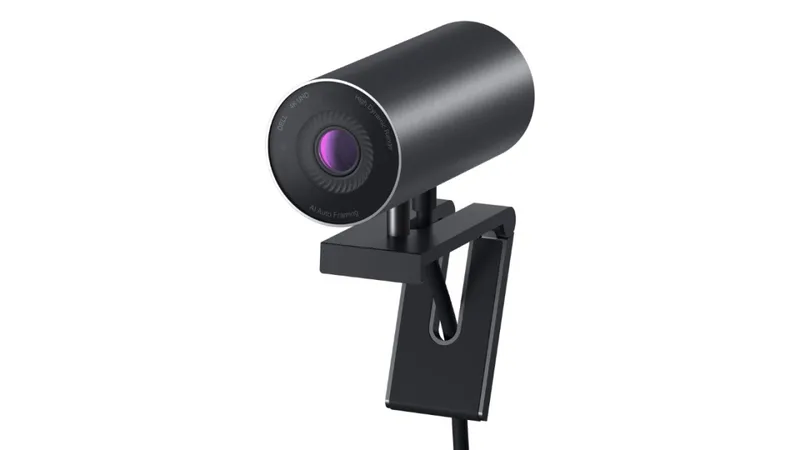
Dell UltraSharp Webcam WB7022
Pros
- ✓ 4K Sony STARVIS sensor captures boardroom-quality detail
- ✓ AI auto-framing automatically repositions when you move
- ✓ Magnetic privacy cover is the most elegant solution on this list
- ✓ Proximity sensor wakes display when you sit down
Cons
- ✗ No 60fps mode — limited to 30fps even at 1080p
- ✗ Pricier than competing 4K options without AI tracking
- ✗ Large form factor; not ideal for monitors with thin bezels
The Dell UltraSharp WB7022 is built for the executive home office: premium materials, 4K Sony STARVIS sensor, AI auto-framing, and the most thoughtfully designed privacy cover on this list — a magnetic attach/detach cover that snaps cleanly and stores on the camera body.
The WB7022 includes an IR sensor and proximity detection, which wakes your monitor when you sit down and locks it when you walk away. Adjustable field of view (65°, 78°, or 90°) accommodates different desk widths. The aluminum construction is genuinely premium and pairs well with high-end monitor setups from Dell, LG, or BenQ.
The limitation is frame rate: it tops out at 30fps even at 1080p. For video calls that’s fine — but it’s worth knowing if smooth motion matters to you. At $200, you’re paying for build quality, design, and the 4K sensor rather than AI tracking or high frame rates.
Best for: Corporate professionals and executives who want premium design and 4K quality for polished, boardroom-quality calls
Razer Kiyo Pro Ultra — Best for Content Creation
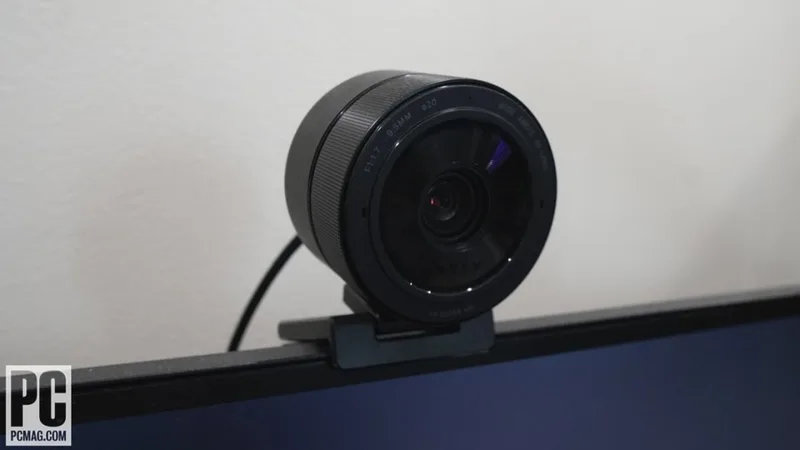
Razer Kiyo Pro Ultra
Pros
- ✓ Massive 1/1.2-inch Sony STARVIS 2 sensor — the largest sensor on this list
- ✓ Exceptional low-light performance rivals dedicated mirrorless cameras
- ✓ Physical shutter provides instant privacy
- ✓ HDR produces accurate skin tones in mixed lighting
Cons
- ✗ Most expensive option at $299.99
- ✗ Razer Synapse software can conflict with other software
- ✗ Autofocus is slower than the Insta360's AI system
The Razer Kiyo Pro Ultra has the largest sensor on this list: a 1/1.2-inch Sony STARVIS 2 chip. That sensor size is the reason this camera produces low-light footage that genuinely competes with entry-level mirrorless cameras — the ability to gather more light per pixel is physics, not marketing.
At 4K/30fps or 1080p/60fps with uncompressed HDR output, the Kiyo Pro Ultra is the pick for creators who want maximum flexibility in post-production or are building a serious home studio. A physical built-in shutter provides instant privacy, no software required. Razer Synapse allows precise tuning, though it can occasionally conflict with other installed software.
At $299.99, the price has come down significantly from launch, making it more competitive against the Insta360 Link 2 Pro. Still not a casual purchase, but for professional content creators or streamers who want to maximize image fidelity, the sensor advantage is real.
Best for: Content creators and streamers who need the largest possible sensor for low-light recording and maximum image quality
Logitech C920S Pro HD — Best Budget
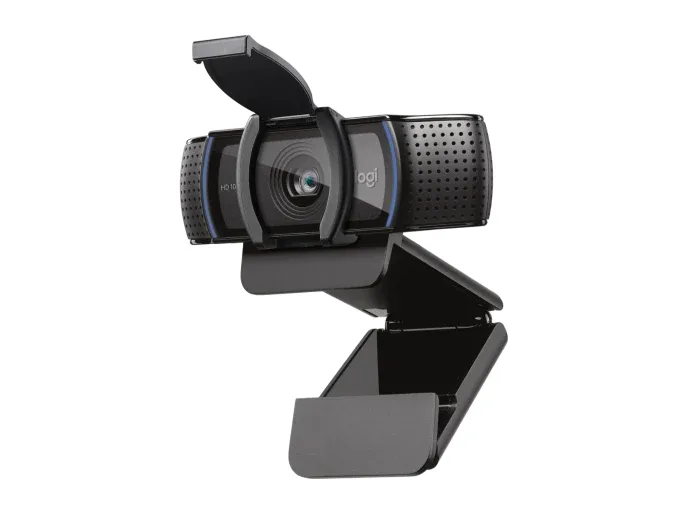
Logitech C920S Pro HD
Pros
- ✓ Proven workhorse — reliable image quality for everyday video calls
- ✓ Privacy shutter built in
- ✓ Works plug-and-play with virtually every device and platform
- ✓ Wide compatibility including Xbox and FaceTime
Cons
- ✗ 30fps only — video looks noticeably choppy in motion
- ✗ No auto-framing, AI features, or HDR
- ✗ Microphone picks up background noise in noisy environments
The C920S has been a reliable standby for years, and at $70 it remains one of the best plug-and-play options available. 1080p at 30fps, dual stereo mics, a privacy shutter, and zero software required — it just works.
Platform compatibility is the C920S’s strongest point. Skype, Zoom, Google Meet, Teams, FaceTime, and even Xbox all work out of the box. For employees at organizations with strict IT policies where installing webcam software isn’t allowed, that matters a lot. It often dips to $55-60 on sale, making it genuinely hard to argue against for basic home office use.
The 30fps output is its primary weakness. Fast movement — like flipping through documents or gesturing — can look choppy. If you’re doing more than basic video calls, step up to the Anker C300 or Logitech Brio 500.
Best for: Budget-conscious remote workers who need reliable 1080p video calls without any setup complexity
Webcam Comparison Table
| Webcam | Price | Resolution | Frame Rate | Sensor Size | AI Features | Mics |
|---|---|---|---|---|---|---|
| Insta360 Link 2 Pro | $249 | 4K | 30fps (4K) / 60fps (1080p) | 1/1.3” | PTZ tracking | Yes (directional) |
| Elgato Facecam MK.2 | $149 | 1080p | 60fps | Sony STARVIS | No | No |
| Logitech Brio 500 | $129 | 1080p | 30fps | Standard | Auto-framing | Yes |
| Razer Kiyo Pro Ultra | $299.99 | 4K | 30fps (4K) / 60fps (1080p) | 1/1.2” | No | Yes |
| Dell UltraSharp WB7022 | $200 | 4K | 30fps | Sony STARVIS | Auto-framing | Yes |
| Anker PowerConf C300 | $100 | 1080p | 60fps | Standard | Auto-framing | Yes |
| Logitech C920S | $70 | 1080p | 30fps | Standard | No | Yes |
What to Look for in a Home Office Webcam
Resolution: 1080p vs 4K
Most video conferencing platforms — Zoom, Teams, Google Meet — cap their video at 1080p or even 720p for non-enterprise accounts. Uploading a 4K signal that gets compressed down to 1080p on the receiving end means you’re paying for resolution that disappears in transit.
That said, 4K sensors (like those on the Insta360 Link 2 Pro, Razer Kiyo Pro Ultra, and Dell WB7022) capture more light per pixel than 1080p sensors, producing better image quality in non-ideal lighting even when displayed at 1080p. Buy 4K for the sensor, not just the resolution number.
Frame Rate: 30fps vs 60fps
30fps is acceptable for static video calls where you’re sitting still. 60fps looks noticeably smoother if you move around, gesture frequently, or teach with hands-on demonstrations. It’s a worthwhile upgrade at the Anker C300’s price point ($100) and essential for streaming.
Low-Light Performance
Sensor size is the best predictor of low-light performance. Larger sensors gather more photons and produce less noise in dim conditions. The Razer Kiyo Pro Ultra (1/1.2”) and Insta360 Link 2 Pro (1/1.3”) are the standouts here. For typical office lighting, any camera on this list performs adequately.
Auto-Framing and AI Features
Auto-framing uses software or hardware AI to keep your face centered without physically moving the camera — it crops and digitally zooms. The Insta360 Link 2 Pro is different: it uses actual motors to physically reposition. Physical tracking preserves full-resolution footage; software cropping reduces effective resolution.
Microphones
Every webcam except the Elgato Facecam MK.2 includes a built-in microphone. Built-in mics are fine for casual calls but pick up room echo and keyboard noise. If audio quality matters — and it should — pair any of these cameras with a dedicated USB or condenser mic for a significant improvement.
For more ways to complete your home office setup, see our guide to the best desk accessories for remote work and our picks for best luxury desk accessories.
Frequently Asked Questions
Is 4K worth it for Zoom and Teams calls?
Not for the 4K resolution itself — most video platforms compress streams to 1080p or lower. But 4K cameras often have larger sensors that perform better in low light and produce sharper 1080p output than native 1080p cameras. If your workspace has challenging lighting, a 4K sensor is worth the premium.
Do I need a separate microphone for video calls?
Most webcam microphones work adequately for basic calls in quiet environments. If you’re in an open office, have room echo, or type loudly during meetings, a dedicated USB microphone makes a substantial difference in how you sound to others. The Elgato Facecam MK.2 intentionally skips the built-in mic, betting that serious users already have a better option.
What’s the difference between 30fps and 60fps for video calls?
At 30fps, motion looks acceptable when you’re sitting relatively still. At 60fps, fast gestures, panning views, and screen sharing look noticeably smoother. For streaming or frequent presentations involving physical demonstrations, 60fps is worth the upgrade. For pure video calls where you sit and talk, 30fps is fine.
Can I use a gaming webcam for office video calls?
Yes. Webcams marketed for gaming or streaming — like the Elgato Facecam MK.2 and Razer Kiyo Pro Ultra — produce excellent image quality for office use. They typically offer superior sensors and frame rates compared to cameras marketed specifically for “business.” The only potential issue is software: some gaming webcam software can conflict with corporate IT environments.
How do I improve my webcam image without buying a new camera?
Lighting makes more difference than the camera itself. Facing a window or adding a ring light or key light behind your monitor dramatically improves any webcam’s output. Ensure your camera is at eye level — not angled up from a desk surface — and find a neutral, non-distracting background. These three changes produce a bigger visual improvement than upgrading from a $70 to a $149 camera.
Which webcam is best for small rooms or apartments?
The Logitech Brio 500 and Anker PowerConf C300 both have compact form factors and don’t require much desk real estate. The Brio 500’s Show Mode is particularly useful in small spaces where you want to show something on your desk. For monitor arms and desk space optimization, see our roundup of best premium monitor arms.
The Bottom Line
For most home office workers, the Logitech Brio 500 ($129) delivers the best balance of image quality, reliability, and price. Its RightLight 4 auto light correction handles real-world lighting conditions better than anything else in its price range.
Step up to the Insta360 Link 2 Pro ($249) if you want the best image quality available without professional camera gear — the motorized PTZ tracking and large 1/1.3-inch sensor are genuinely impressive.
On a tight budget, the Logitech C920S ($70) remains one of the most reliable webcams ever made. It won’t impress anyone, but it won’t let you down either.
Streamers and content creators should seriously consider the Elgato Facecam MK.2 ($149) for its uncompressed 1080p/60fps output and Camera Hub software — or the Razer Kiyo Pro Ultra ($299.99) if maximum sensor size matters more than price.